
TruckIT · Mobile App

Jump to a Section
Add a Truck
Add trucks to your fleet right from the TruckIT mobile app, so they’re ready to assign to jobs while you’re in the field.
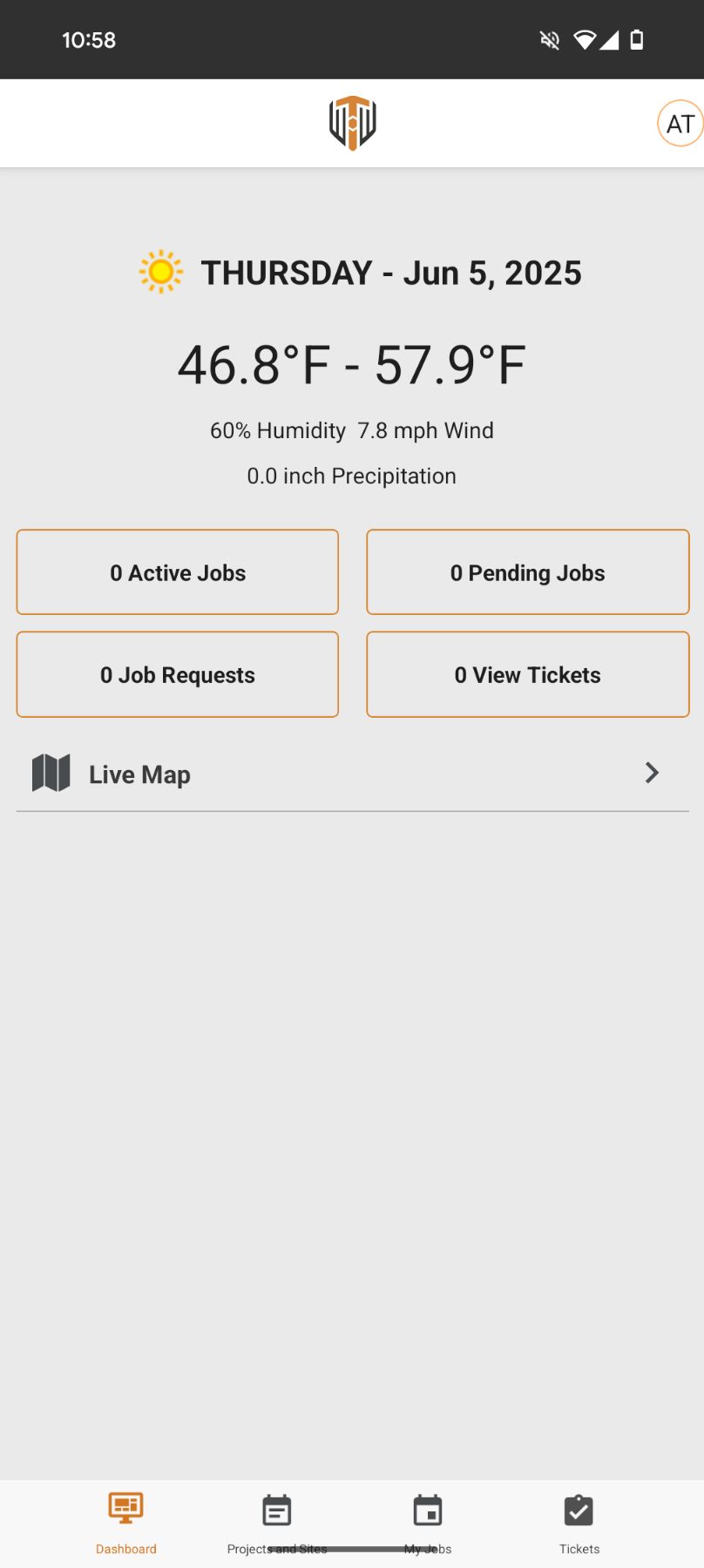
1. Tap your profile. Open the TruckIT mobile app and tap your profile icon in the top-right corner.
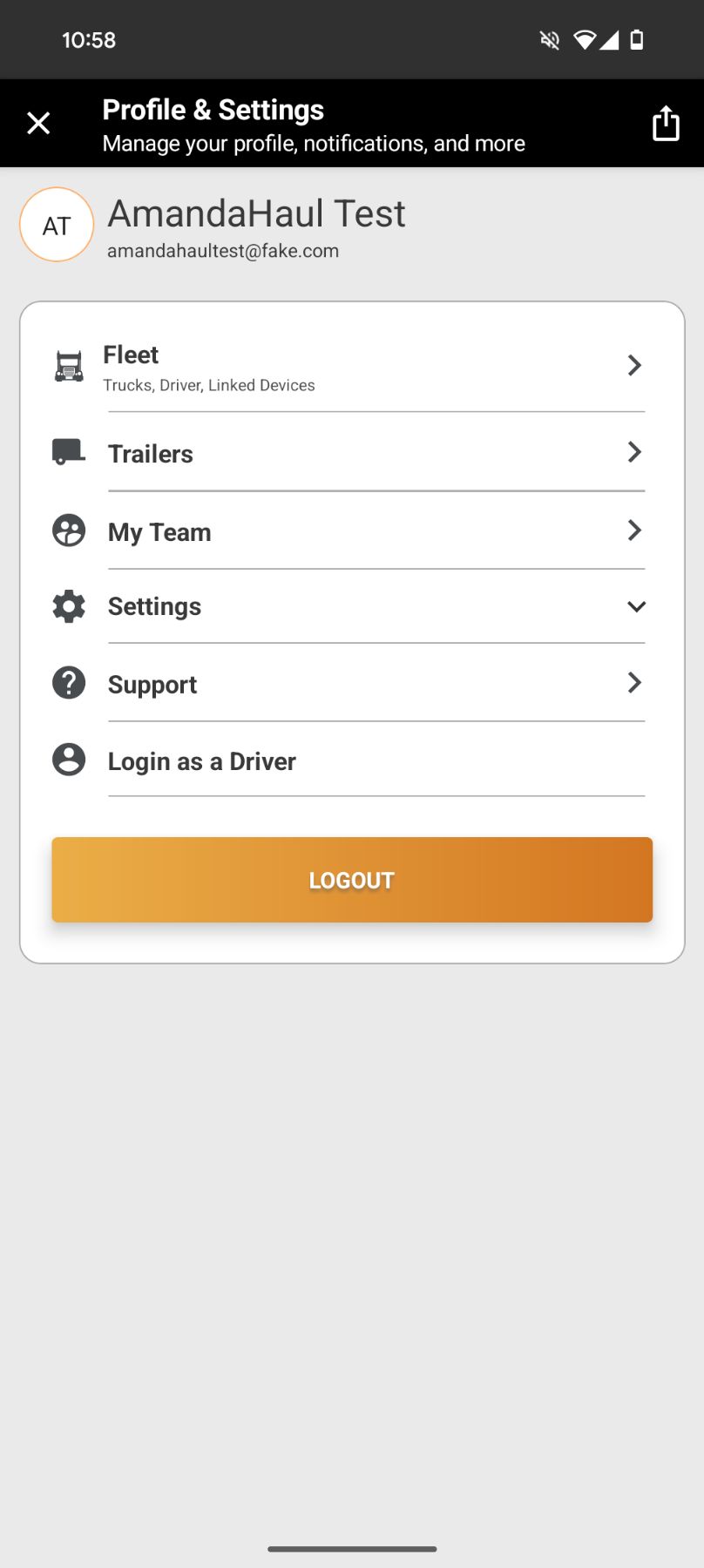
2. Tap Fleet. From Profile & Settings, tap Fleet.
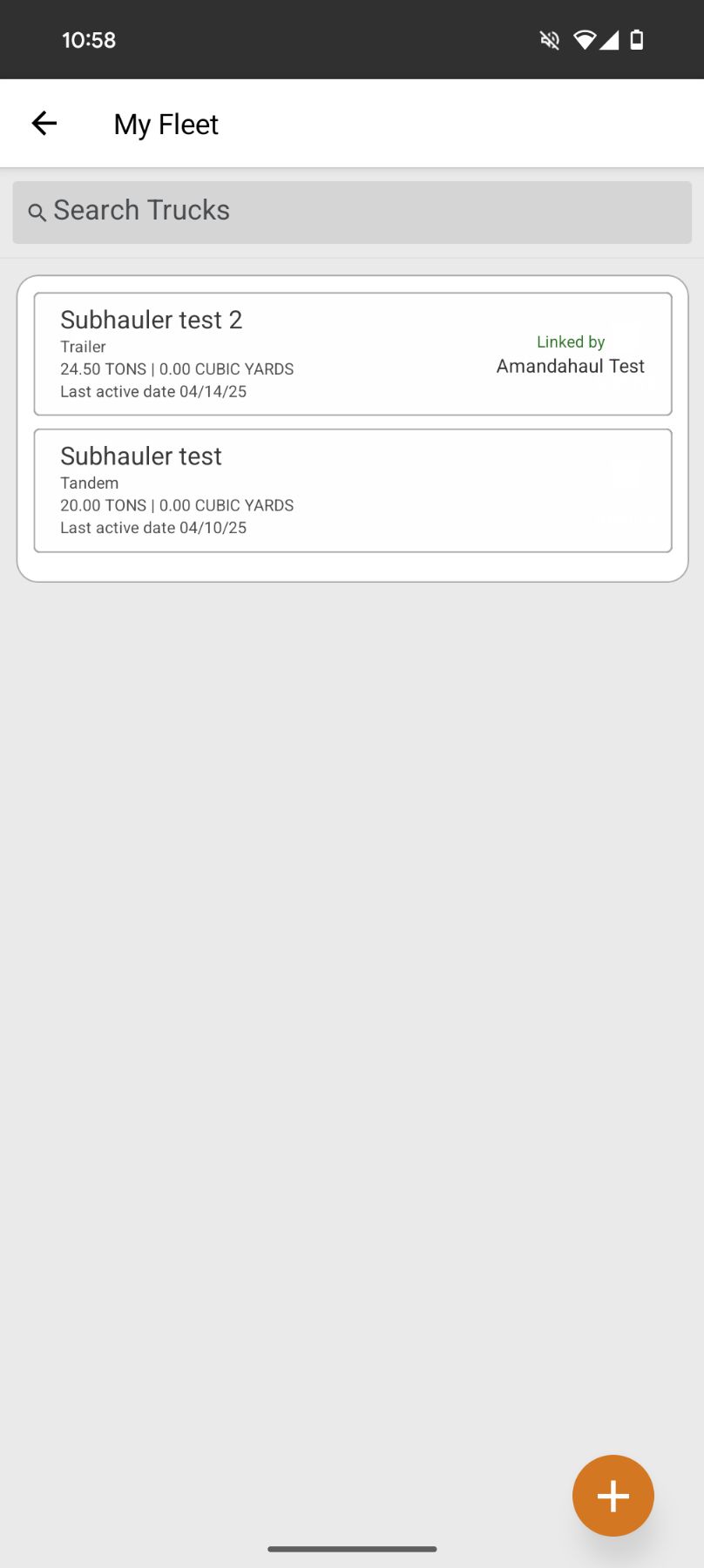
3. Tap the plus icon. Tap the + icon to start adding a new truck. If you don’t see Fleet or the plus icon, your account may not have permission to manage trucks — contact your company administrator.
4. Enter the truck details and tap Submit. Fill in the truck information (see Truck Details below), review it for accuracy, then tap Submit.
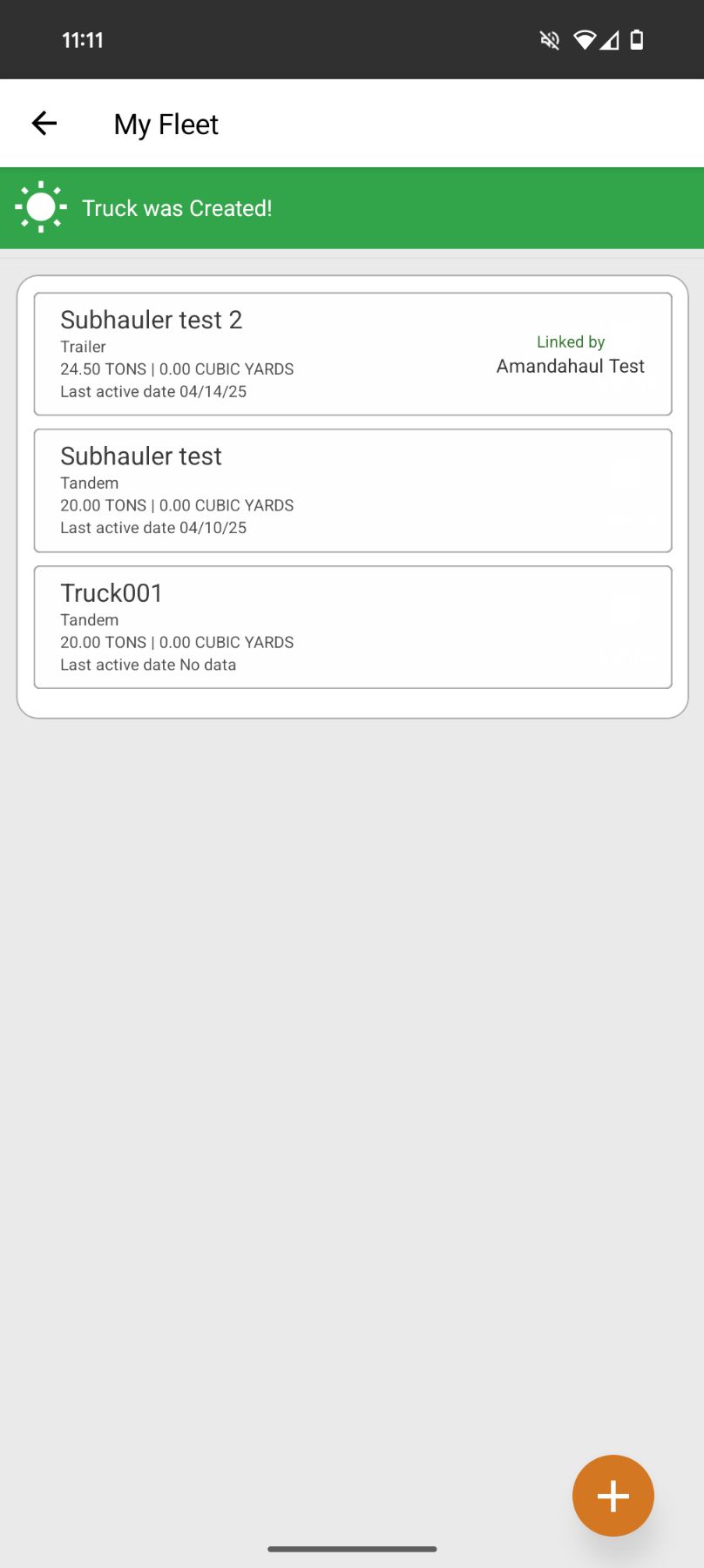
5. Confirm the truck was added. You’ll see a Truck was Created! message, and the new truck appears in your Fleet list.
Truck Details
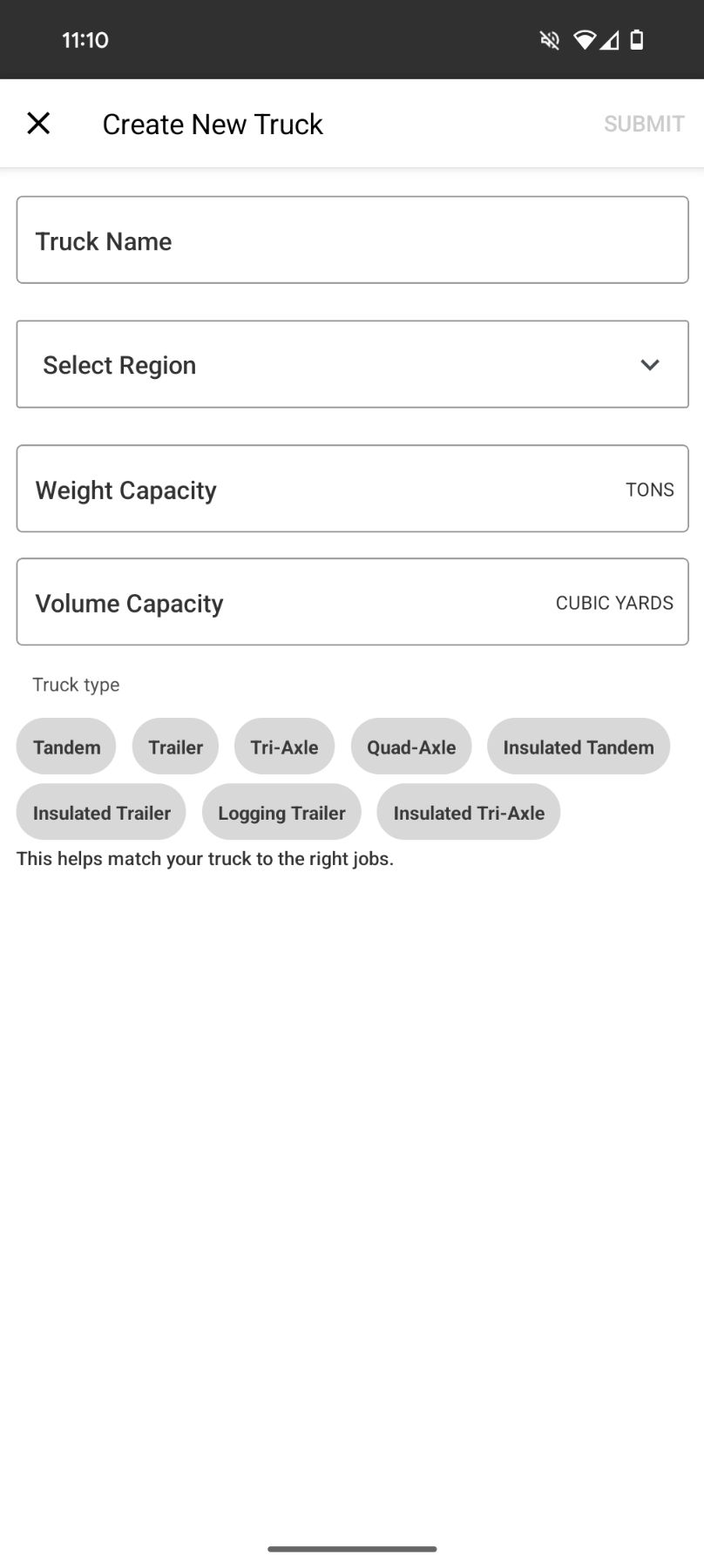
The Create New Truck screen asks for:
• Truck Name — the name or number your team uses for this truck
• Region — if your company uses regions
• Weight Capacity (tons) and Volume Capacity (cubic yards)
• Truck Type — e.g. Tandem, Trailer, Tri-Axle, Quad-Axle, or an insulated/logging option
• Region — if your company uses regions
• Weight Capacity (tons) and Volume Capacity (cubic yards)
• Truck Type — e.g. Tandem, Trailer, Tri-Axle, Quad-Axle, or an insulated/logging option
Note: selecting the correct truck type helps match your truck to the right jobs.
Best Practices
• Check your Fleet list first to avoid adding a duplicate truck
• Use the official truck name or number, following your company’s naming format
• Select the correct truck type
• Keep your fleet current by updating or archiving inactive trucks
• Use the official truck name or number, following your company’s naming format
• Select the correct truck type
• Keep your fleet current by updating or archiving inactive trucks
Tip: use a truck name or number that dispatchers, admins, and field teams will all recognize at a glance.
What Happens Next
Once the truck is in your Fleet, it’s ready to be assigned to jobs. If your company requires it, link the correct driver to the truck before it goes out.
 Questions? support@truckit.com