
TruckIT · Mobile App

Jump to a Section
Add a Team Member
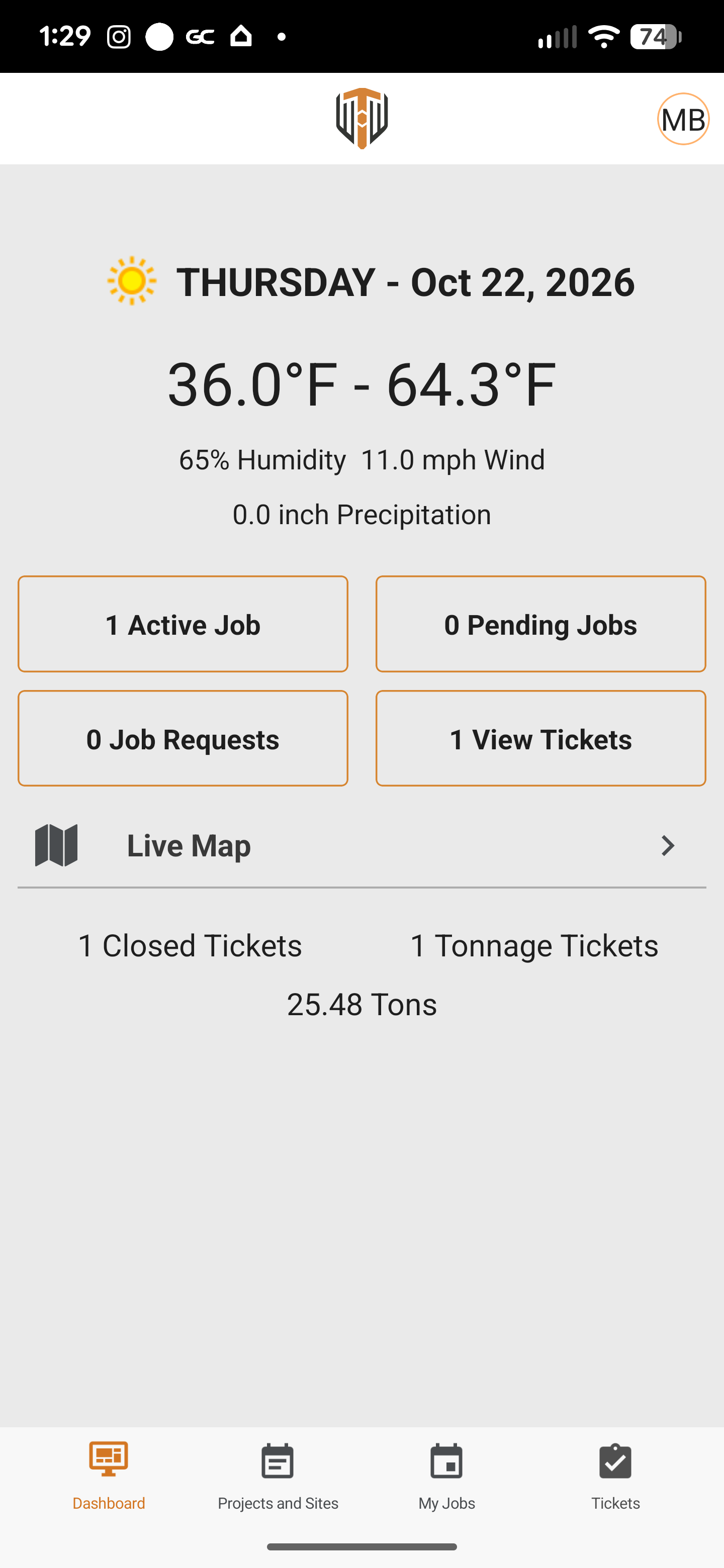
1. Tap your profile icon in the top-right corner.
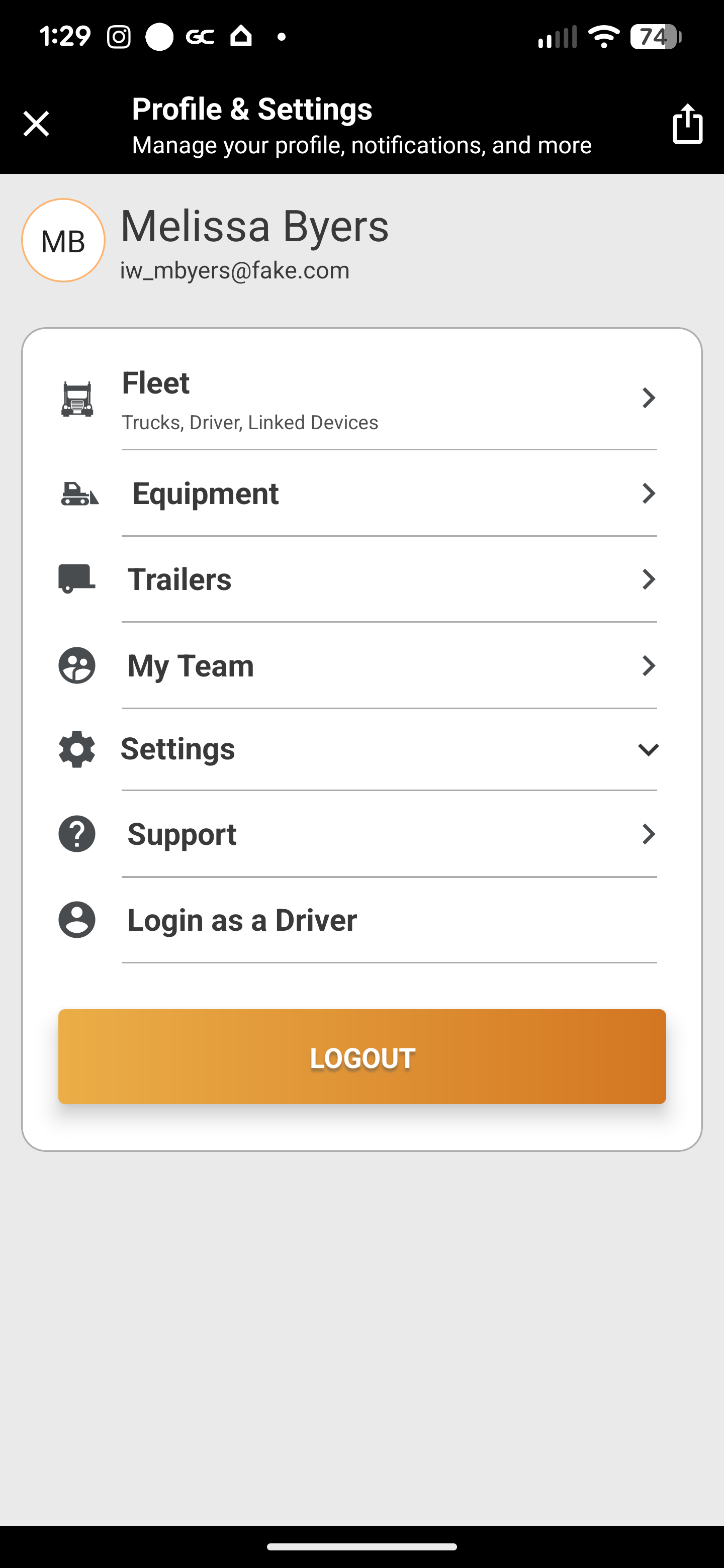
2. Tap My Team.
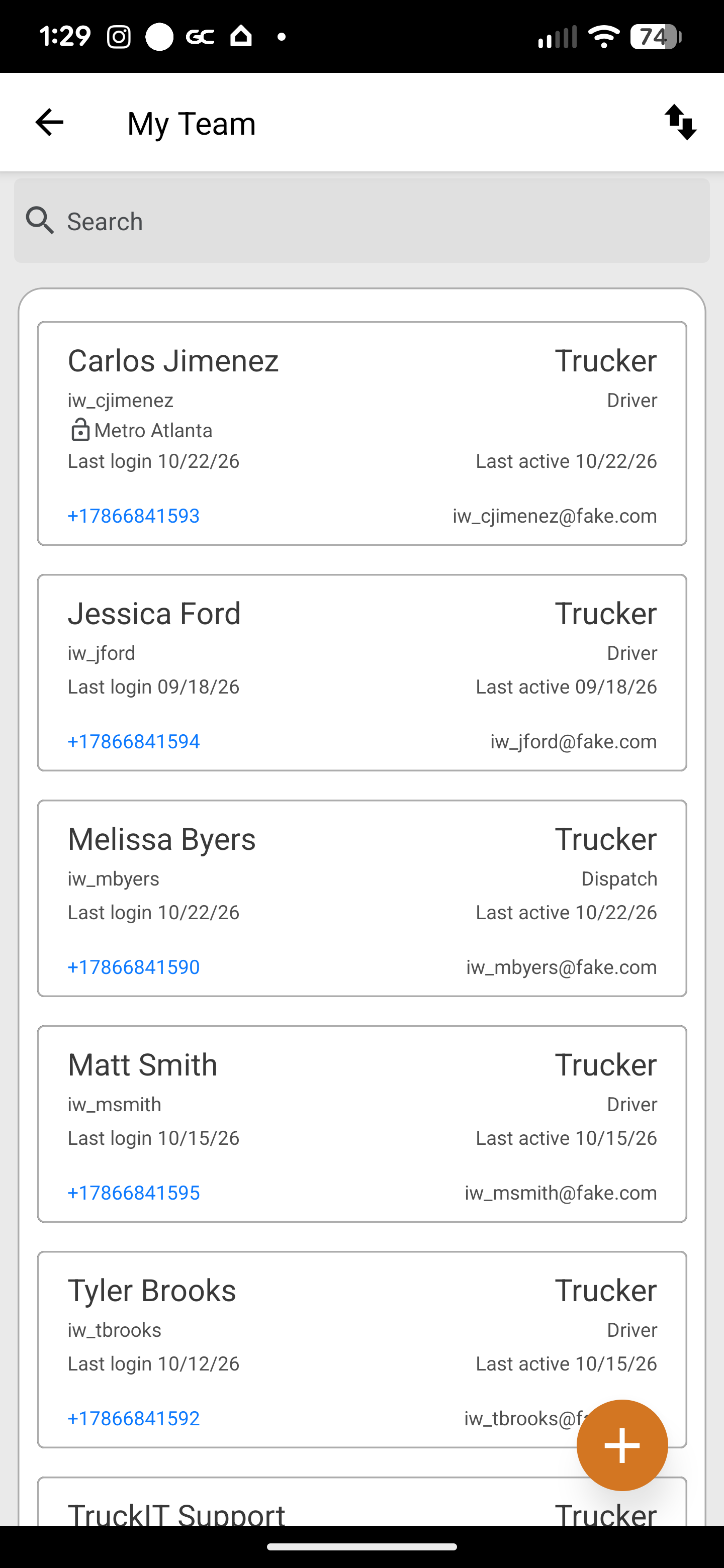
3. Tap the + icon.
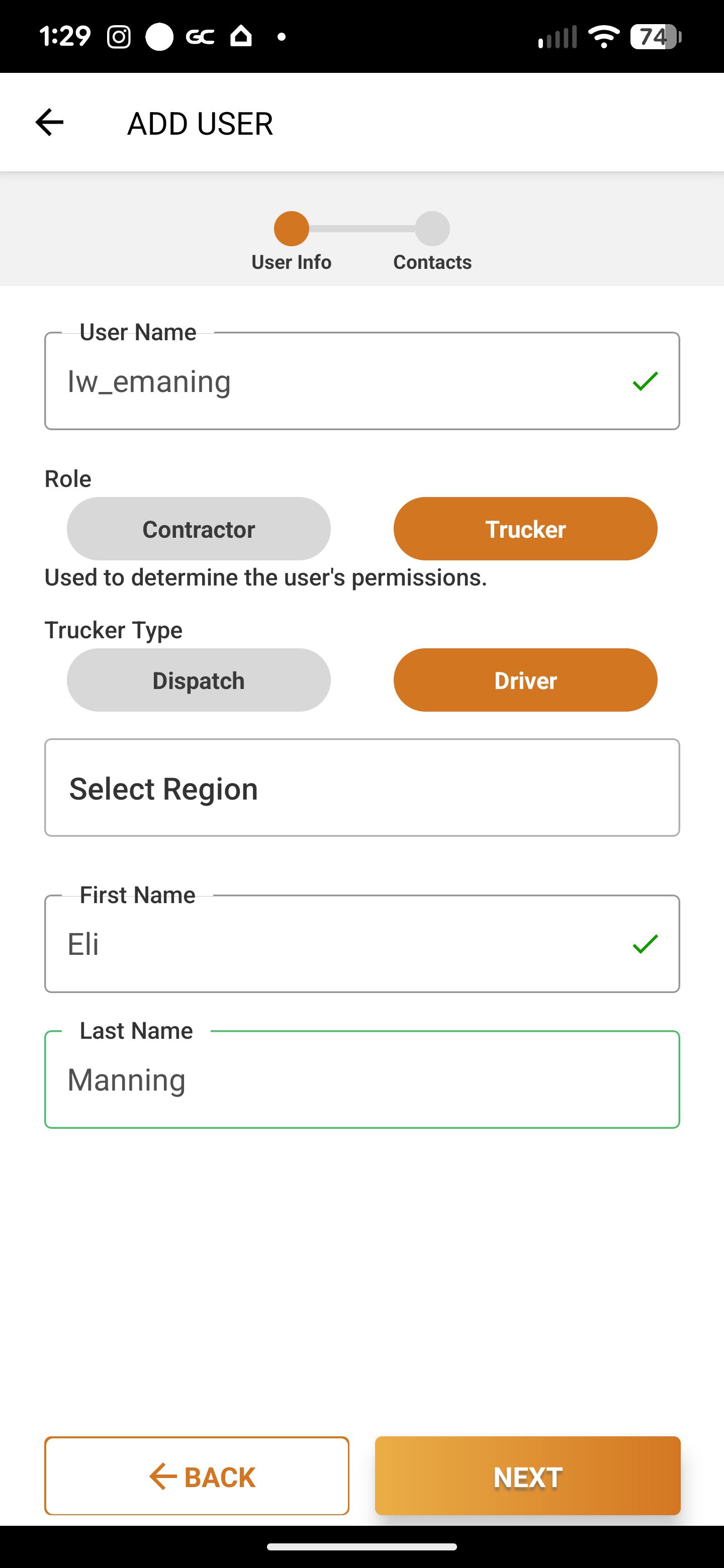
4. Enter the user’s info — username, role, trucker type, region, and first and last name — then tap Next.
5. Add their contact details and tap Done. The new team member now appears in My Team.
Pick the right role. Role (Contractor or Trucker) and Trucker Type (Dispatch or Driver) decide what the user can do in TruckIT.
Archive a Team Member
1. Tap your profile icon, then My Team.
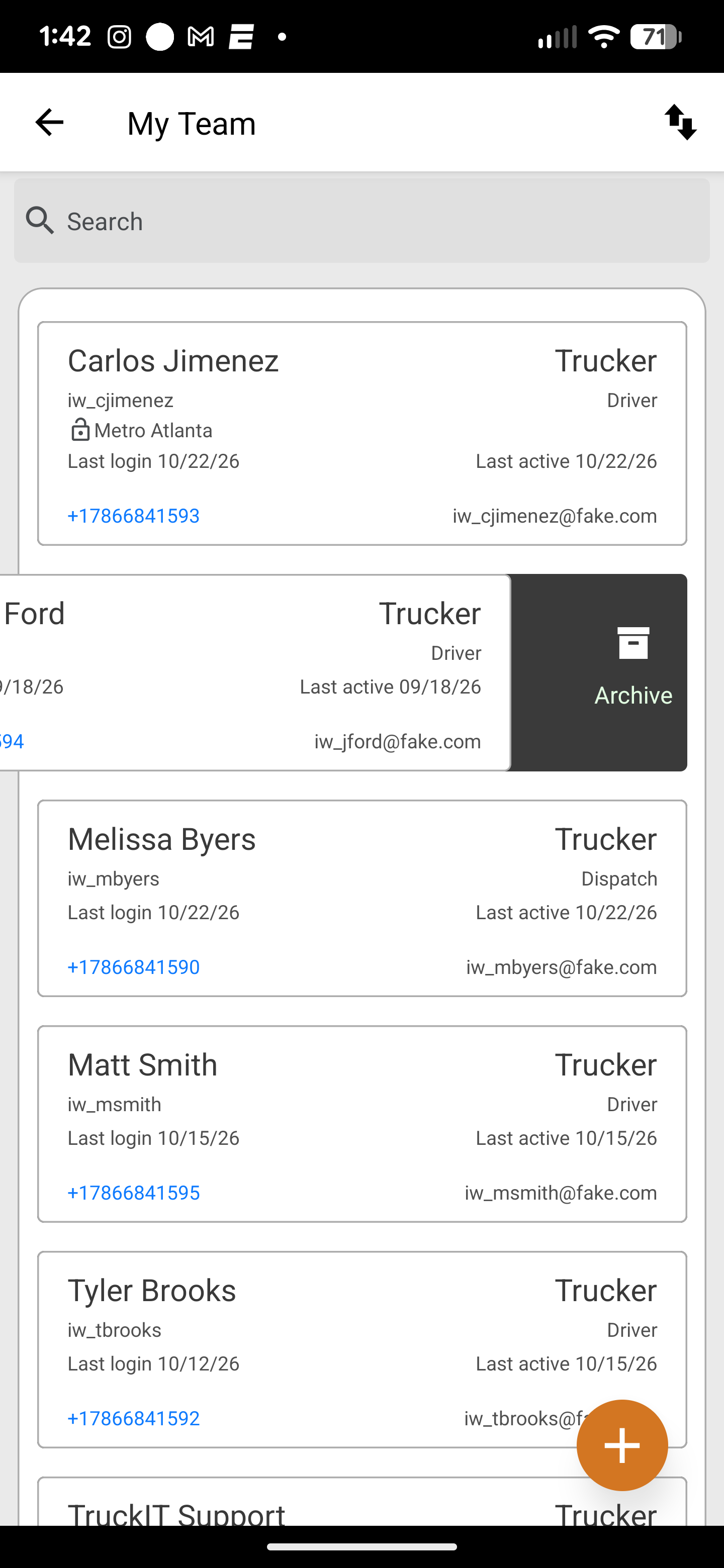
2. Slide the user to the left and tap Archive.
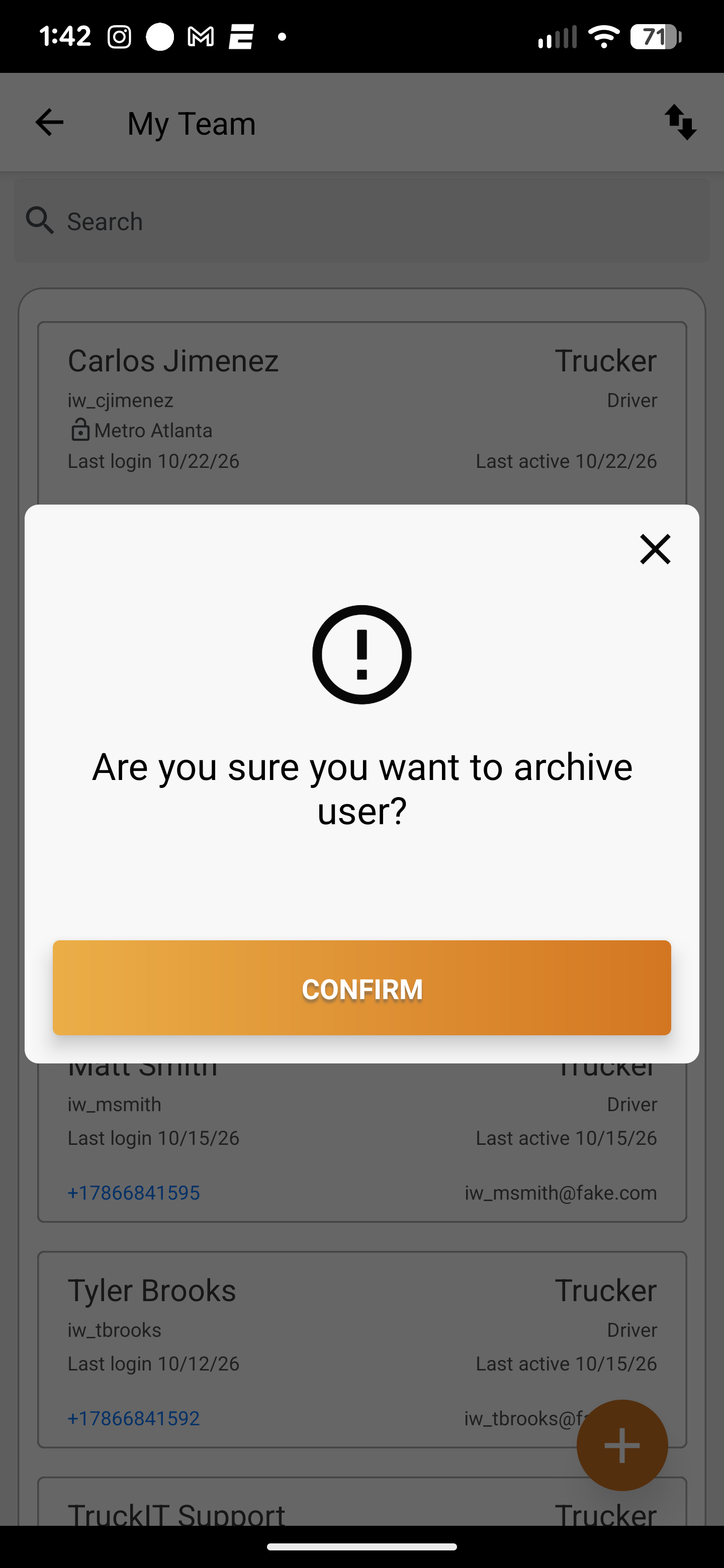
3. Tap Confirm.
When to Archive
Archive a team member when they should no longer be active in TruckIT — for example:
- They no longer work with your company
- They no longer need app access
- They were added by mistake
Before you archive: make sure they aren’t needed for any current or upcoming work.
 Questions? support@truckit.com