
TruckIT · Mobile App

Jump to a Section
Download and Log In
1. Search for TruckIT Mobile in your phone’s app store (or get the app here), download it, and open it.
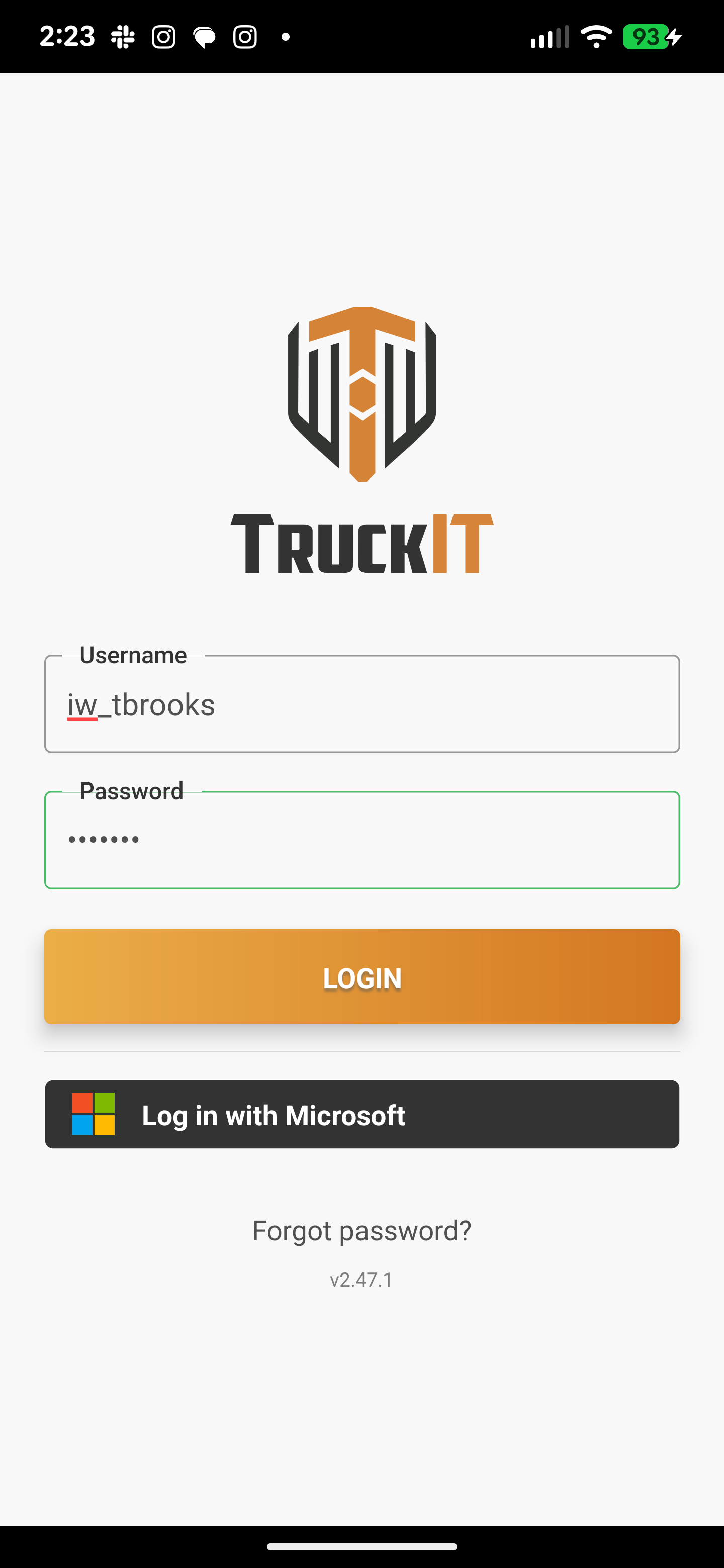
2. Enter your username and password, then tap Login.
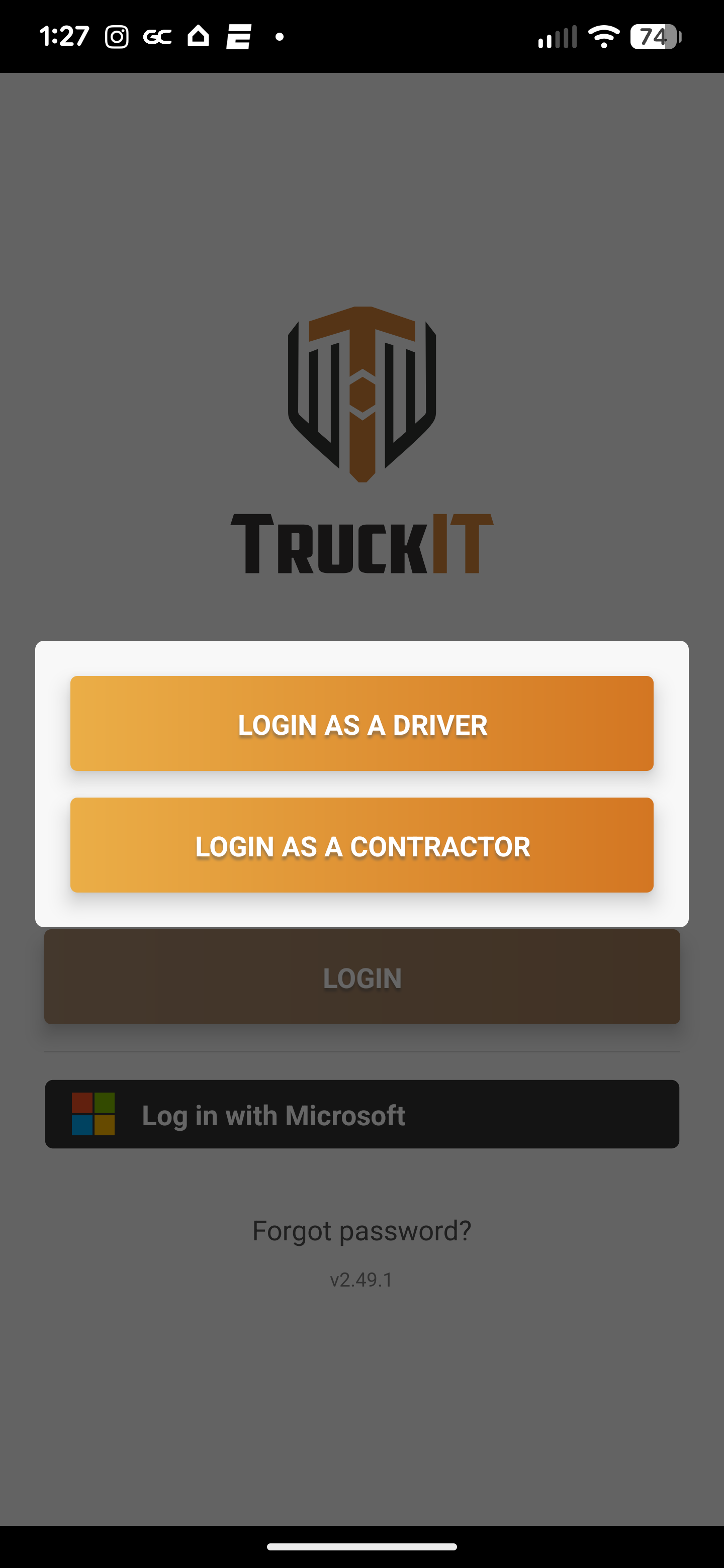
3. Choose Login as a Driver or Login as a Contractor.
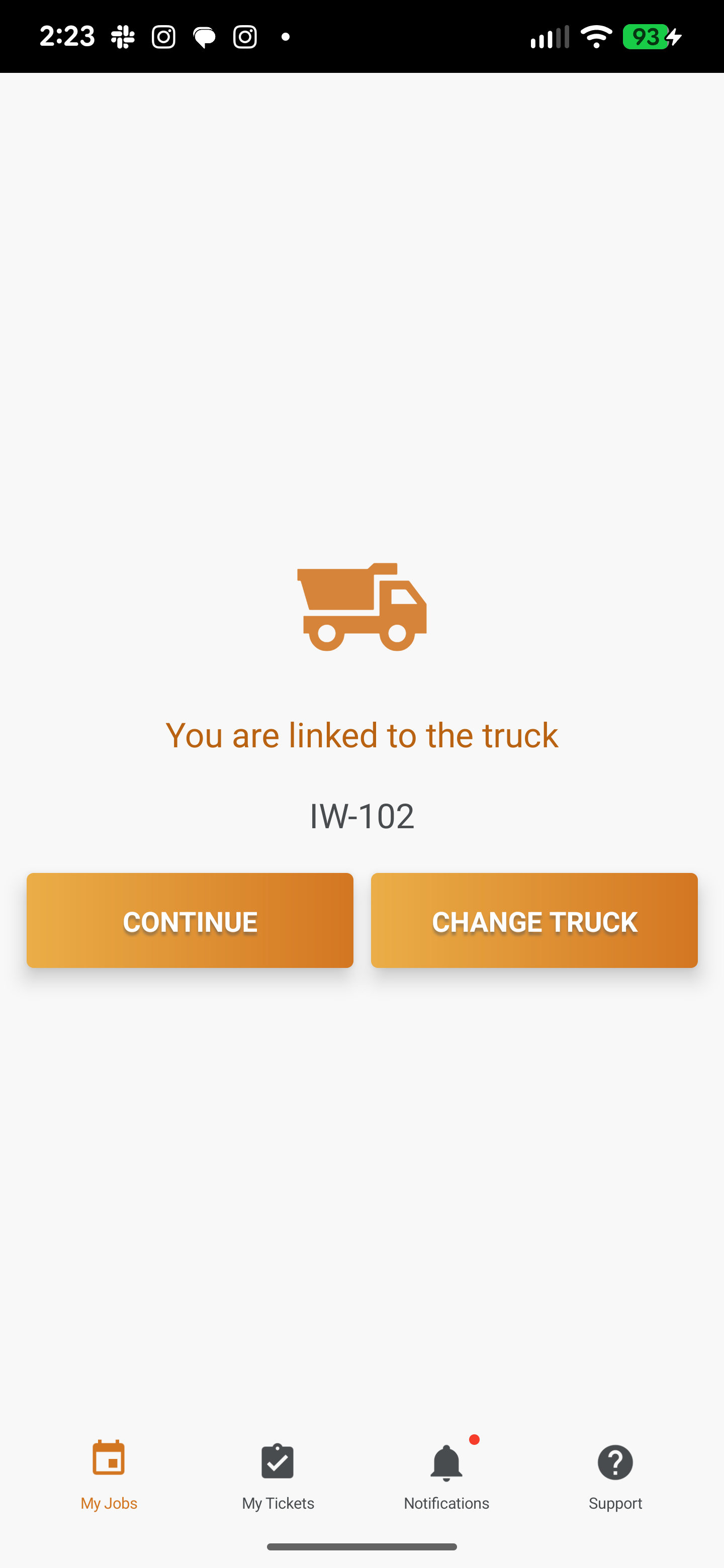
4. Drivers: confirm your truck for the day, then tap Continue.
No login yet? Your username and password are created in the TruckIT Portal by your company admin, prime hauler, or broker — ask them for yours.
Driver or Contractor?
Driver
• View jobs in My Jobs
• Start and run jobs
• Complete pickups and drop-offs
• Submit tickets and ticket photos
• Start and run jobs
• Complete pickups and drop-offs
• Submit tickets and ticket photos
Contractor
• View the Dashboard
• Manage projects and payloads
• Dispatch and fill jobs
• Review job details and tickets
• Manage projects and payloads
• Dispatch and fill jobs
• Review job details and tickets
Change Your Linked Truck
Driving a different truck today? Switch it in the app:
1. Tap the profile icon in the top-right corner.
2. Select Link Management.
3. Unlink your current truck, then follow the prompt to link the new one.
Tip: always link the truck you’re actually driving that day — it keeps your jobs, tickets, and dispatch records accurate.
 Questions? support@truckit.com