
Create Project Drafts and Go Live in the TruckIT Portal
Save a new project as a draft with the details you have now, then click Go Live once everything is final.
TruckIT · Projects & Sites

Jump to a Section
What Are Project Drafts?
Saving a project as a draft stores it without publishing it. Start the project with the details you have now, then come back and make it live once everything is correct and final.
Create a Project Draft
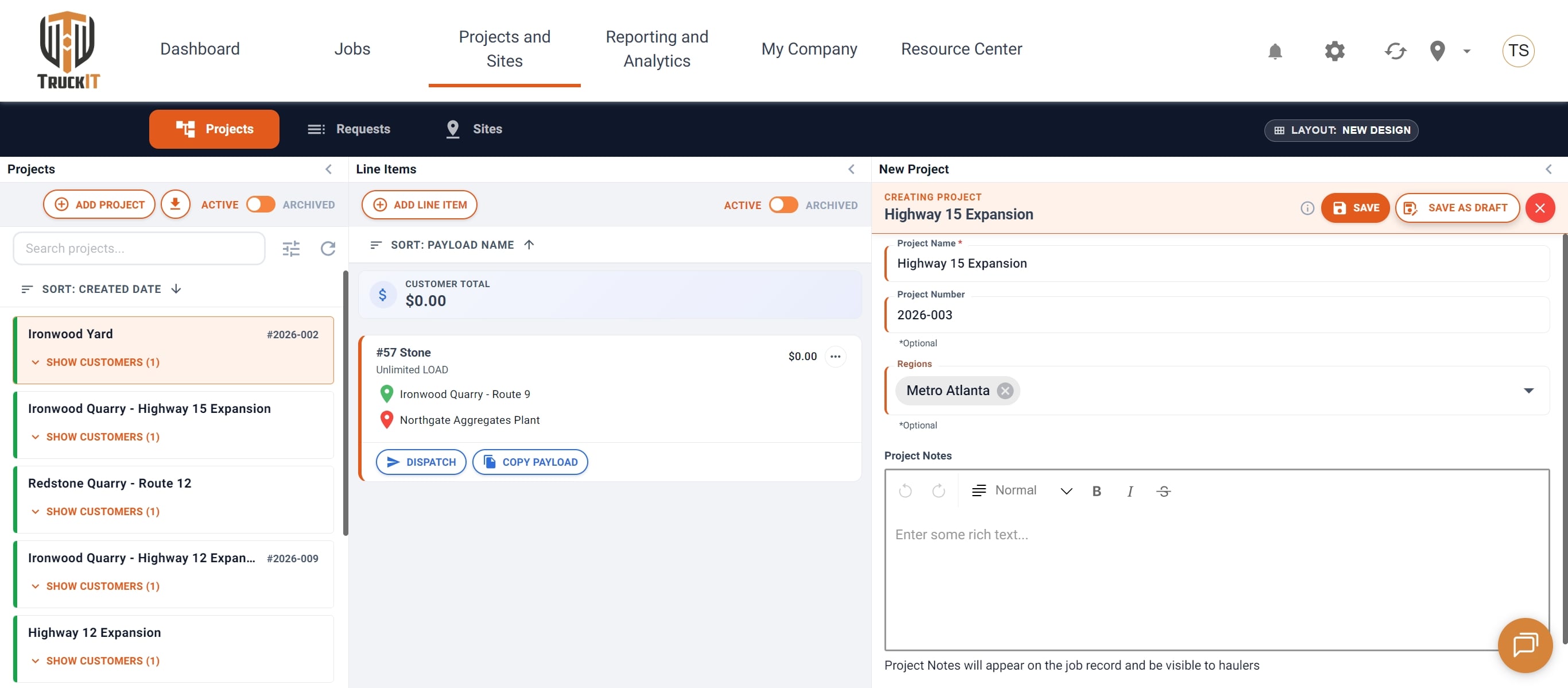
1. Click Add Project. Go to Projects and Sites, then click Add Project.
2. Enter the project details. Add a Project Name, then a Project Number if you use them (optional).
3. Set the region. Click the Regions field and select one or more regions from the dropdown.
4. Click Save as Draft. Use Save as Draft instead of Save to store the project without publishing it.
Find Your Draft
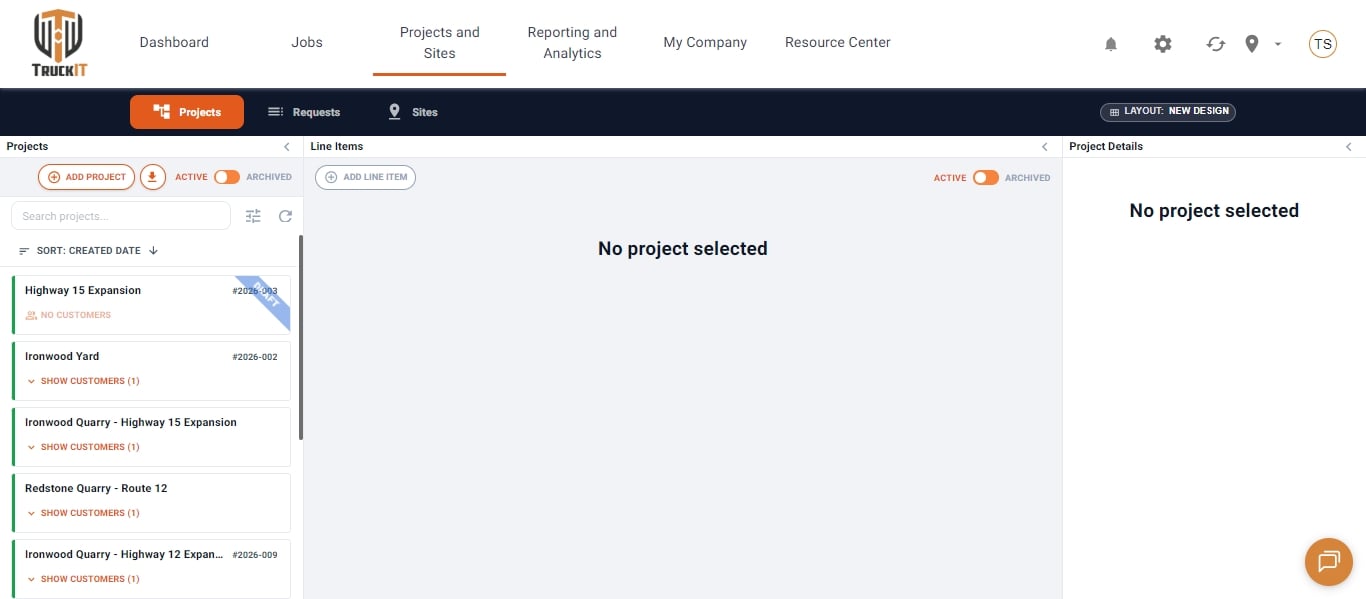
Your new project appears in the Projects list with a Draft label in the corner.
Make a Draft Go Live
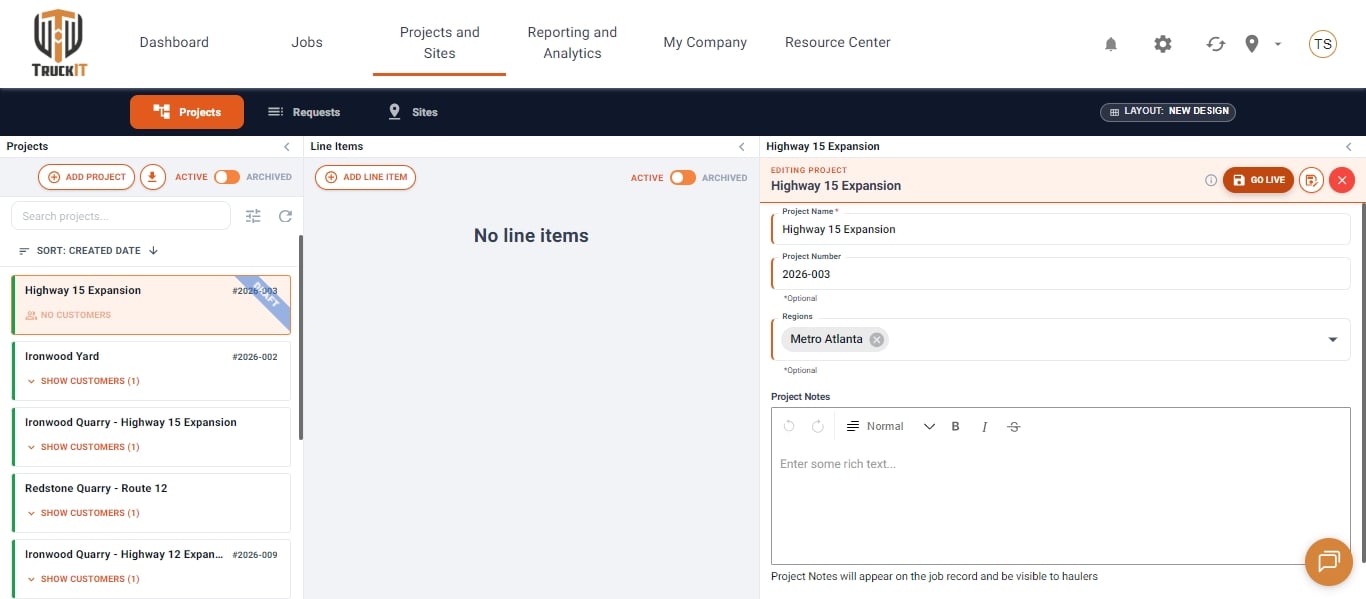
1. Open the draft. Select the draft project and click Edit.
2. Click Go Live. Once all the details are correct and final, click Go Live to publish your project.
Afterwards, select the project to view its details.
Related Articles
 Questions? support@truckit.com