
Create Line Item Drafts and Go Live in the TruckIT Portal
Save a line item (payload) as a draft with the details you have now, then finish it and click Go Live when it's ready to dispatch.
TruckIT · Projects & Sites

What Are Line Item Drafts?
A line item is the material (payload) you’re hauling on a project, along with its truck types, quantity, rates, ticket settings, and sites. Saving a line item as a draft lets you start building it with the information you have now, then finish it and make it live once everything is confirmed.
Drafts stay out of the way until they’re ready — a line item can only be dispatched after it goes live.
Create a Line Item Draft
1. Open your project. Go to Projects and Sites, then find and select the project you want to add the line item to.
2. Click Add Line Item. You’ll find it at the top of the Line Items column.
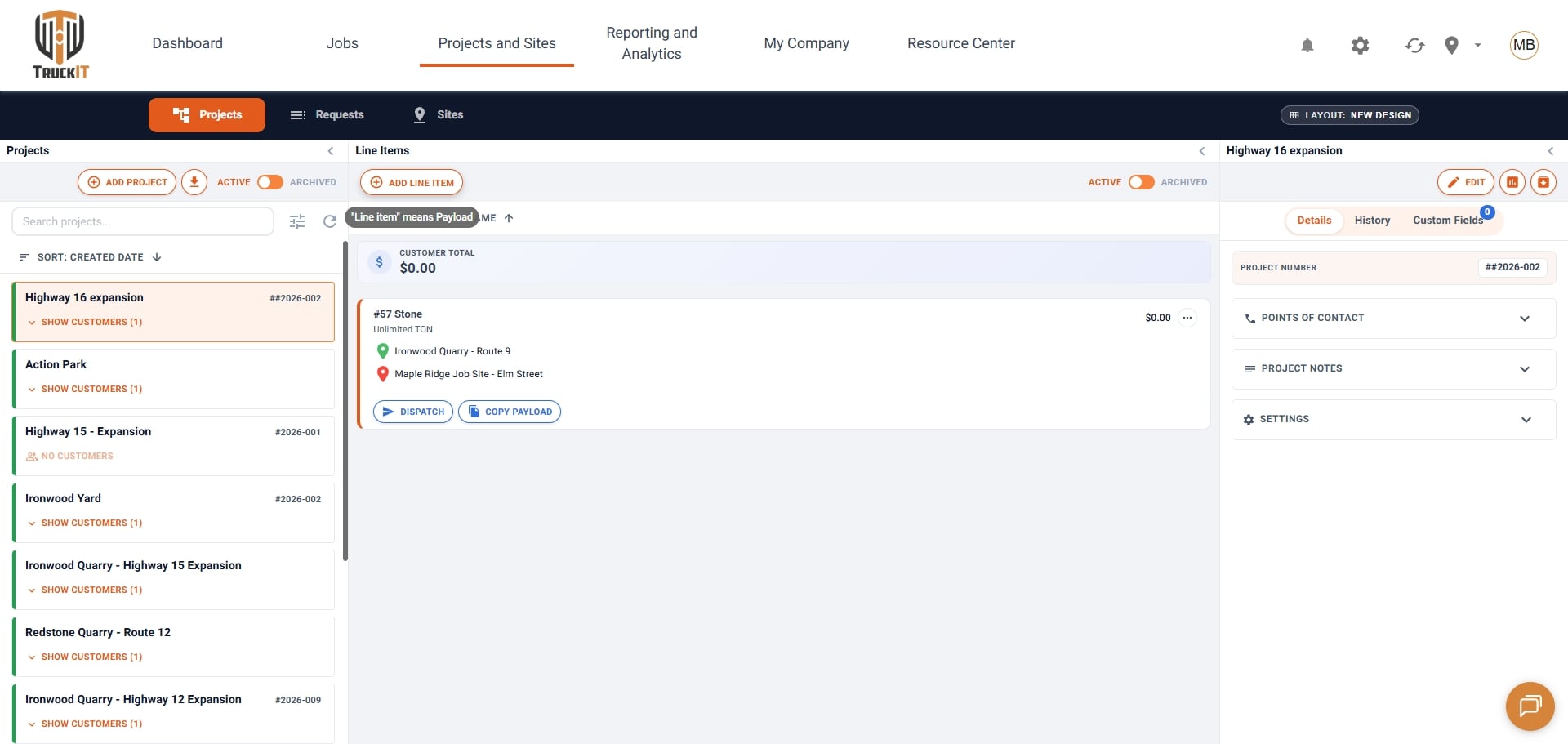
3. Choose the material and truck types. Select your material in the Payload field, then add the truck types for this line item.
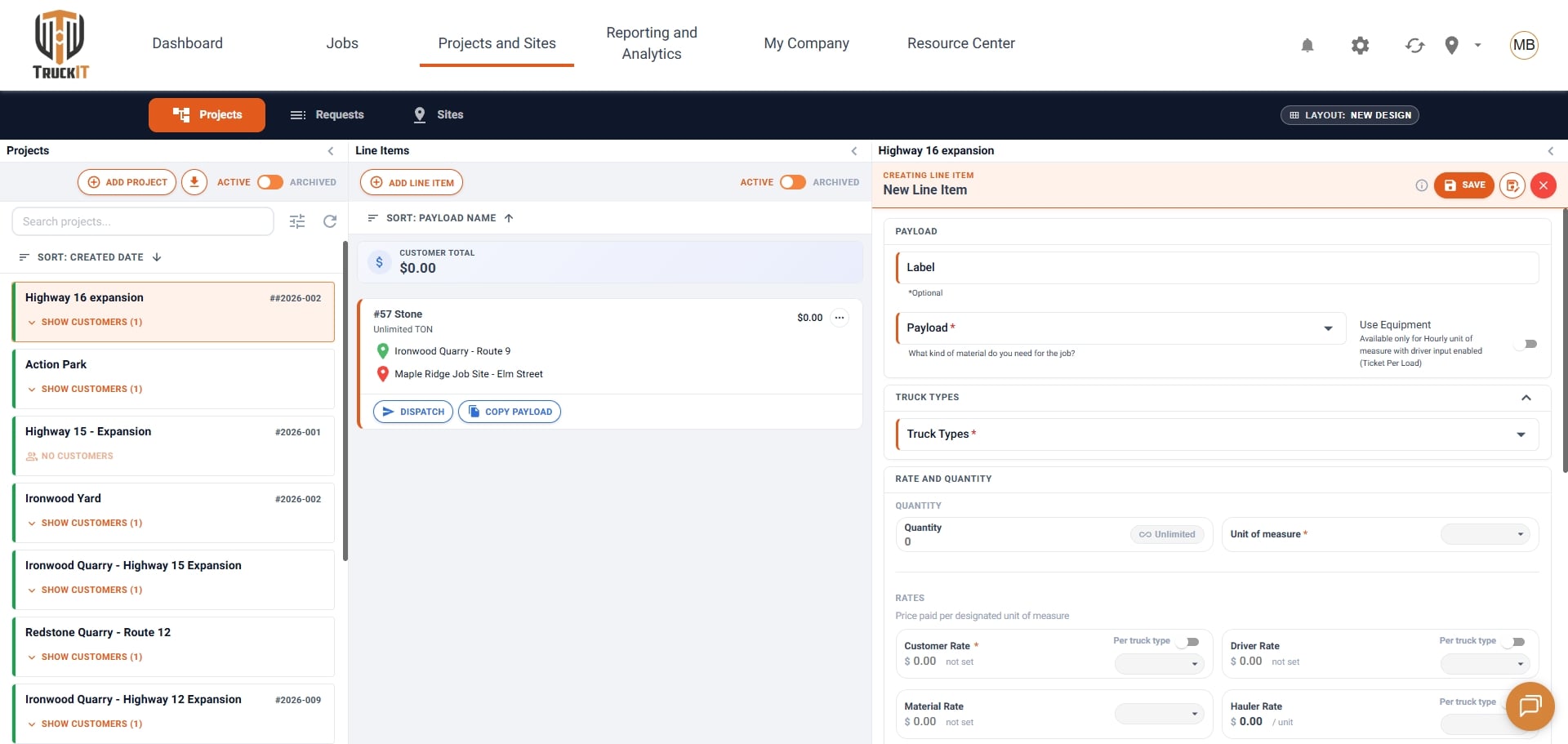
4. Set quantity and rates. Enter the material quantity and unit of measure, then set the rates for the line item.
5. Choose how it appears on the ticket. Pick an Input Mode for how the information is added to the ticket, and the Unit of Measure shown on the ticket.
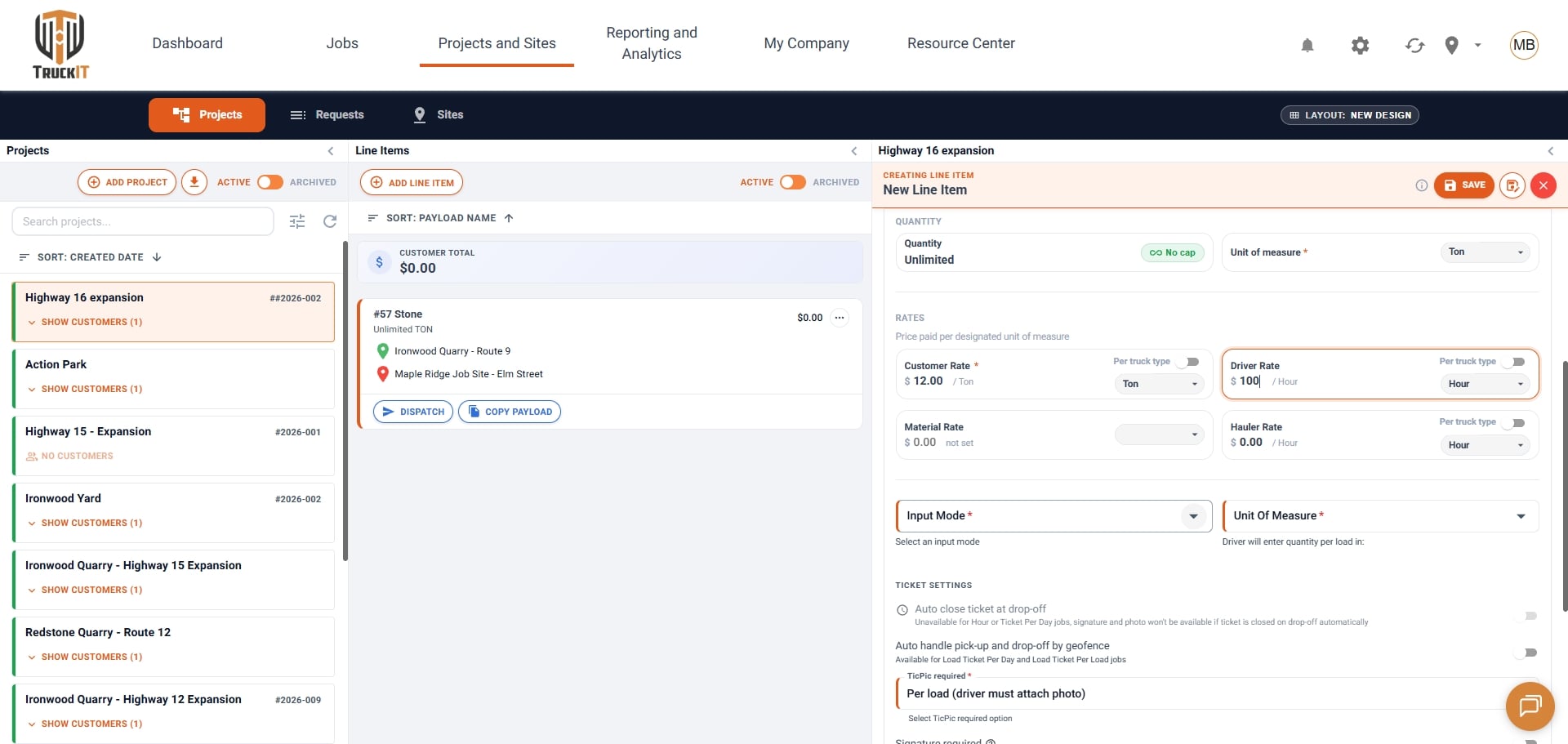
6. Add your sites. Select the pick-up site and drop-off site(s).
7. Click Save as Draft. When you’ve entered the information you have, click Save as Draft instead of Save.
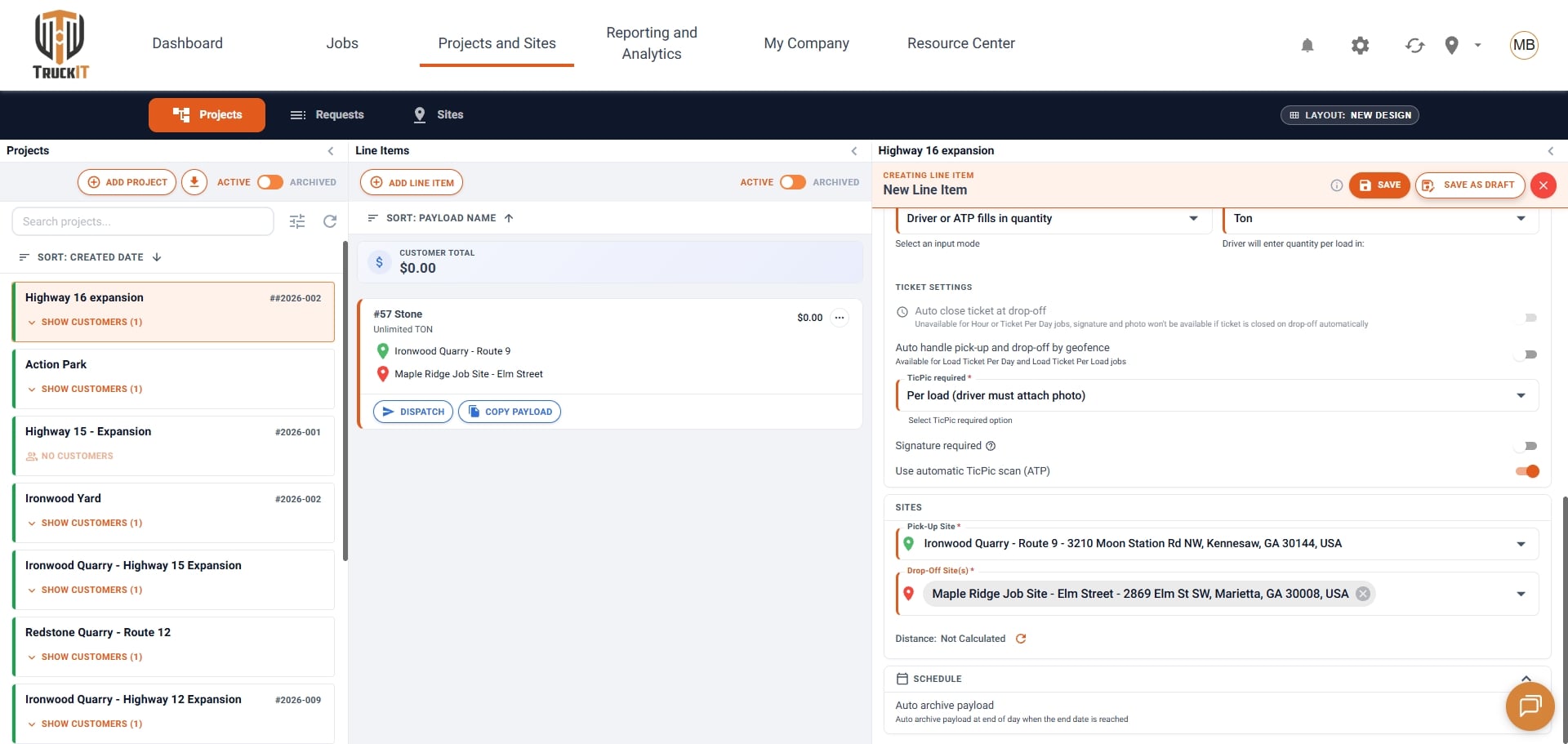
Find Your Draft
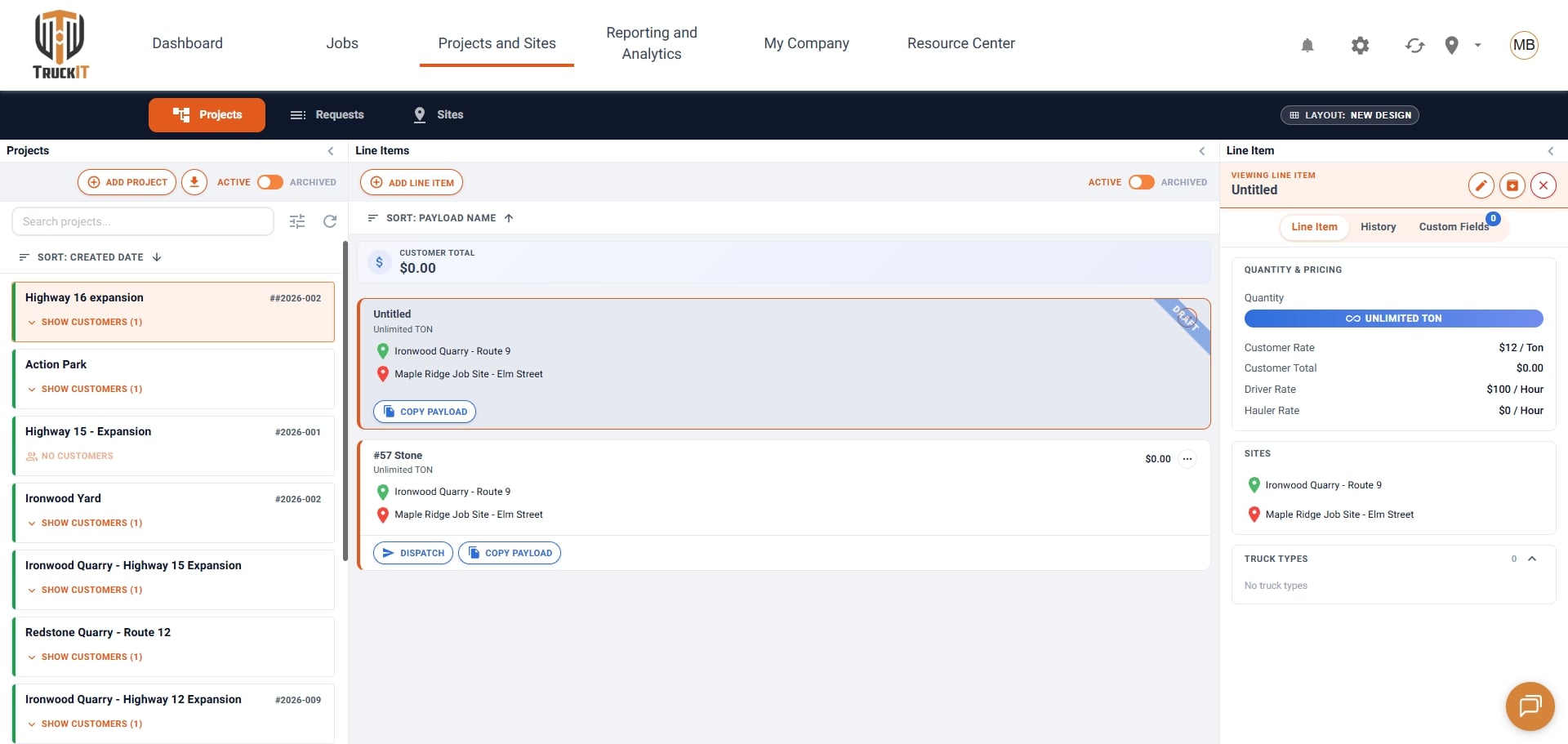
Your new line item appears in the project’s Line Items list with a Draft banner in the corner. Select it to review its quantity, pricing, sites, and truck types.
Make a Draft Go Live
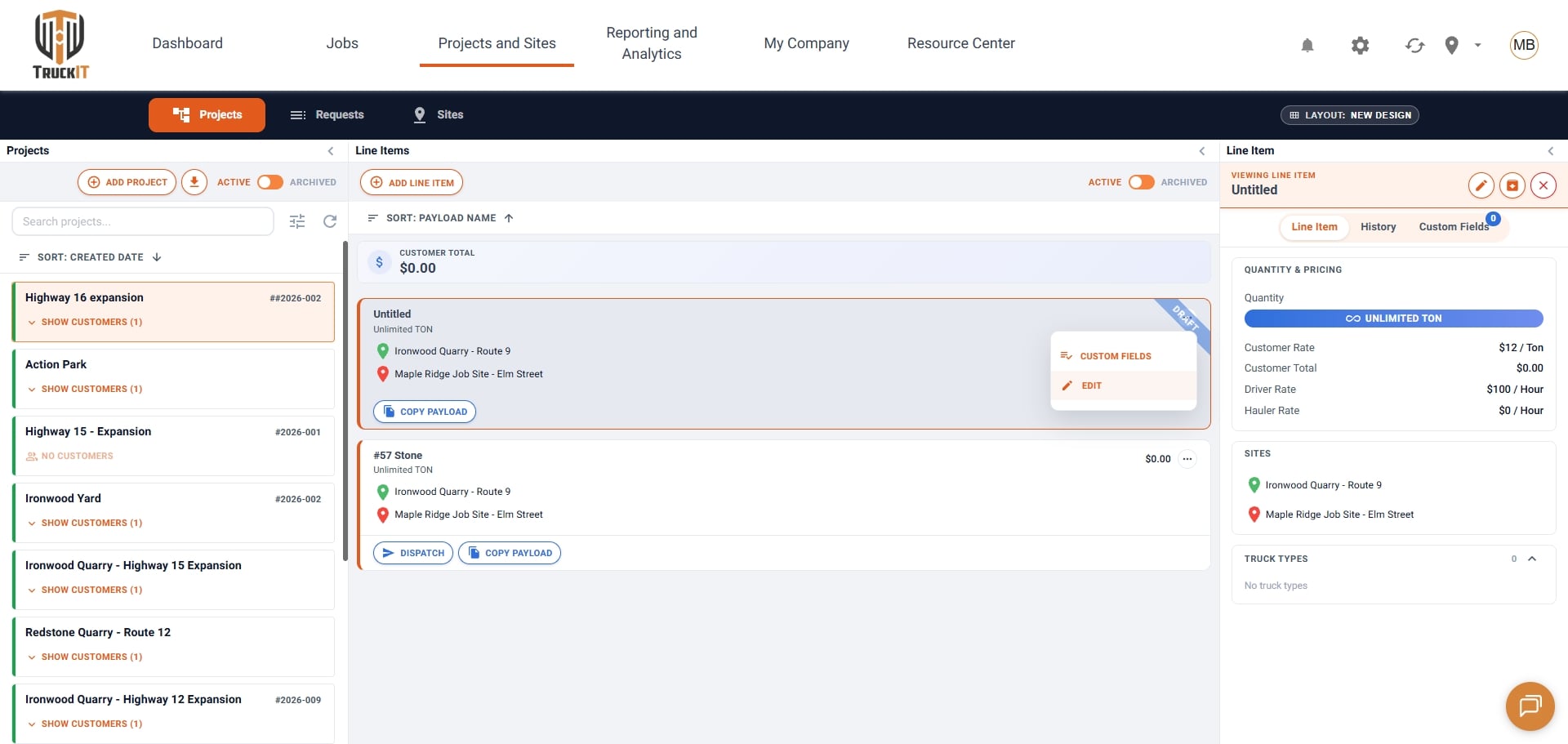
1. Open the draft for editing. Click the icon in the corner of the drafted line item, then click Edit.
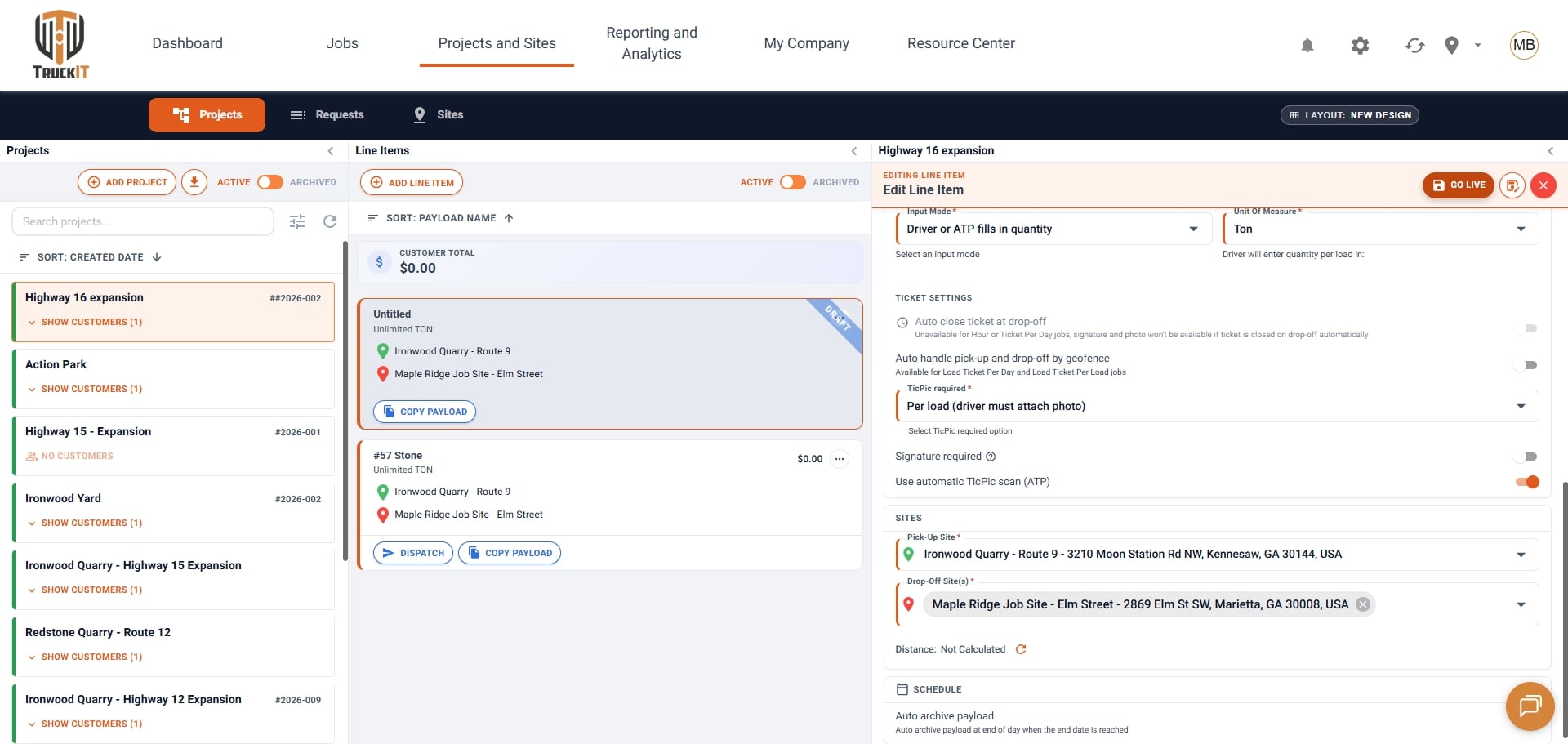
2. Review and update. Fill in anything that was missing and confirm the material, rates, ticket settings, and sites are correct.
3. Click Go Live. This makes the line item active and ready for dispatch.
Tip: start a draft as soon as you know a material is coming to the project — even with partial rates or sites — so it’s already set up and only needs a final review before it goes live.
What Happens Next
Once the line item is live, the Draft banner is removed and the Dispatch button appears on the line item, so you can start sending trucks to the job.
Related Articles
 Questions? support@truckit.com