
Manage Project Customers & Contacts in the TruckIT Portal
Add customers and a site contact to your project from Points of Contact on the project's Details tab.
TruckIT · Projects & Sites

Jump to a Section
Open Points of Contact
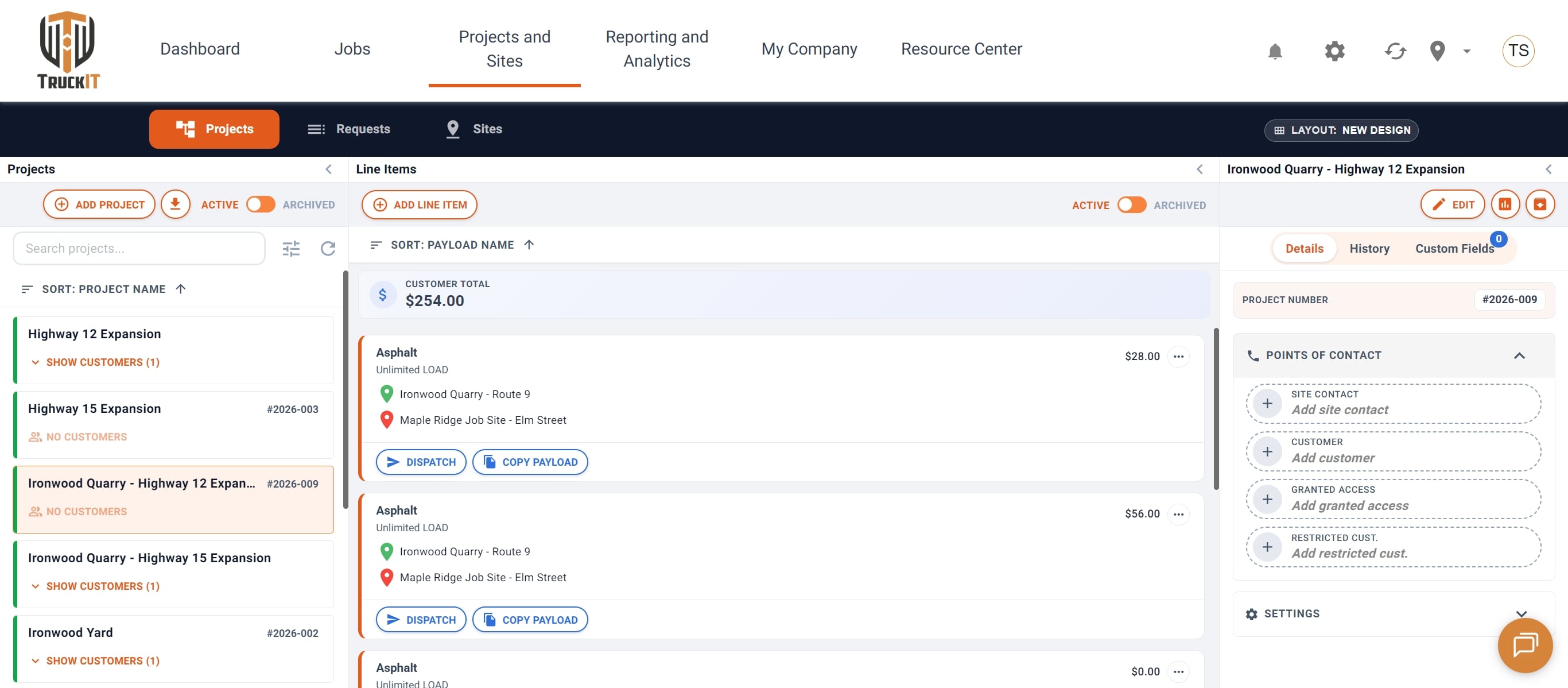
1. Select your project. Go to Projects and Sites and select the project you want to add contacts to.
2. Expand Points of Contact. On the project’s Details tab, click Points of Contact. From here you can add the site contact, customers, and granted-access or restricted customers.
Add a Customer
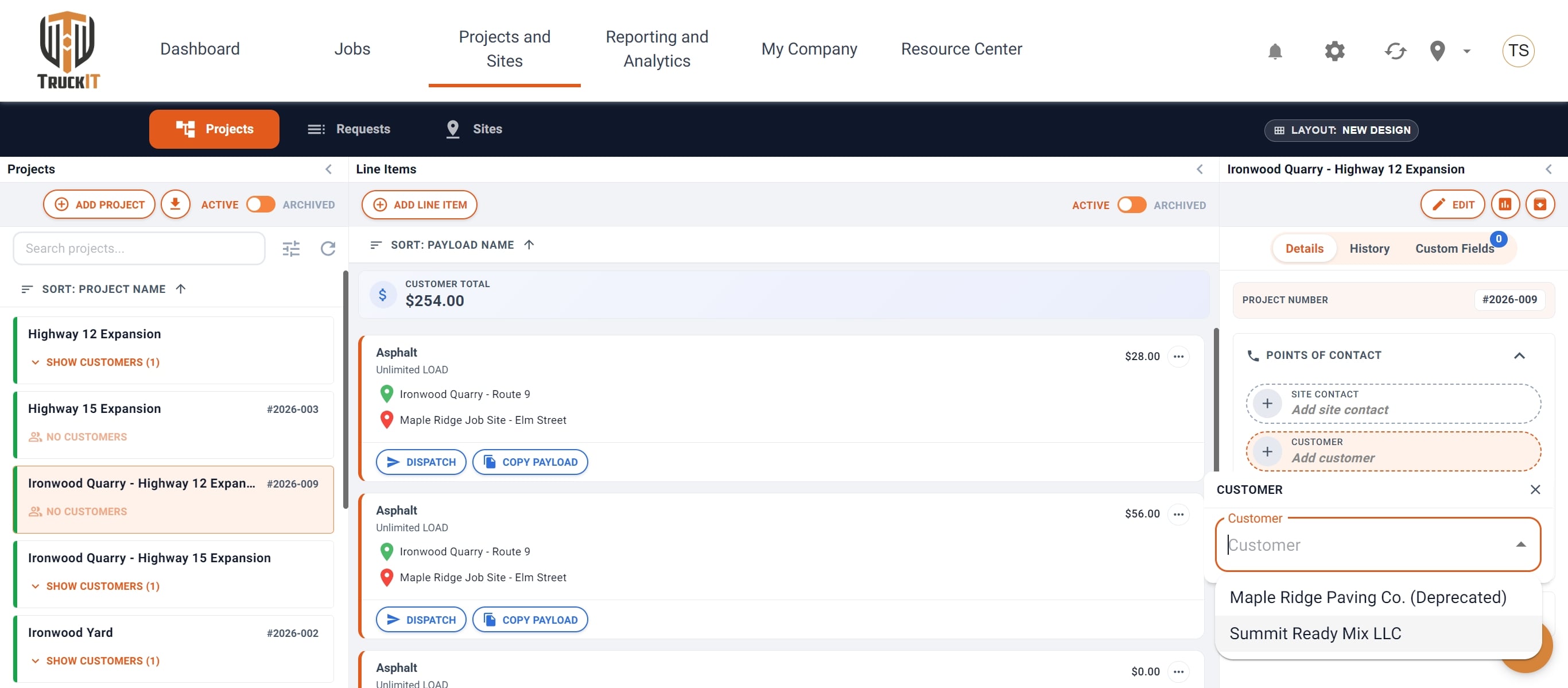
1. Click a customer field. Click Add customer (or another customer field) to assign a customer to the project.
2. Choose the customer. Select the customer from the dropdown list.
3. Close the popover. Click the X to close the customer popover.
Add a Site Contact
1. Click Add site contact. This opens the list of available contacts.
2. Select a dispatcher. Choose the dispatcher who will be the site contact for this project.
3. Close the popover. Click the X to return to the project view.
Related Articles
 Questions? support@truckit.com