
TruckIT · Projects & Payloads

Create New Equipment
Equipment lives under My Company. Create it here first so it’s ready to attach when you set up a payload.
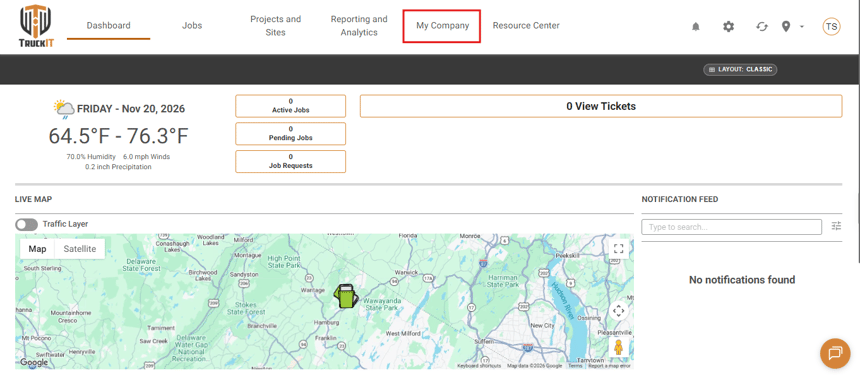
1. Go to My Company. From the TruckIT Web Portal, click My Company in the top menu.
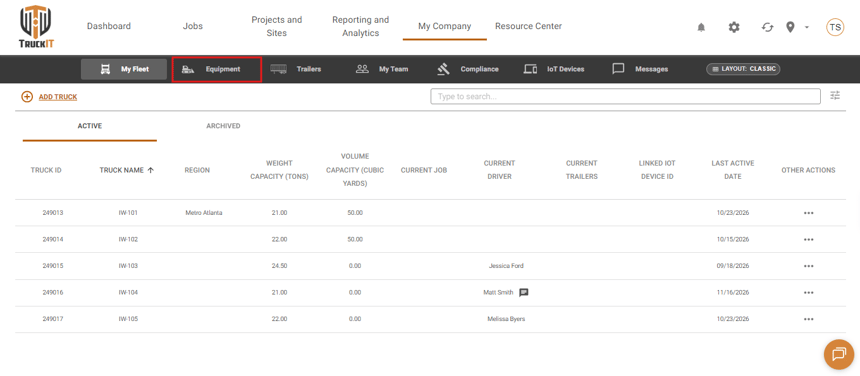
2. Open Equipment. Click Equipment in the menu bar under My Company. If you don’t see it, ask your company administrator or TruckIT Support for access.
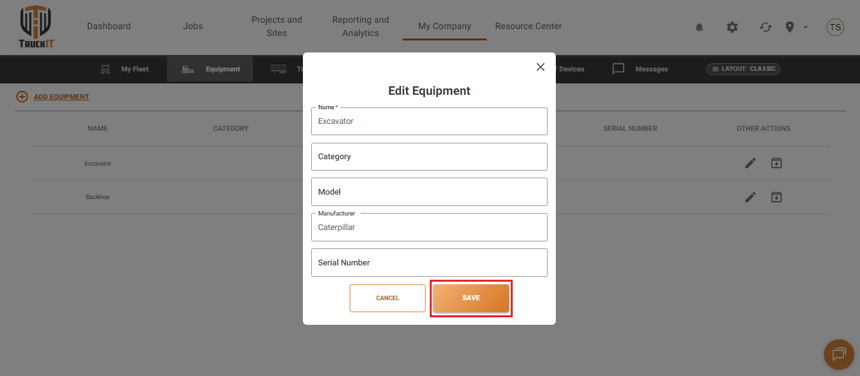
3. Add the equipment details and save. Click Add Equipment, enter a Name (required), and fill in Category, Model, Manufacturer, and Serial Number if you track them. Click Save.
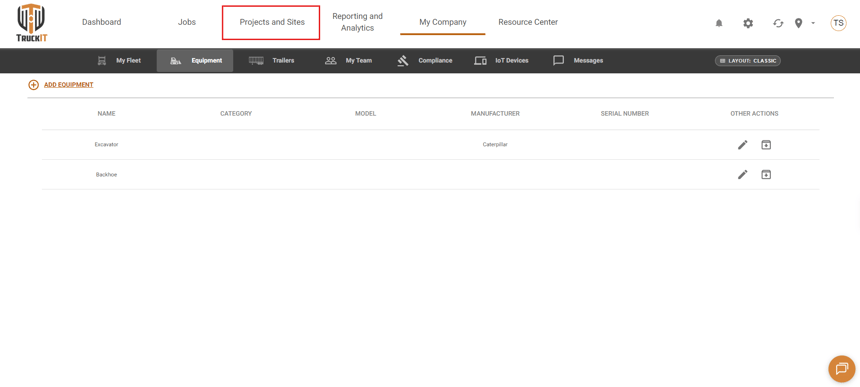
The new equipment now appears in your Equipment list, where you can edit or archive it at any time.
Add Equipment to a Payload
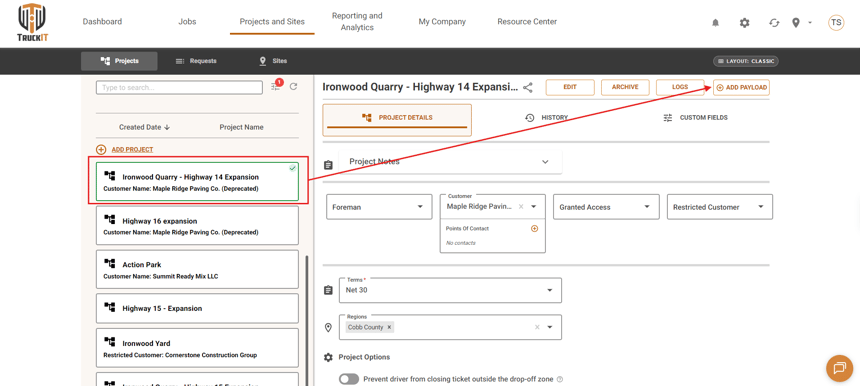
1. Go to Projects and Sites. Click Projects and Sites in the top menu.
2. Select the project and click Add Payload. Choose the project from the list on the left, then click Add Payload in the upper-right corner.
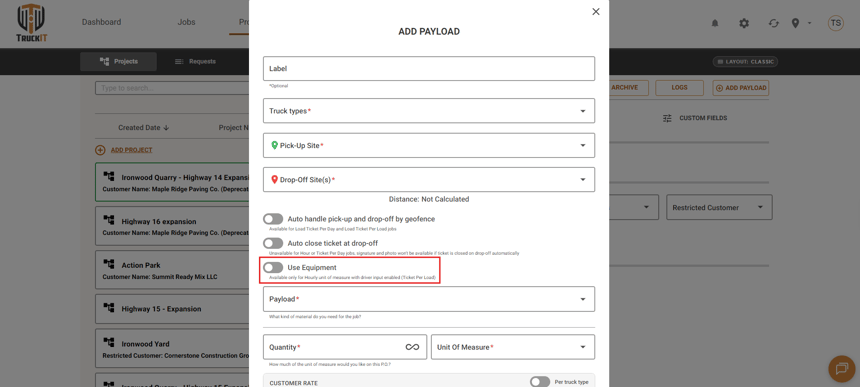
3. Turn on Use Equipment. In the Add Payload form, enable the Use Equipment toggle.
Note: Use Equipment works only with hourly rates and driver input per load (Ticket Per Load). The settings that come with it are covered in the next step.
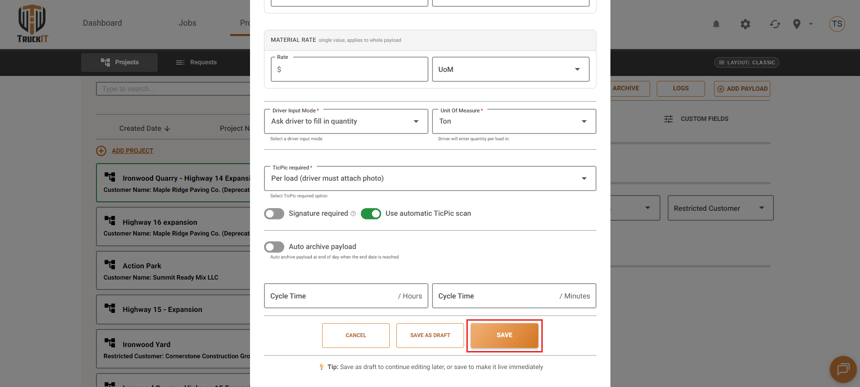
4. Set the rates and driver input. Complete the truck types, sites, and material as usual, then set up the equipment-specific fields:
• Rates: customer, driver, and hauler rates are hourly only.
• Driver Input Mode: choose Fill in quantity based on truck or Ask driver to fill in quantity.
• Unit of Measure: choose Ton or Cubic Yard for the quantity drivers report per load.
• TicPic required: set this to match your company’s ticket photo policy.
5. Review and save. Check the payload details, then click Save (or Save as Draft to finish later).
Naming Your Equipment
Clear, consistent names make equipment easy to find when you’re building a payload. Use the official equipment name or number, follow your company’s naming format, and keep it short — for example, Loader 12, Excavator 04, or Dozer 7.
Tip: check your Equipment list before adding something new — it’s the easiest way to avoid duplicate records.
What Happens Next
Your payload is saved with equipment turned on, so equipment details stay connected to the work before any jobs are created. It’s ready to use the next time you dispatch on this project.
 Questions? support@truckit.com