
TruckIT · Projects & Sites

Jump to a Section
Customer Rate vs. Driver Rate
Every payload can carry two rates. Driver rate is optional — add it when you pay your driver a different amount than you charge your customer.
Customer Rate
What your company charges the customer. Used for billing and customer pricing.
Driver Rate (optional)
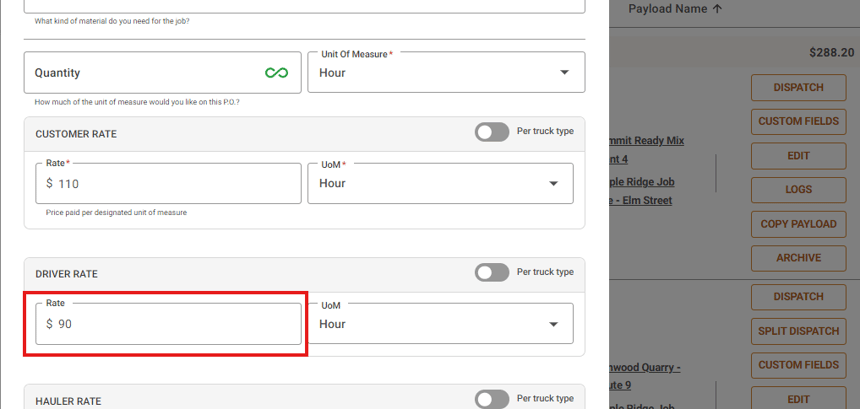
What your company pays the driver. Used for driver pay and internal cost tracking.
Set Rates on a Payload
1. In the TruckIT Portal, go to Projects and Sites › Projects and open your project.
2. Click EDIT on the payload (or create a new payload).
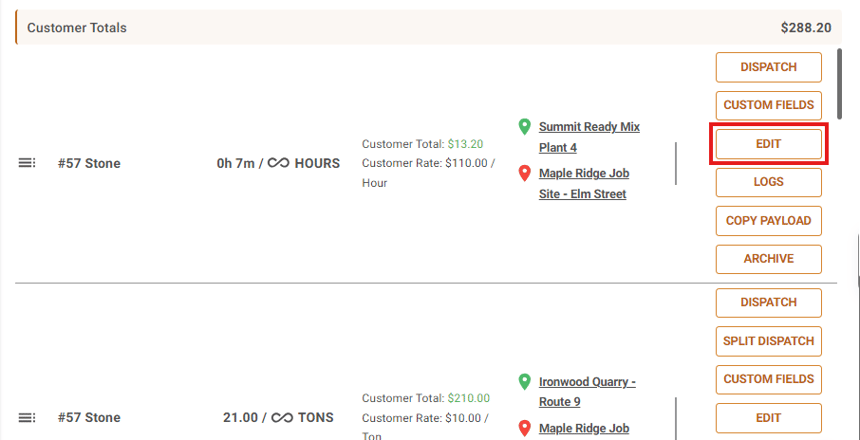
3. Check the Customer Rate, then enter the driver’s pay in the Rate field under Driver Rate.
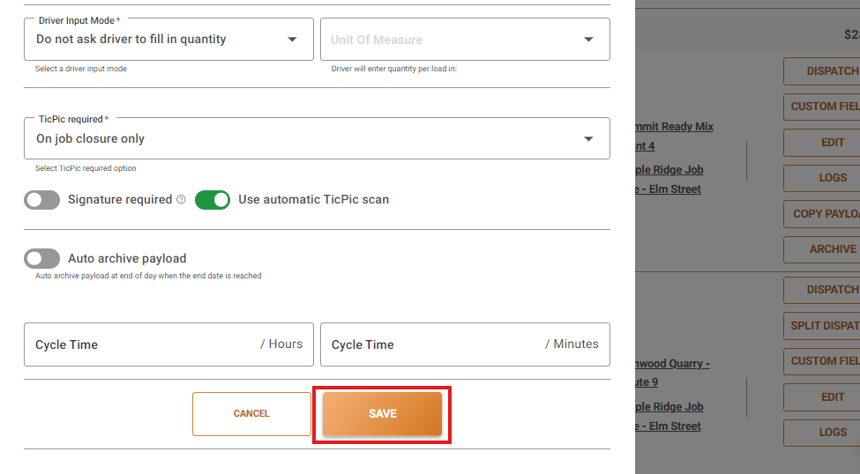
4. Scroll down and click SAVE.
Set rates before you dispatch. Changing a payload’s rate doesn’t update jobs or tickets that already exist — those need to be corrected separately.
Where Rates Appear
In the Portal. Both rates show on job and ticket tiles.
In the driver app. Drivers see the driver rate if one is set. If no driver rate is set and Show Pricing to Driver is toggled off in Job Settings, they see the customer rate.
Tip: check your Show Pricing to Driver setting before dispatching, especially when driver pay differs from what you charge the customer.
 Questions? support@truckit.com