
TruckIT · Mobile App

Jump to a Section
Open the Job Board
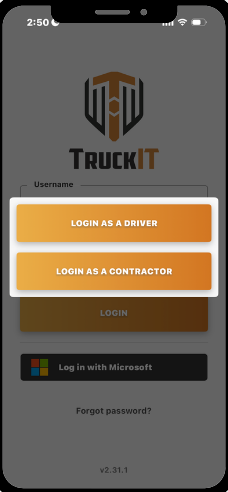
1. Tap Login as a Contractor.
2. Select the My Jobs tab.
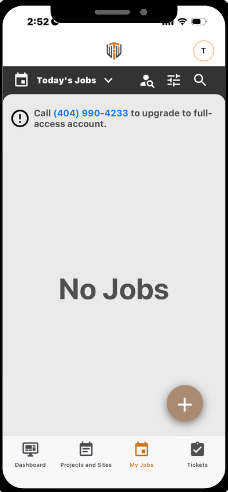
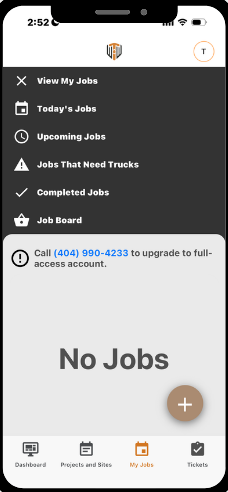
3. Open the Today’s Jobs drop-down.
Fill the Job
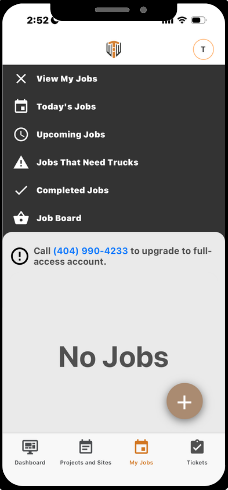
4. Select Job Board to see requests.
5. Tap Fill to start assigning trucks.
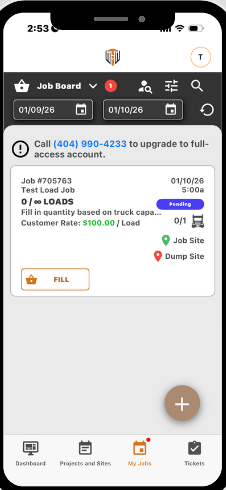
6. Add a pay rate for your drivers (optional).
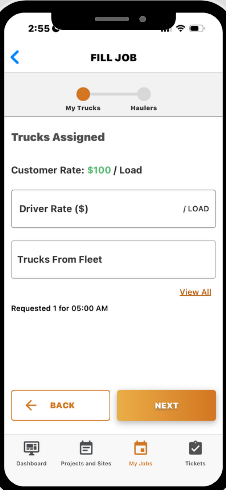
Assign Your Trucks
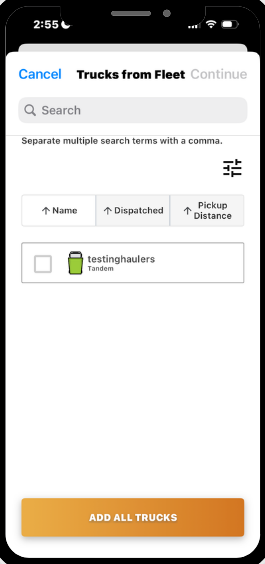
7. Select the trucks you want to assign, then tap Continue.
8. Tap Next when you’re finished adding your trucks.
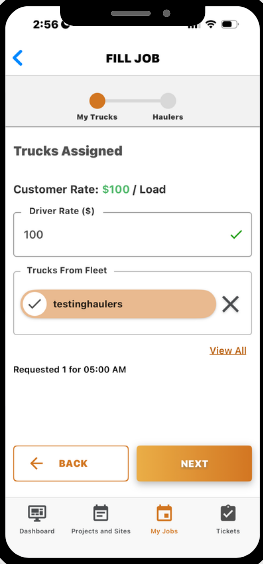
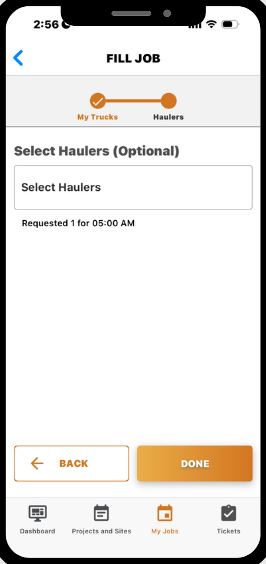
9. Assign subhaulers to help fill the job (optional), then tap Done.
Driver Access
• Once trucks are assigned, drivers can tap Login as a Driver
• Drivers select their assigned truck
• When ready, they can view and run the job
• Drivers select their assigned truck
• When ready, they can view and run the job
 Questions? support@truckit.com