
TruckIT · Projects & Payloads

Jump to a Section
Set TicPic Required on a Payload
TicPic Required controls when drivers must attach a TicPic (ticket photo). You set it on each payload, so different jobs can follow different rules.
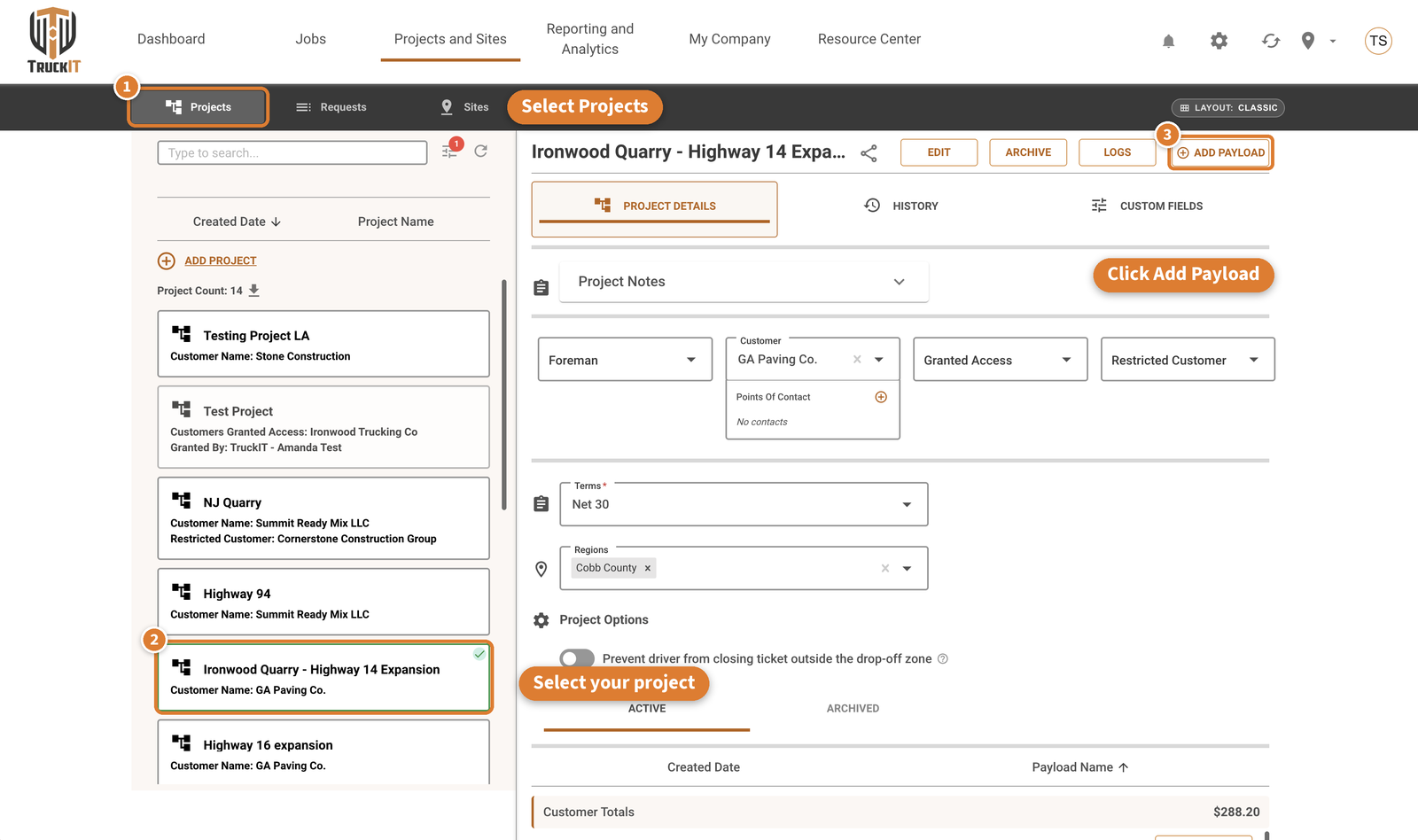
1. Go to Projects and Sites. From the top menu, click Projects and Sites.

2. Open the project and click Add Payload. Select Projects, choose your project, and click Add Payload.
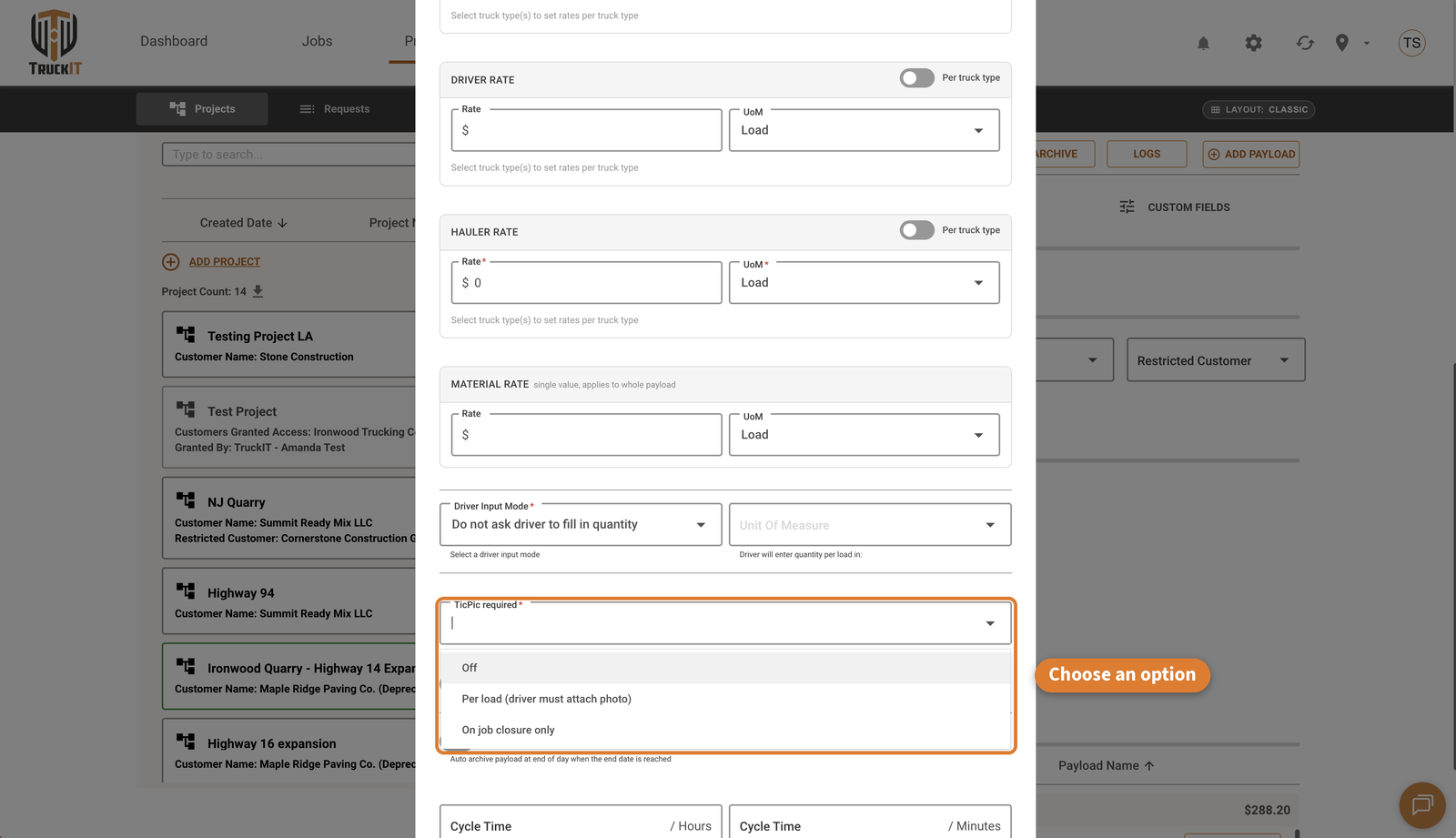
3. Choose a TicPic Required option. Fill in the payload details, then scroll to TicPic required near the bottom of the form, just below Driver Input Mode. This field is required. Pick one:
• Off: drivers don't need to attach a TicPic.
• Per load (driver must attach photo): drivers attach a TicPic for every load.
• On job closure only: drivers attach one TicPic per day, when they close the job.
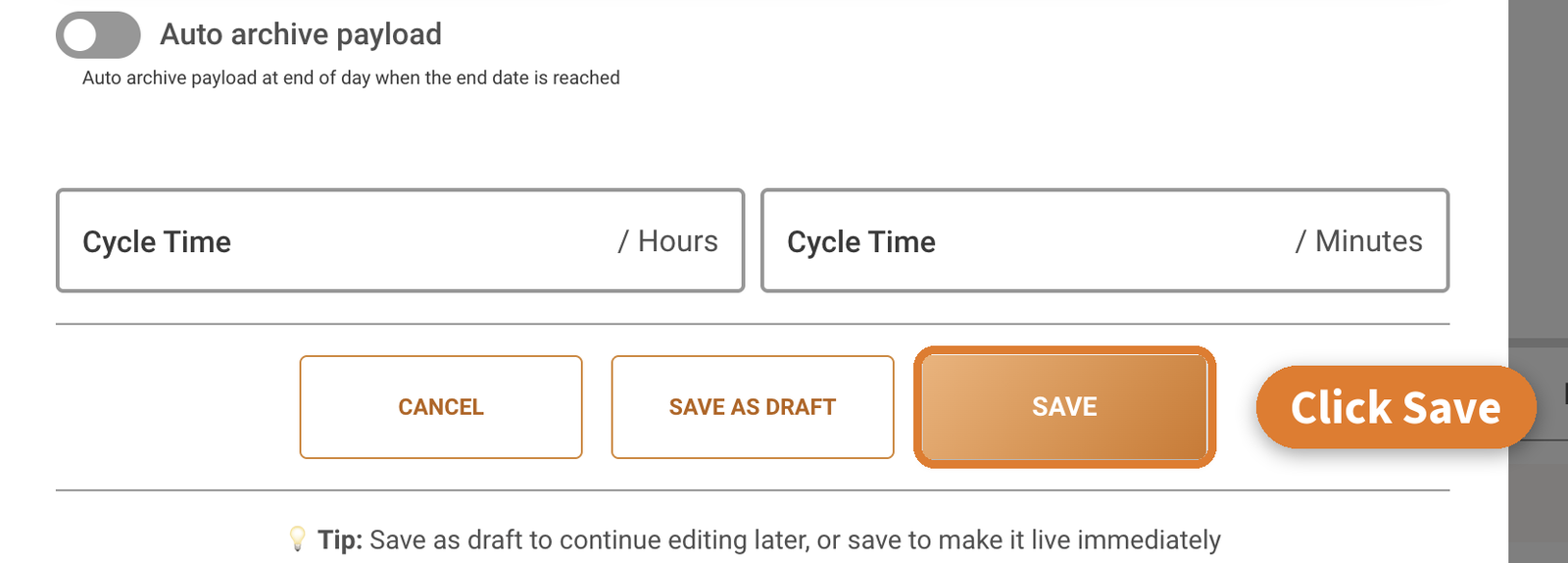
4. Save. Click Save to make the payload live, or Save as Draft to finish it later.
Choose the Right Option
Choose Per load when every load needs its own ticket for billing, customer records, or reconciliation. Choose On job closure only for one-ticket-per-day jobs, such as when every load is a known size and you bill by the cubic yard or by the load. Choose Off when the job doesn't need ticket photos.
Tip: match the setting to your billing process, and let drivers know what's expected before the job starts.
What Happens Next
When this payload is dispatched, drivers are asked for TicPics according to the option you chose. If they're asked for a photo on every load when you meant once per day, check that the payload is set to On job closure only, not Per load.
 Questions? support@truckit.com