
Edit a Ticket in the TruckIT Portal
Learn how to update ticket details from the Tickets section of the TruckIT Web Portal.
TruckIT · Tickets & Reporting

Jump to a Section
Edit a Ticket
Edit a ticket to correct or update its details before it’s used for reporting, reconciliation, or billing.
1. Find the ticket and open its menu. Click Jobs, then Tickets. Find the ticket you need to update and click its three-dot menu. If you don’t see the menu or the Tickets tab, ask your company administrator or TruckIT Support for access.
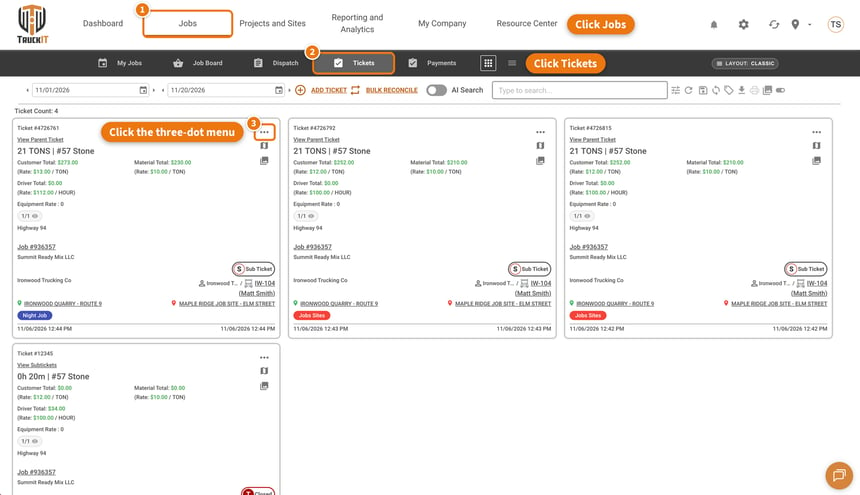
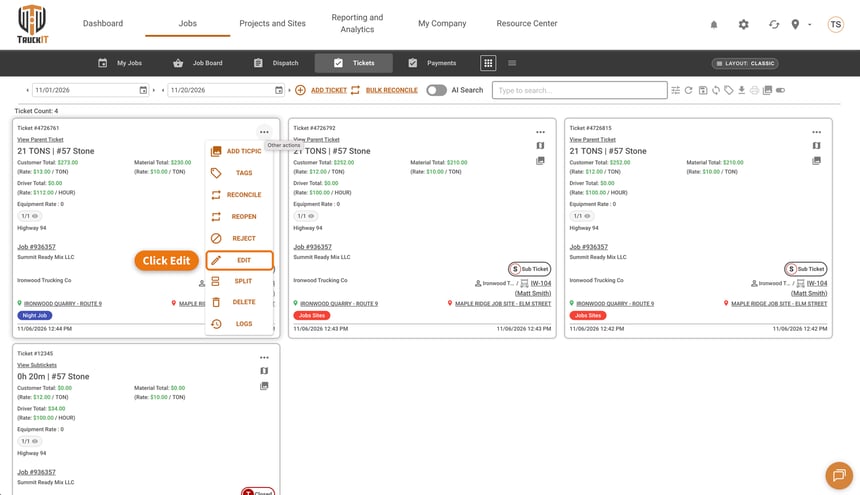
2. Click Edit. Choose Edit from the menu to open the Edit Ticket window.
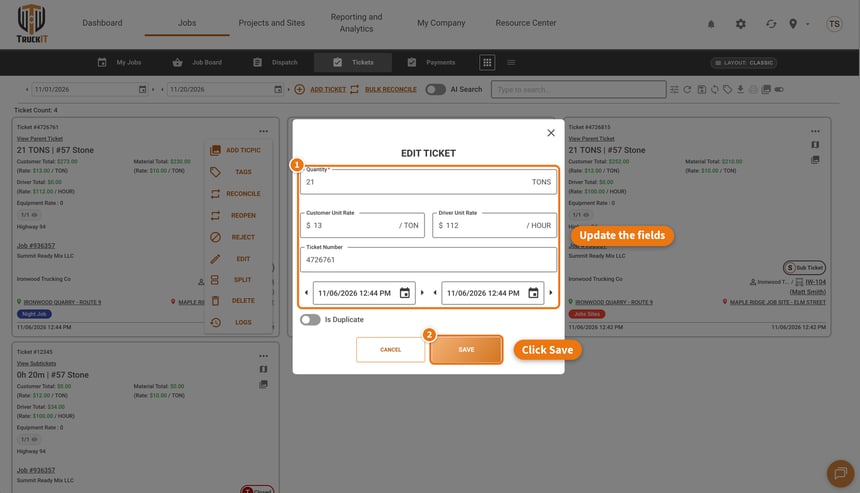
3. Update the fields and save. Change the details you need, review them, and click Save.
What You Can Edit
• Quantity
• Customer Unit Rate and Driver Unit Rate
• Ticket Number
• Ticket start and end date and time
• Is Duplicate: turn this on to mark the ticket as a duplicate
The fields you see may vary depending on your company’s setup, your permissions, and the ticket’s status.
Check Before You Save
Compare the ticket against its TicPic before you change anything, and make corrections before tickets are exported for billing. If you edit a ticket after an export, re-check any reports that used it.
Tip: if the ticket photo itself is wrong or unreadable, reject the TicPic instead, so the driver can send a new one.
What Happens Next
The ticket card shows your saved changes right away, and the updated details flow into reporting, reconciliation, and billing. If an edit affects invoices or pay, let the team that handles them know.
Related Articles
 Questions? support@truckit.com