Create and Set Up Sites in the TruckIT Portal
Learn how to create sites, add alert zones, choose site types, and save site details for accurate tracking and driver directions.
Use this article to create and set up sites in the TruckIT Web Portal.
Sites are the pickup, drop-off, jobsite, plant, quarry, yard, or other locations your team uses in TruckIT. Setting up sites correctly helps drivers and haulers know where to go and helps TruckIT capture more accurate job, tracking, and notification data.
A site should include both the location and an alert zone. The location tells users where the site is, while the zone helps TruckIT identify when a hauler enters and exits the actual work area.
Before you begin
Make sure you are logged in to the TruckIT Web Portal.
You may need permission to create or edit sites. If you do not see Projects and Sites, Sites, Add Site, or Add Zone, contact your company administrator or TruckIT Support.
Before creating a site, confirm:
- Site name
- Site address or coordinates
- Whether you want to use a map pin
- Actual work area that should be included in the zone
- Alert zone name
- Site type
- Any site notes or instructions
- Tags, if your company uses them
Open the Sites screen
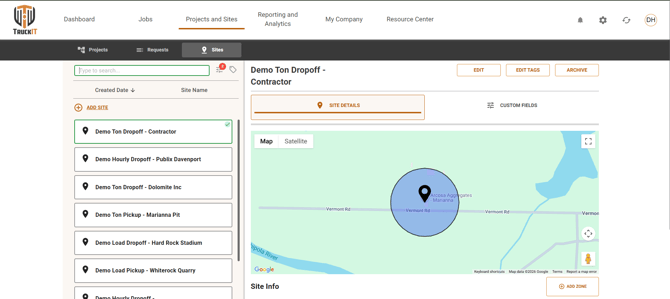
- Go to Projects and Sites.
- Select Sites.
The Sites screen shows the sites your company has already created.

Add a new site
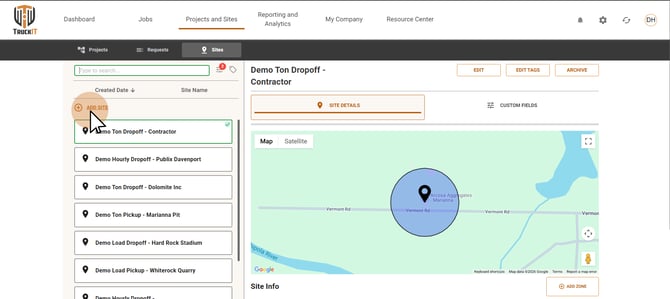
1. From the Sites screen, click Add Site.

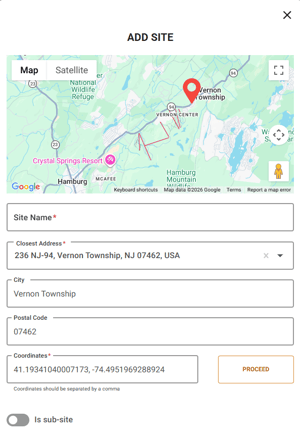
2. Add the site location.
You can identify the site location by using:
- Address
- Longitude and latitude
- A pin drop on the map
Use the option that gives your team the most accurate location for the site.

Add a zone to the site
After identifying the site location, add a zone.
A zone marks the actual work area of the site. TruckIT uses the zone to help identify when a hauler enters and exits the site, which improves tracking accuracy and notifications.
1. Click Add Zone.
.png?width=373&height=365&name=Untitled%20design%20(1).png)
2. Enter an Alert Zone Name.
The alert zone name appears in notifications for that zone, so use a name your team will recognize.

Draw the zone on the map
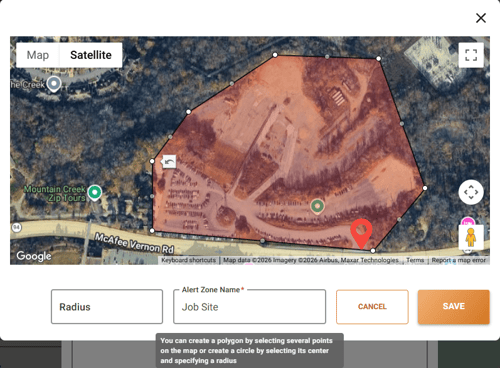
After naming the alert zone, draw the zone on the map.
- Click multiple points on the map to outline the work area.
- Continue clicking points until the zone covers the area you want to track.
- Close the zone by clicking your first pin drop again.
- Adjust the zone by dragging and dropping the points, if needed.
- Click Save to add the zone to the site.
You can draw the zone in any shape needed to cover the work area. The current article notes that you can use a radius, but it is not recommended if you want the most accurate data
Add site notes
After adding the zone, enter any notes you have about the site.
Site notes are optional, but they can help your team capture important details such as:
- Entrance instructions
- Gate or scalehouse details
- Safety reminders
- Site contact information
- Loading or unloading instructions
- Driver directions
- Special access requirements
Use notes when drivers, dispatchers, or haulers need extra context about the site.
.png?width=426&height=402&name=Untitled%20design%20(2).png)
Select the site type
Select the site type from the dropdown.
Site type matters because it can affect how the site is used in TruckIT workflows. Choose the site type that best matches how the location is used, such as a pickup location, drop-off location, jobsite, yard, pit, quarry, plant, mill, or dump.
If your team is unsure which type to use, review your site-type guidance before saving the site.
.png?width=428&height=486&name=Untitled%20design%20(3).png)
Add tags, if needed
Add tags if your company uses them.
Tags can help organize sites, support filtering, or identify groups of locations. Use clear, consistent tags so your team can find and manage sites more easily.
.png?width=391&height=369&name=Untitled%20design%20(4).png)
Save the site
After the location, zone, site type, notes, and tags are complete:
- Review the site details.
- Confirm the zone covers the correct work area.
- Click Save.
The site will now be added to your sites list.
Edit or archive a site
You can update or archive sites from the Sites screen.
To edit a site:
- Open the Sites screen.
- Click the site you want to update.
- Click Edit in the top-right corner.
- Make your changes.
- Save the updates.
To archive a site:
- Open the site.
- Click Archive.
Archive sites that are no longer being used so your site list stays clean.
Best practices for site setup
Set up sites carefully because site details affect driver directions, tracking accuracy, notifications, and job workflows.
Recommended best practices:
- Use the most accurate location available.
- Add a zone for every important work area.
- Draw the zone around the actual work area, not just the address point.
- Use polygon zones instead of radius zones when accuracy matters.
- Give each alert zone a clear name.
- Select the correct site type before dispatching work.
- Add notes when drivers need entrance, safety, or site-specific instructions.
- Use tags consistently if your company uses site tags.
- Review sites periodically and archive locations that are no longer active.
Troubleshooting
I do not see the Sites screen
Your user role may not have permission to manage sites. Contact your company administrator or TruckIT Support.
I do not see Add Site
You may not have permission to create sites. Contact your company administrator.
The site location is not accurate
Use longitude and latitude or drop a pin on the map to mark the site more precisely.
The zone does not cover the correct area
Edit the site, open the zone, and adjust the map points by dragging and dropping them. Then save the updated zone.
Drivers are entering or exiting the site but notifications are not accurate
Review the site zone. The zone should cover the actual work area where TruckIT should detect entry and exit activity.
I am not sure which site type to choose
Choose the site type based on how the location is used in the workflow. If the site type affects driver prompts, review your Site Types article before saving.
The site is no longer used
Open the site and click Archive so it no longer clutters the active site list.
Frequently asked questions
Where do I create a site?
Go to Projects and Sites, open Sites, and click Add Site.
How can I add the site location?
You can use an address, longitude and latitude, or a pin drop on the map.
What is a zone?
A zone marks the actual work area of the site. It helps TruckIT identify when haulers enter and exit the site for tracking and notifications.
How do I create a zone?
Click Add Zone, enter an Alert Zone Name, then click multiple points on the map and close the shape by clicking your first pin drop again.
Should I use a radius zone?
The current article says a radius can be used, but it is not suggested when you want the most accurate data.
Can I edit a site later?
Yes. Click the site from the Sites screen, then click Edit in the top-right corner.
Can I archive a site?
Yes. Open the site and click Archive if you are no longer using it.