
TruckIT · Projects & Sites

Jump to a Section
Filtering Before You Download
The download only includes the projects visible in your current filtered view — so confirm your filter before exporting. Leave it unfiltered to download every visible project, or filter by status to export just one group at a time.
Tip: add the date to your filename (e.g. “TruckIT Active Projects – 2026-08-28”) so you can tell exports apart later, and download each status separately if you need distinct lists.
Download Your Projects
1. Open Projects and Sites. From the TruckIT Web Portal, go to Projects and Sites.
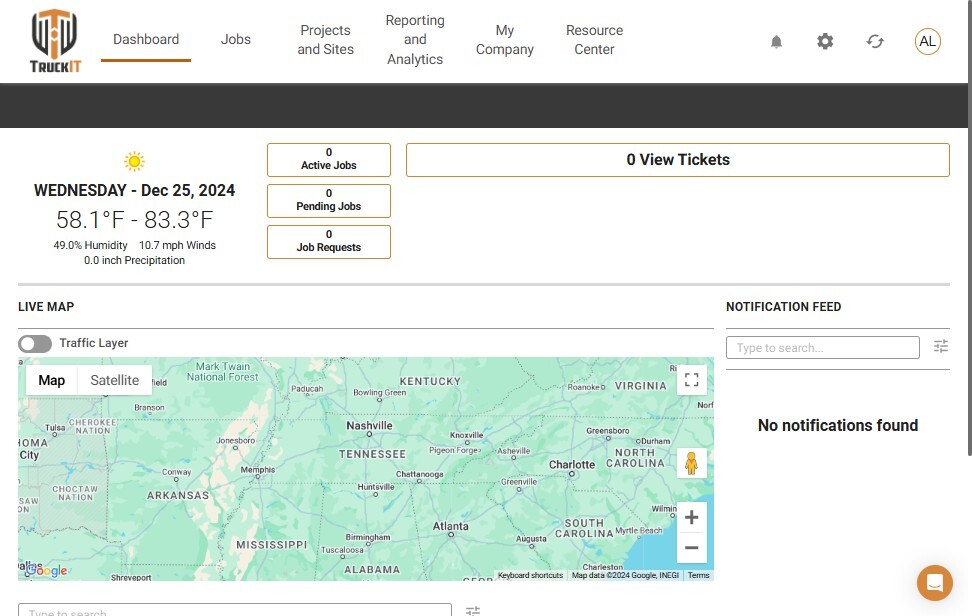
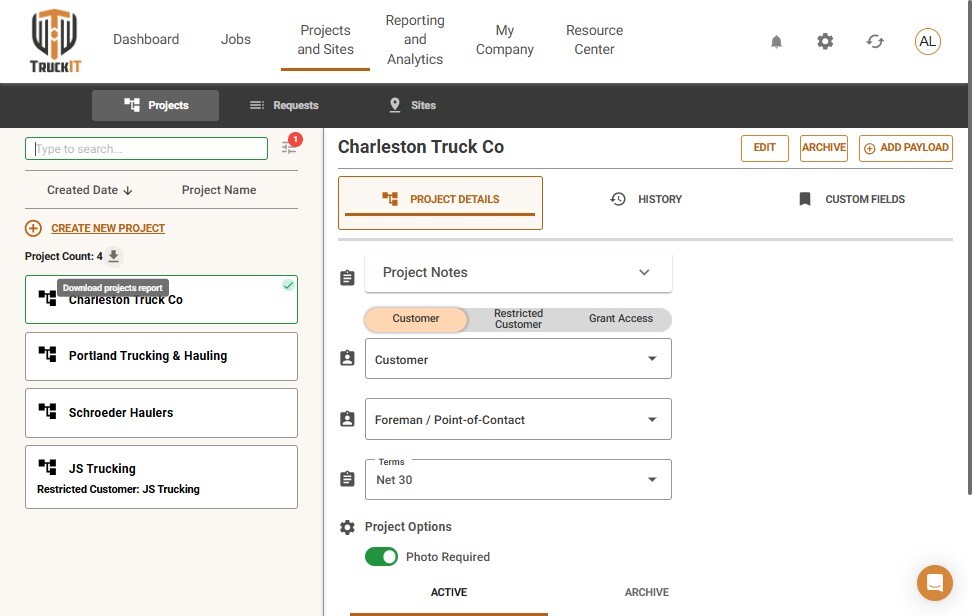
2. Review and filter the list. Look over the project list, and apply a filter — Active, Closed, or Archived — if you only need one status.
3. Click the download icon. Your browser downloads the projects currently shown in your filtered view.
What Happens Next
Your download opens as a spreadsheet you can use for reporting, auditing, or record-keeping. Since it’s a snapshot of your projects at the time you downloaded it, re-download whenever you need the most current data — especially before relying on it for billing or dispatch decisions.
 Questions? support@truckit.com