
TruckIT · Projects & Sites

Step 1: Create the User as a Dispatcher
A foreman or point of contact must have a dispatcher account before they can be assigned to a project. If they don’t have one yet, create it first.
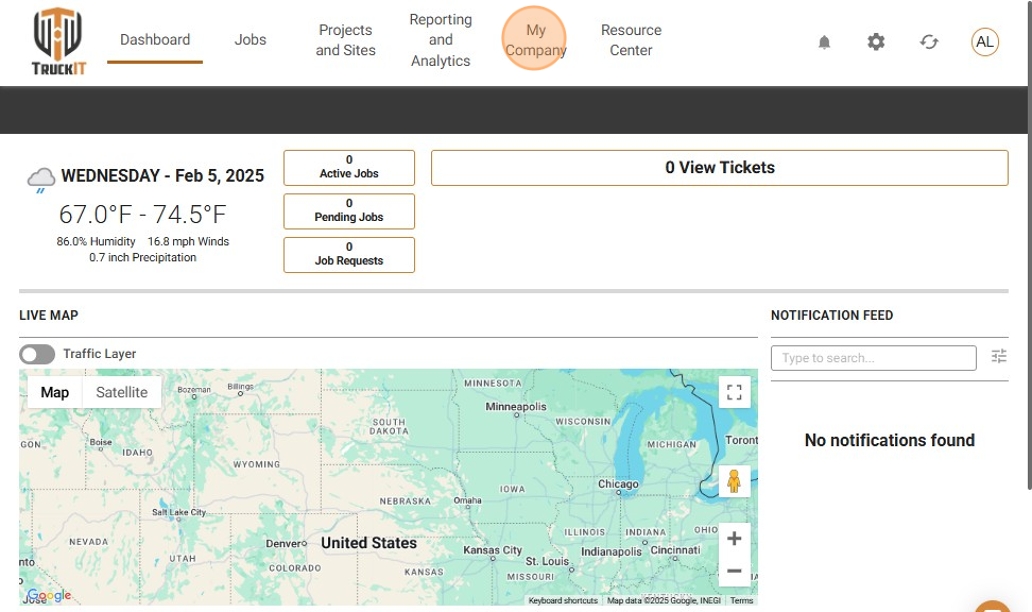
1. Open My Team. From My Company, select My Team.
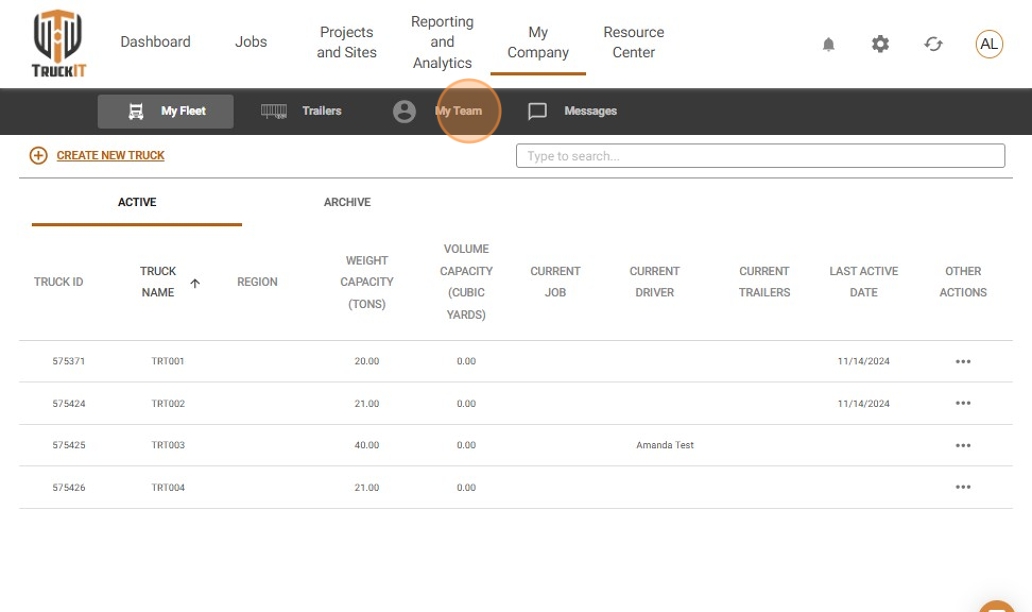
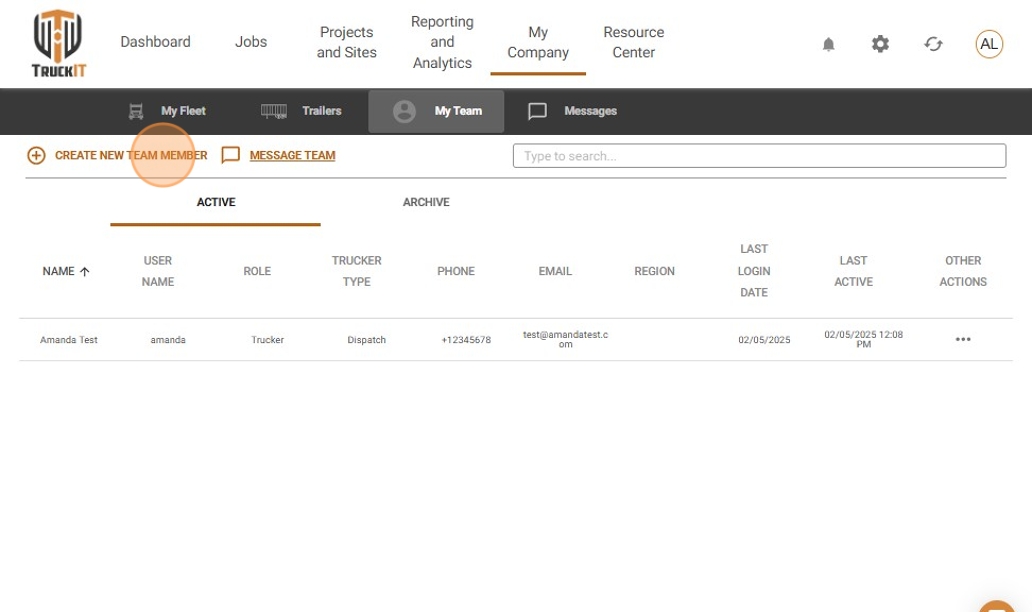
2. Start a new team member. Click Create New Team Member and enter the required user information.
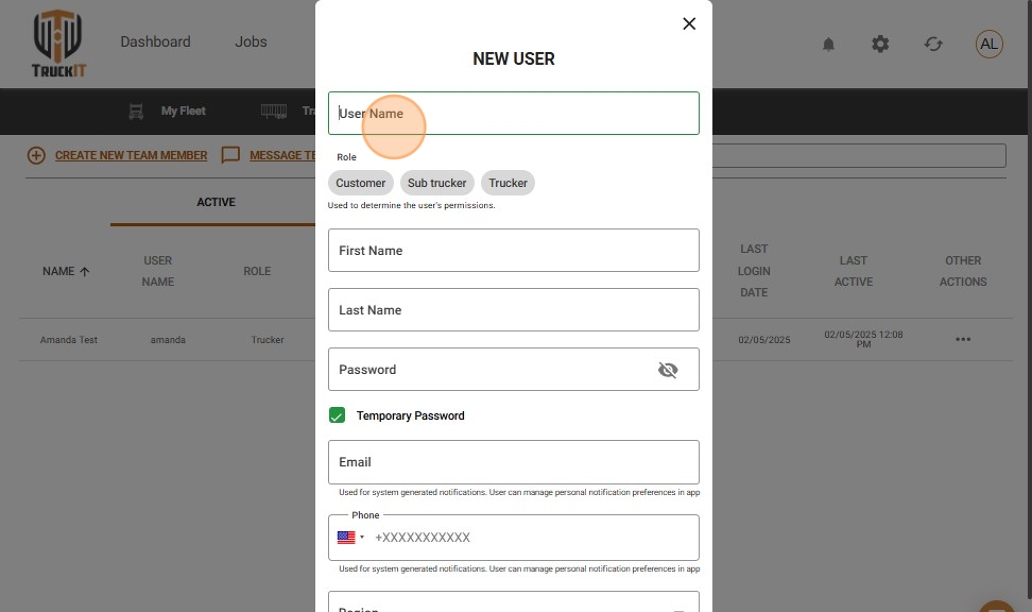
3. Set the role to Dispatch. Select Trucker as the role, click the Trucker Type drop-down, and choose Dispatch.
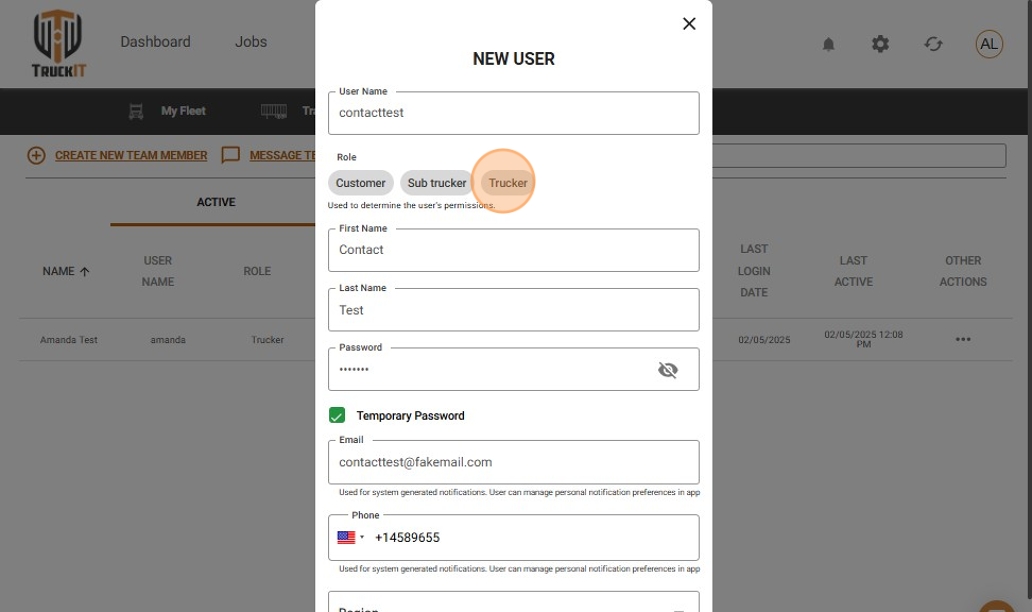
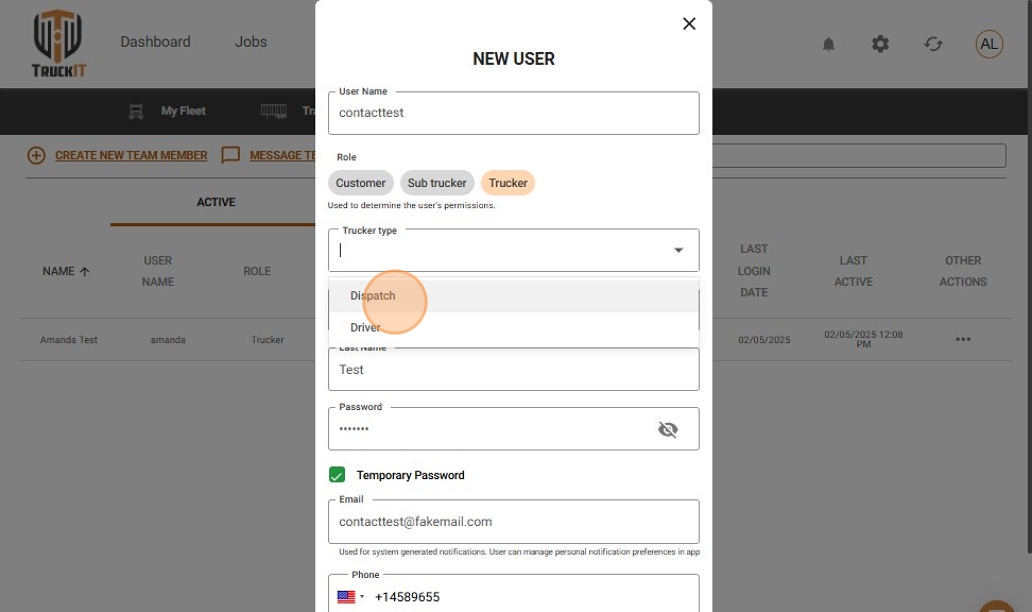
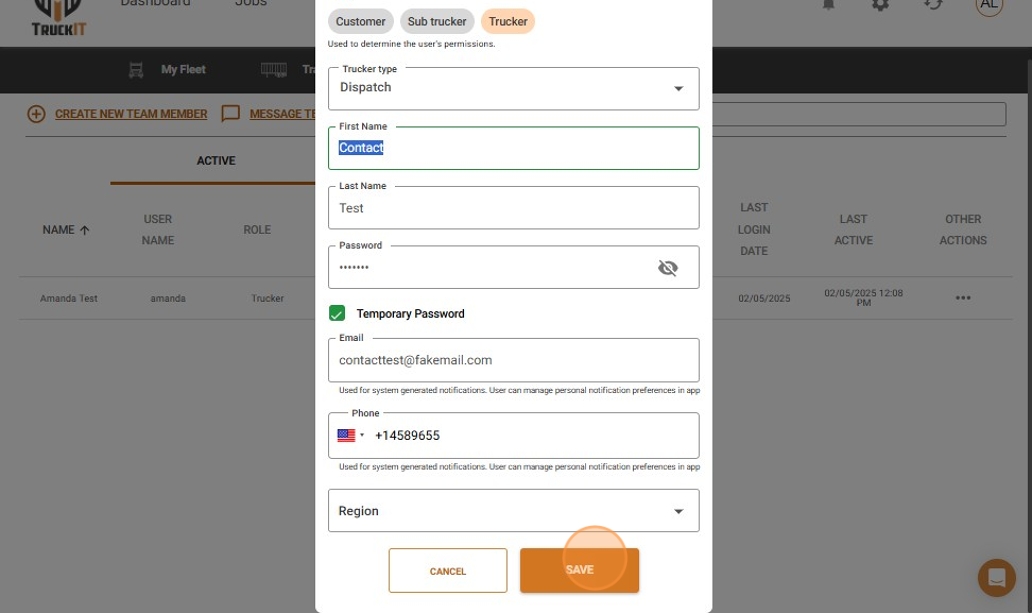
4. Save. Review the user’s details and click Save — the dispatcher account is ready to be assigned.
Step 2: Assign the User to a Project
Once the dispatcher account exists, assign that user as the project’s foreman or point of contact.
1. Open the project. Go to Projects and Sites > Projects, and select the project you want to update.
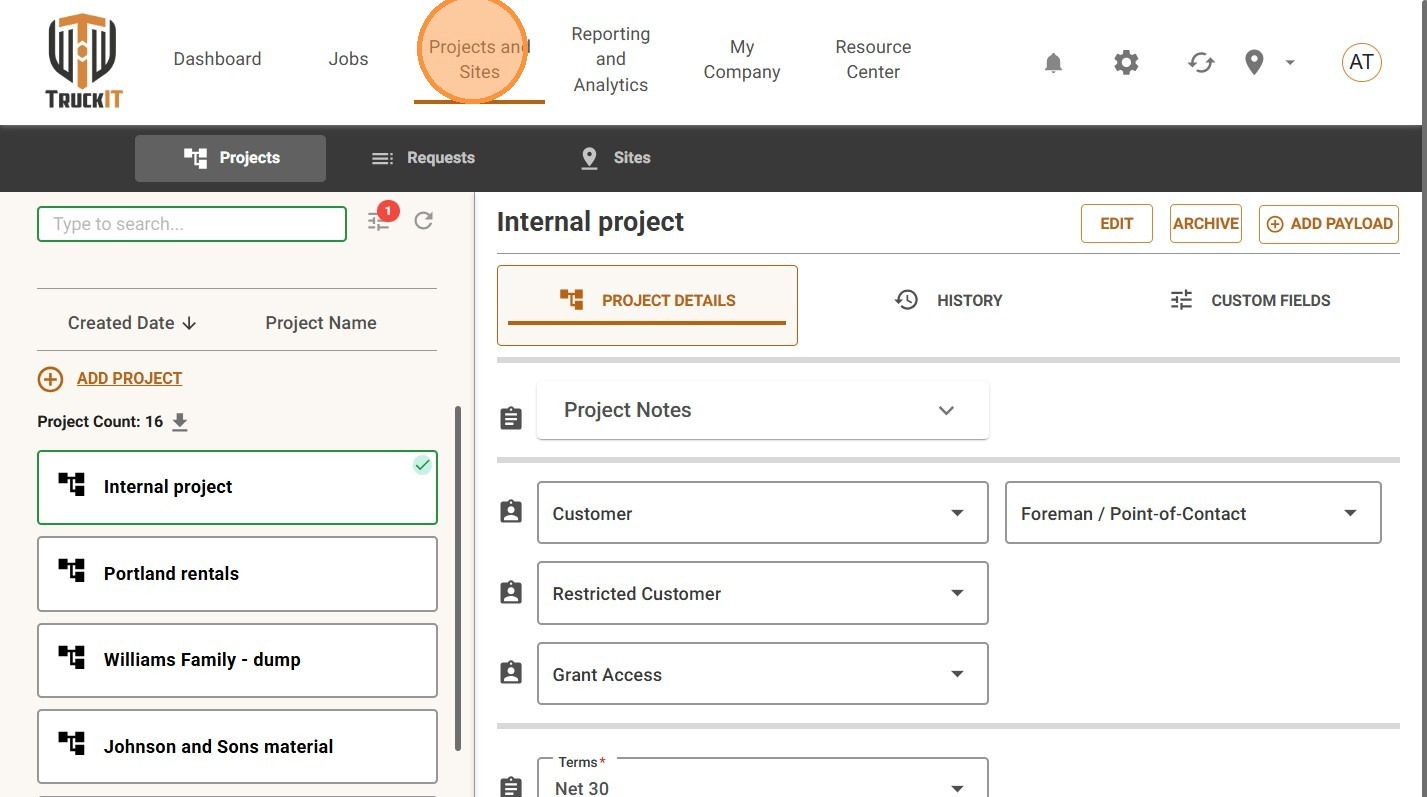
2. Find the Foreman / Point of Contact field. Open its drop-down list.
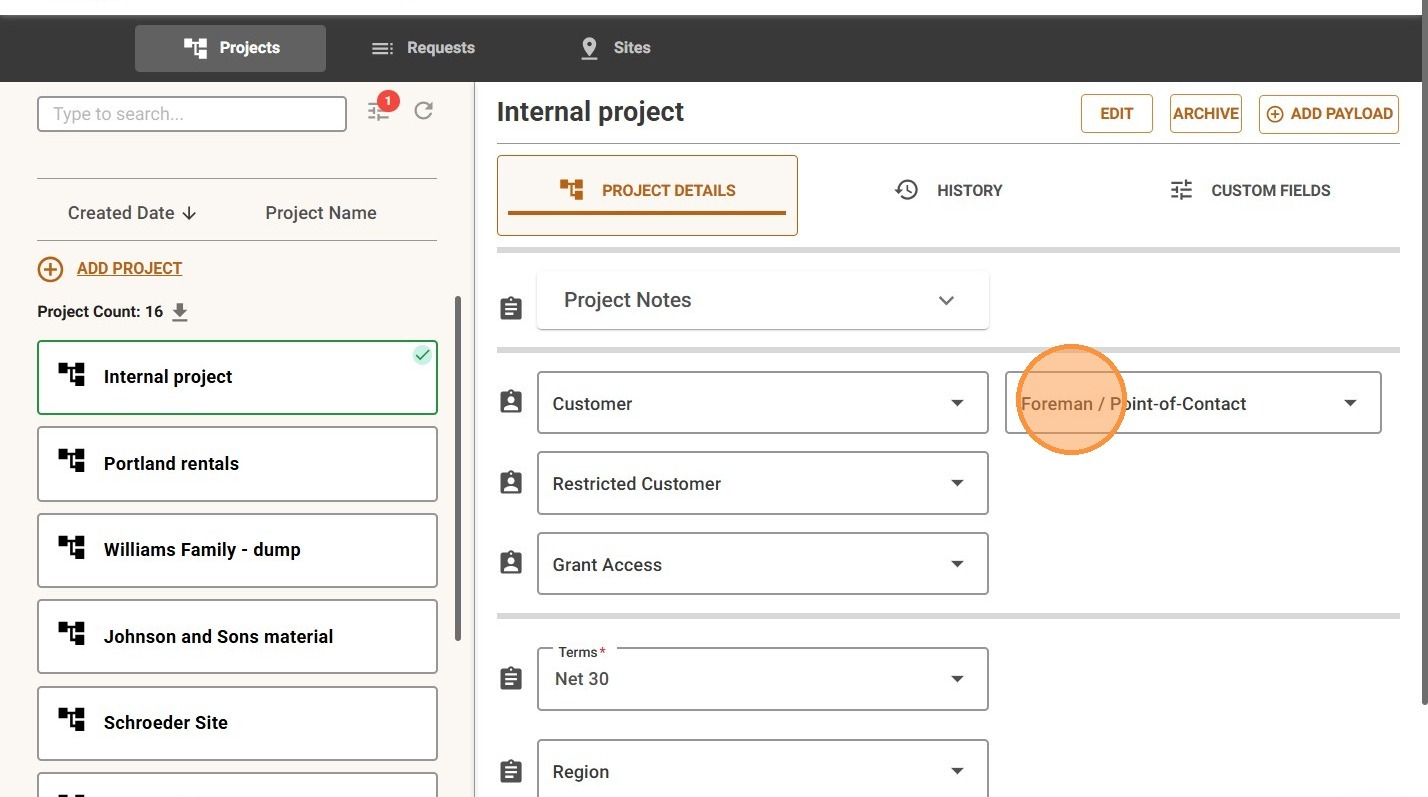
3. Select the correct user. The selected user is now listed as the foreman or point of contact for that project.
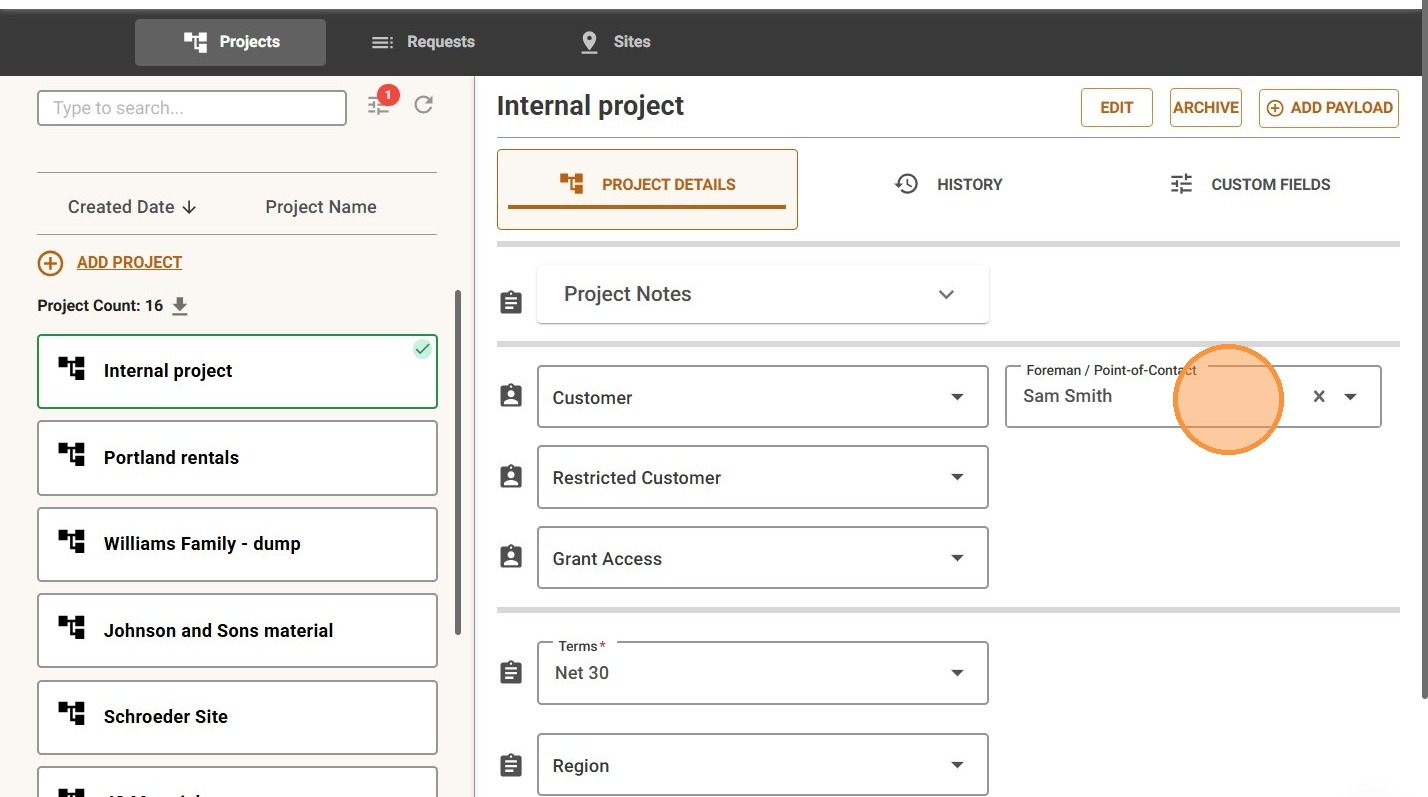
Note: points of contact and foremen must have a dispatcher account before they can be selected for a project. If someone doesn’t appear in the dropdown, check their team member profile and confirm they’re set up as a dispatcher.
When to Assign a Foreman or Point of Contact
Assign a foreman or point of contact whenever a project needs one clear person responsible for field communication, project oversight, or jobsite coordination — for example:
- A superintendent or foreman overseeing work in the field
- A dispatcher responsible for project communication
- A site contact drivers may need to reach
- A company contact responsible for project updates
- A user who needs visibility into project activity
Tip: assign one clear contact per active project, and update it whenever project ownership changes — an outdated contact creates confusion for drivers and dispatchers working the job.
What Happens Next
With a foreman or point of contact assigned, drivers, dispatchers, and other team members can quickly see who’s responsible for that project. You can change this assignment at any time — just reopen the project and select a different user from the Foreman / Point of Contact dropdown.
 Questions? support@truckit.com