
TruckIT · Projects & Payloads

Jump to a Section
Add a Custom Field
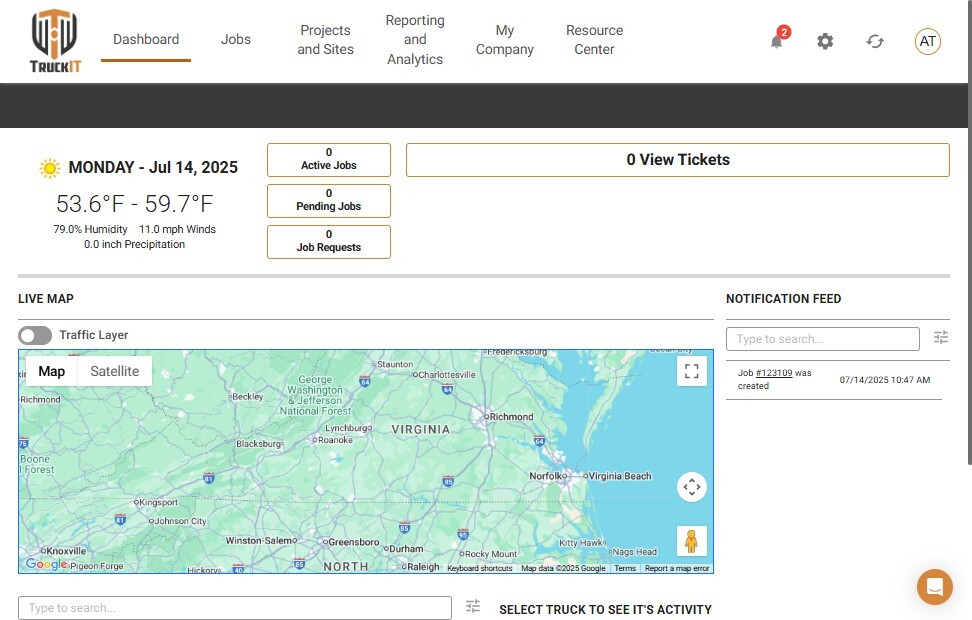
1. Open Projects and Sites. From the TruckIT Web Portal, go to Projects and Sites.
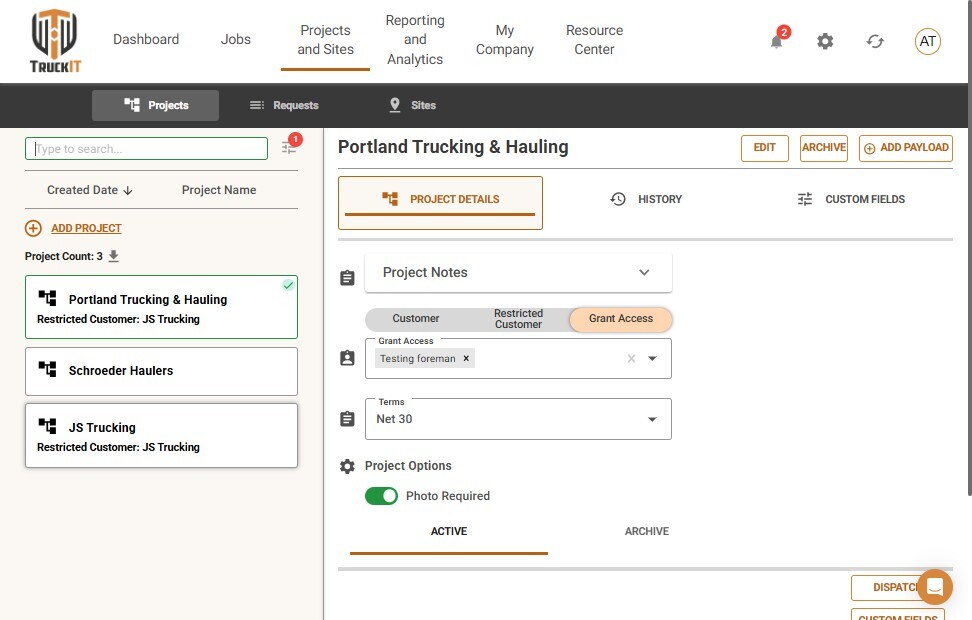
2. Select the project. Choose the project the payload belongs to.
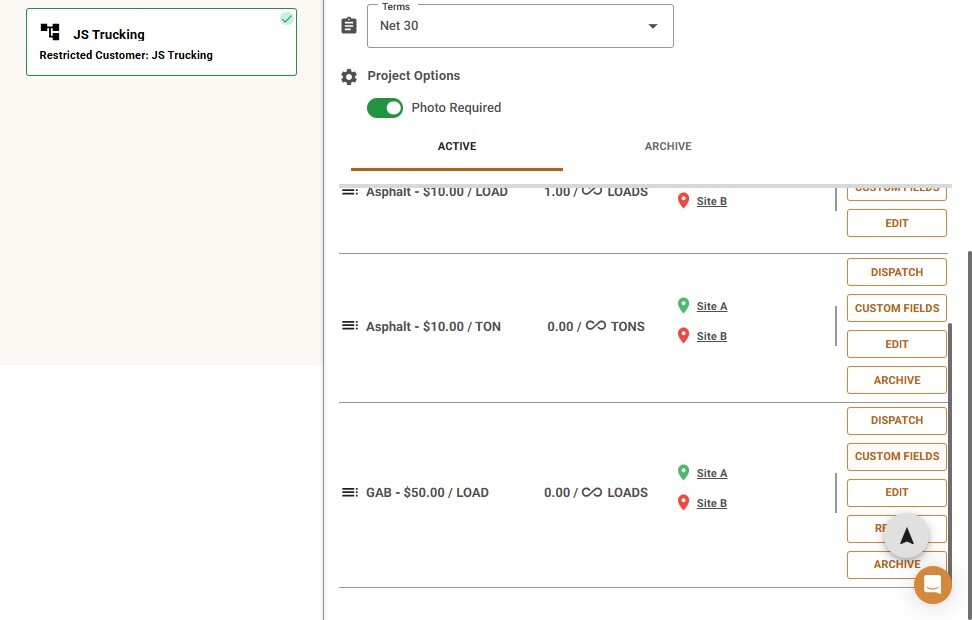
3. Open Custom Fields. Find the payload in the list and click Custom Fields.
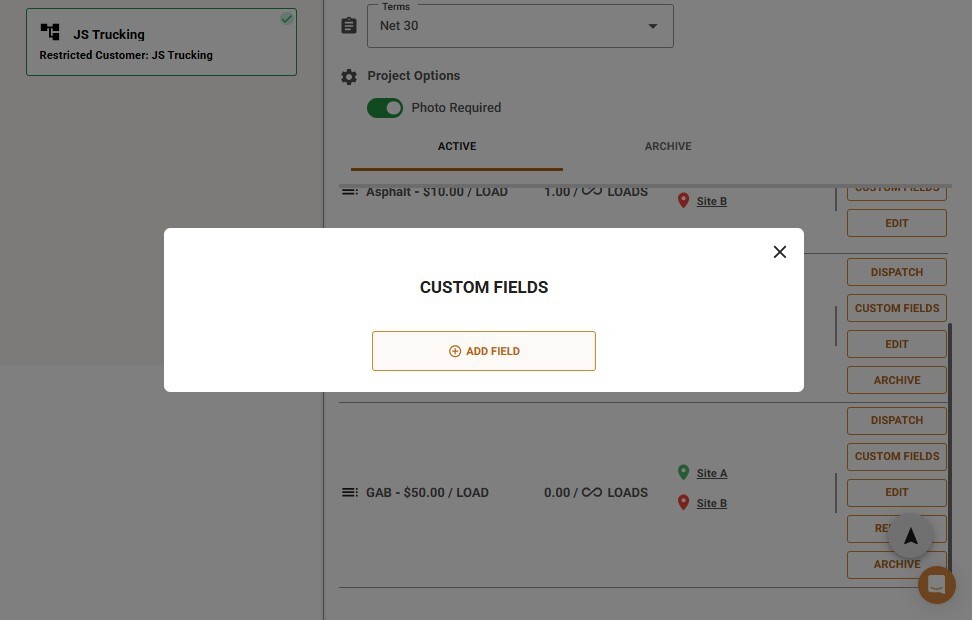
4. Click Add Field.
5. Choose a custom variable. Click Select and pick the variable from the list.
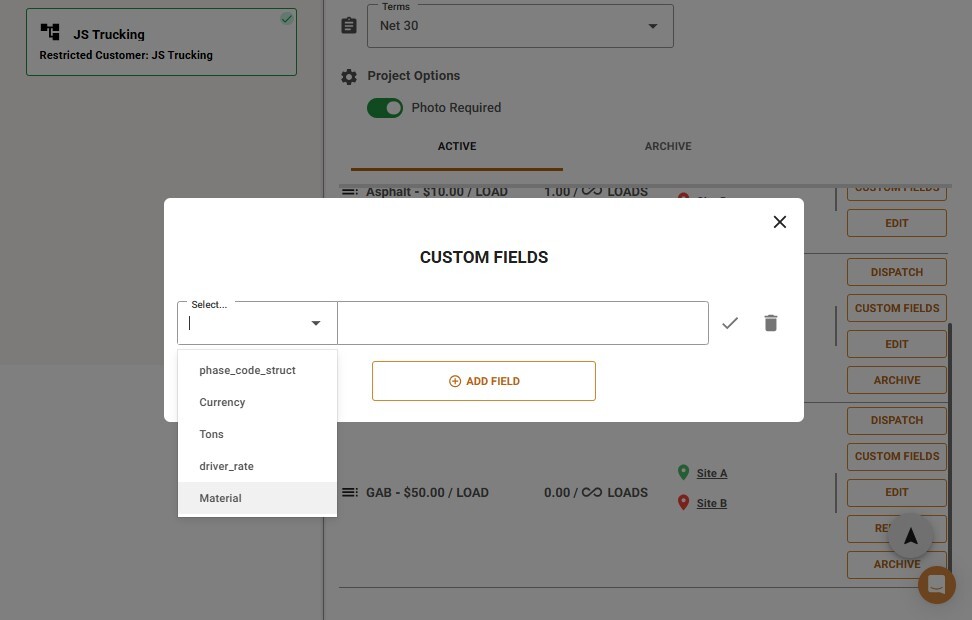
6. Confirm the field. Click the checkmark next to the row to save it to the payload.
What Happens Next
The custom field is now attached to this payload and appears wherever the payload’s details are shown — on the ticket, in reports, and anywhere else that field is referenced.
 Questions? support@truckit.com