
Plan your day with Job Drafts
Learn how to schedule jobs and plan your day in advance, alerting drivers only once the details are final.
TruckIT · Jobs & Dispatch

What Are Job Drafts?
Learn how to plan your day with Job Drafts. Drafts let you build your job orders in the TruckIT Portal before alerting your drivers — fill in the details as they come in, then make each job live only when it’s ready.
The result is a more efficient operation: dispatchers get room to plan, and drivers only hear about jobs that are final.
When Is It Good to Use Drafts?
Use Drafts when you know work is coming but don’t have every detail yet — for example:
- You don’t know all the job details yet, such as quantities, start times, or sites
- You haven’t decided which driver or truck should be assigned to each job
- You’re planning tomorrow’s schedule ahead of time
- A large job needs to be broken into several smaller jobs before it goes out
Planning in Drafts means drivers aren’t distracted by jobs that are still changing, and their devices aren’t flooded with notifications for every edit along the way.
Create a Job Draft
1. Open Dispatch. Go to Jobs > Dispatch and select the project you want to plan work for.
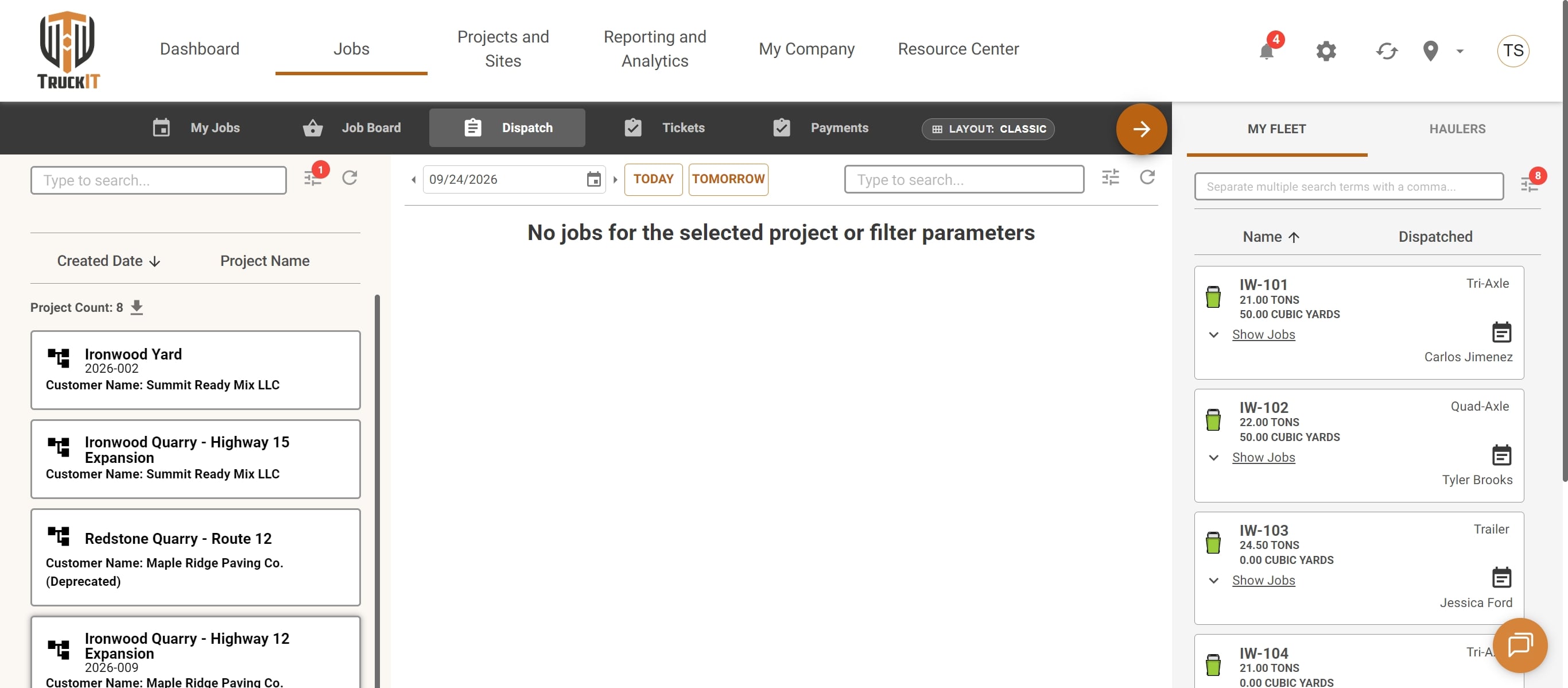
2. Add the details you have. Select a payload, choose the pickup site, drag the drop-off site into place, and set the number of loads. Add trucks now if you know them — or leave that for later.
3. Click Save as Draft. Use Save as Draft instead of Save Job to store the job without sending it out.
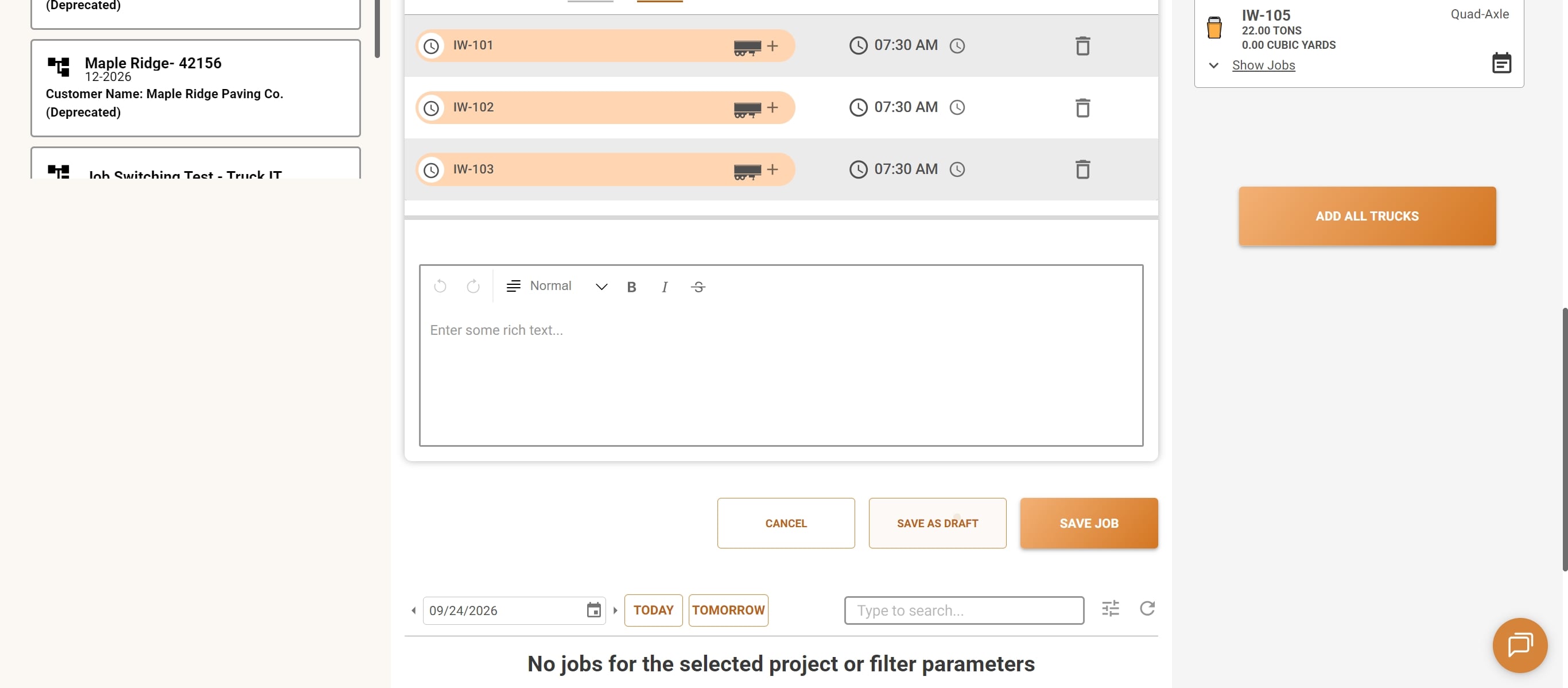
Note: draft jobs automatically use the region set on their Project, so region data stays consistent.
Find Your Drafts
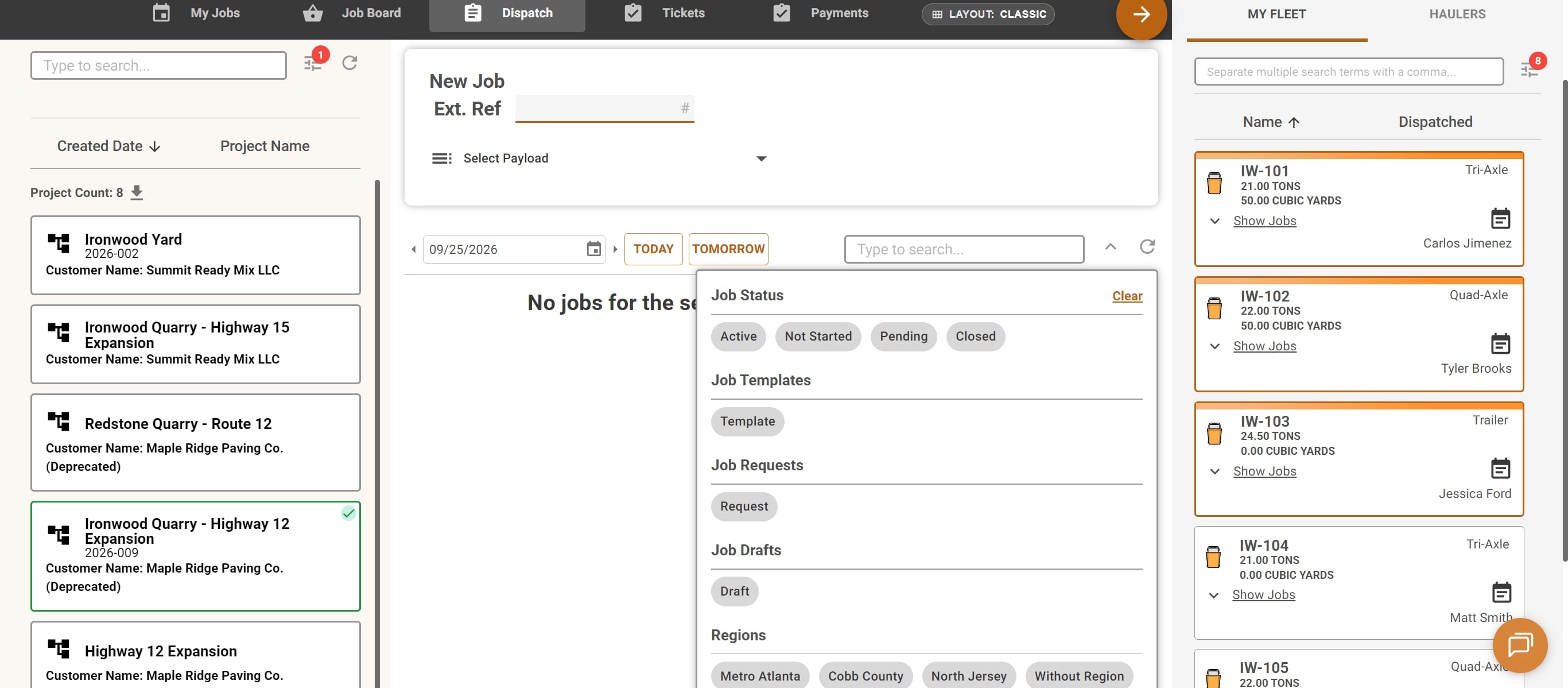
1. Pick the job date. Use Today, Tomorrow, or the date picker, then click the refresh icon to load the latest jobs.
2. Filter by Draft. Open the filter menu and select Draft under Job Drafts.
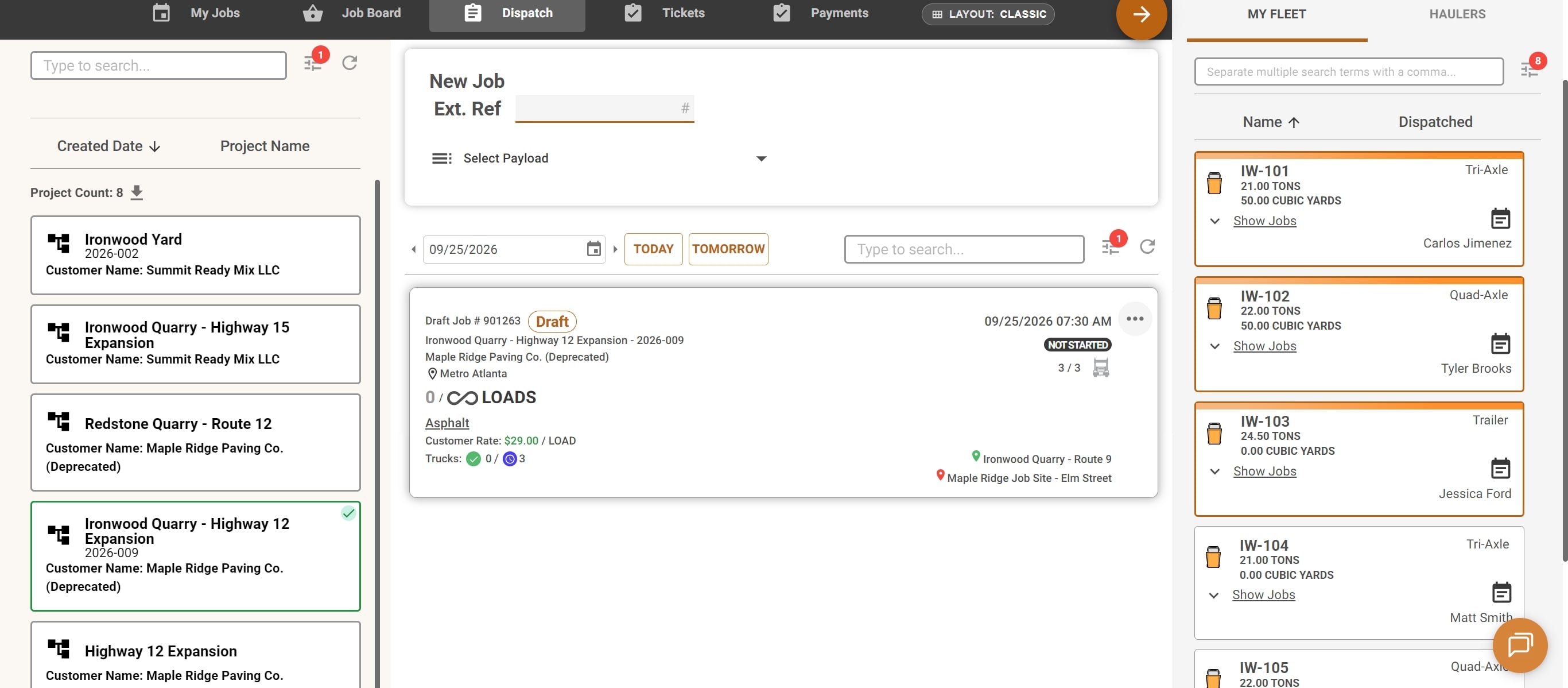
Draft jobs are labeled with a Draft tag. From the three-dot menu on a draft, you can also Copy Job or Delete Job.
Update or Make a Draft Live
1. Open the draft. Click the draft’s scheduled date and time to open its details.
2. Fill in what’s changed. Add an external reference number in the Ext. Ref field, and add or remove trucks as assignments are confirmed.
3. Save or go live. Click Update Draft to keep planning, or Make Live when the job is final and ready to go out to drivers.
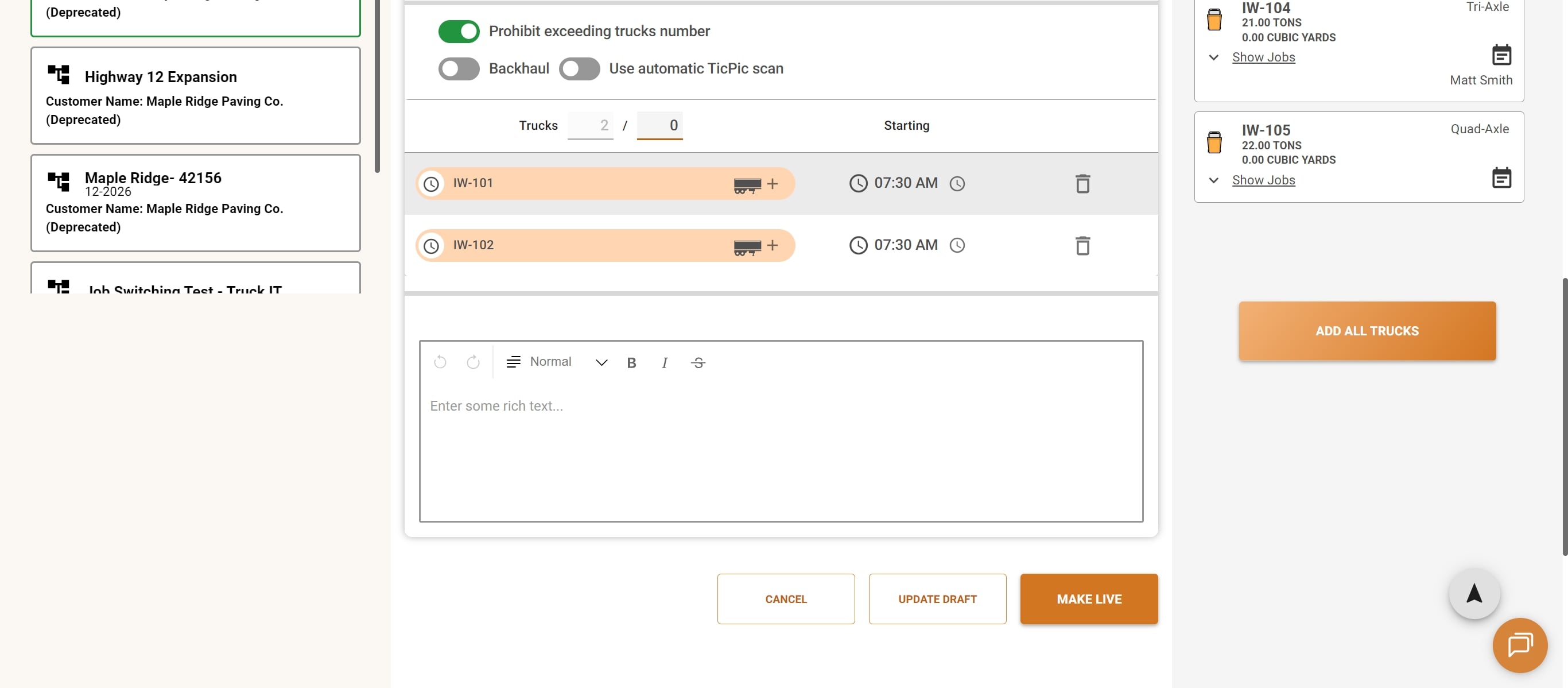
Once the job is live, it no longer appears under the Draft filter — click Clear in the filter menu to see it with the rest of your jobs.
Best Practices
• Start drafts as soon as you know work is coming, even with partial details
• Review each draft’s sites, times, and truck assignments before making it live
• Make jobs live with enough lead time for drivers to plan their day
• Keep drafts current — make live or delete ones that are no longer needed
• Review each draft’s sites, times, and truck assignments before making it live
• Make jobs live with enough lead time for drivers to plan their day
• Keep drafts current — make live or delete ones that are no longer needed
Tip: plan tomorrow’s jobs as drafts at the end of the day, then use the Tomorrow button and Draft filter to review and make them live in one pass once everything is confirmed.
Related Articles
 Questions? support@truckit.com