

- You’re not available, or can’t make the start time
- The job was sent to the wrong driver or truck
- The job details don’t match what you expected
- Dispatch asked you to decline it
 Questions? support@truckit.com
Use this article to reject a job request in the TruckIT mobile app.
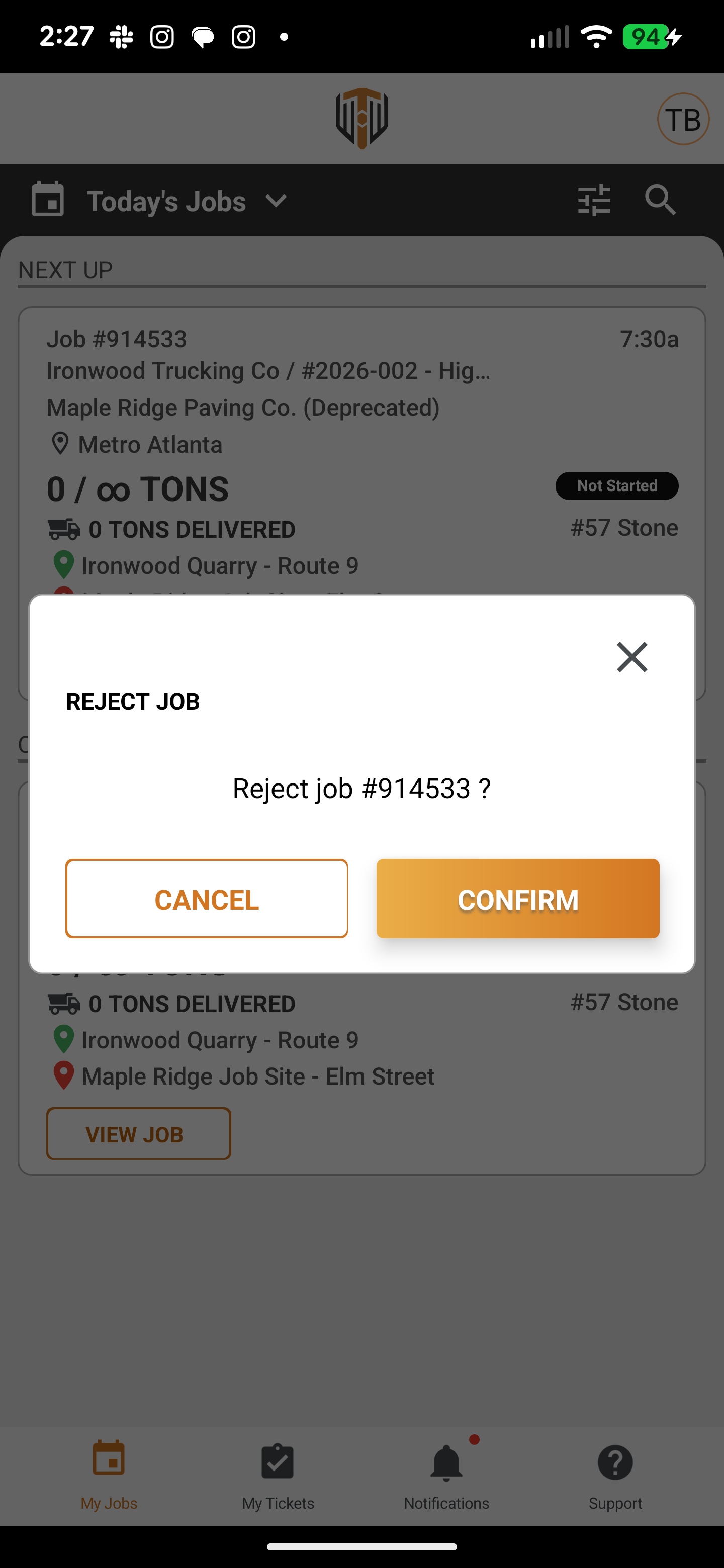
Drivers may receive job requests through the app. If you cannot take the job, you can reject it from My Jobs. After you confirm the rejection, the job will no longer appear under your My Jobs tab.
Before you begin
Make sure you have:
- Downloaded the TruckIT mobile app
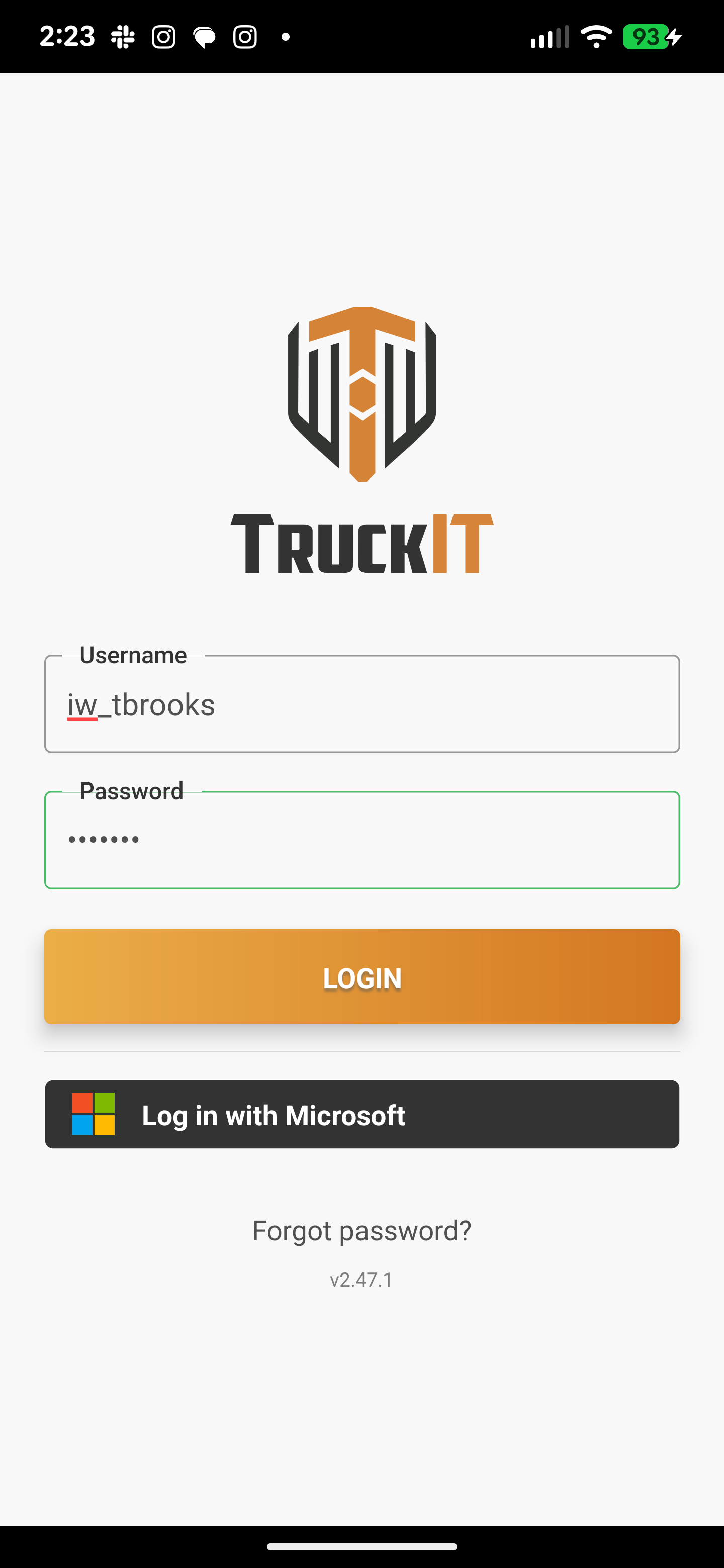
- Logged in with your TruckIT username and password
- Selected Login as a driver
- Confirmed you are linked to the correct truck
- Reviewed the job request before rejecting it
Only reject a job if you are sure you cannot accept or run the job.
Log in as a driver
1. Open the TruckIT mobile app.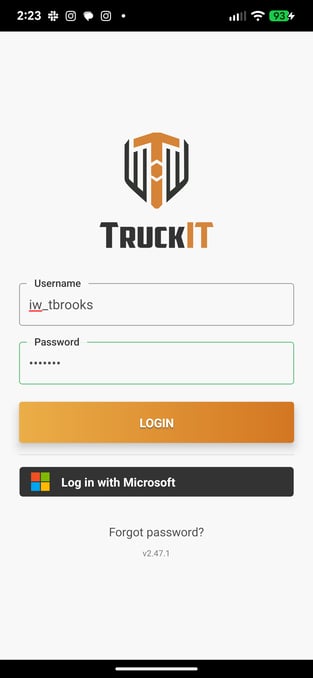
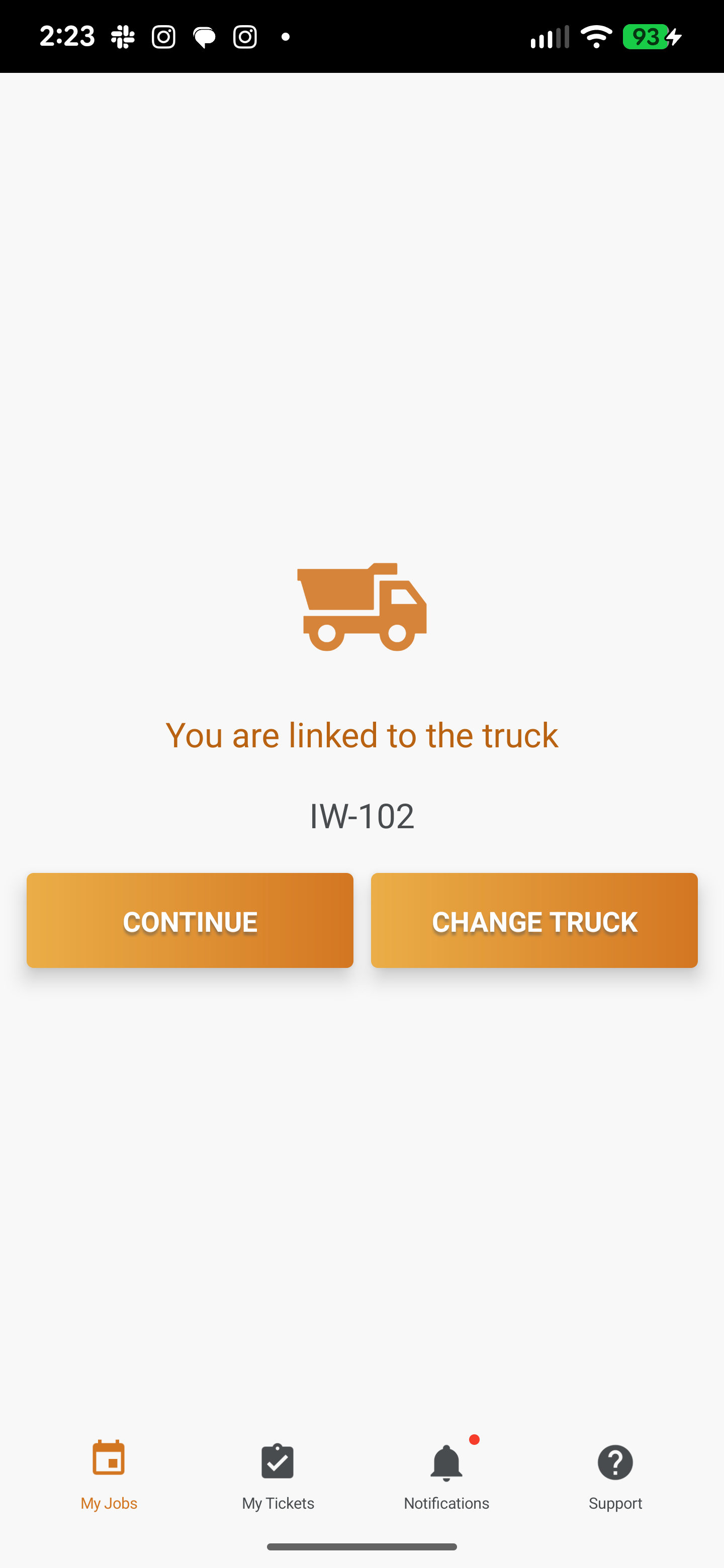
4. Confirm the truck linked to your account.
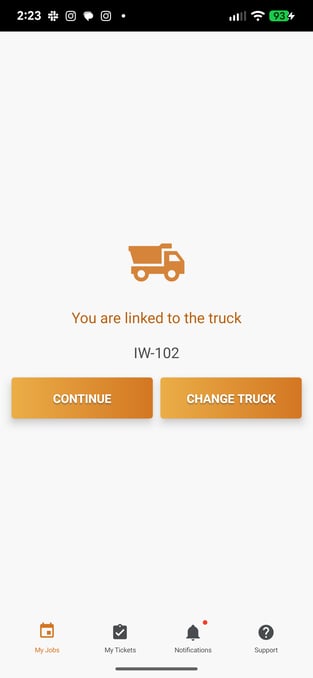
5. Tap Continue if the linked truck is correct.
After you continue, you can view your jobs and job requests in the app.
Review the job request
When a new job request is sent to you, you may receive a push notification on your mobile device.
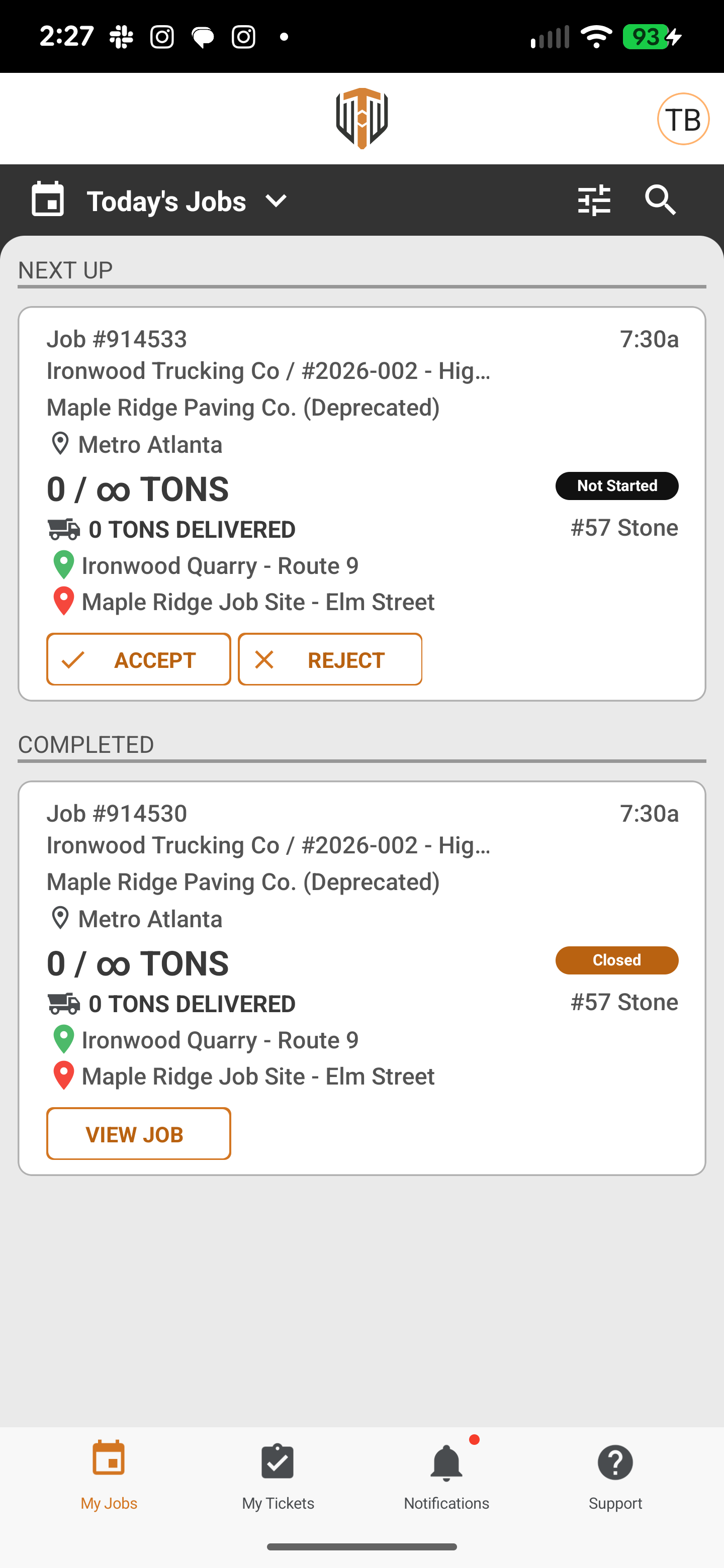
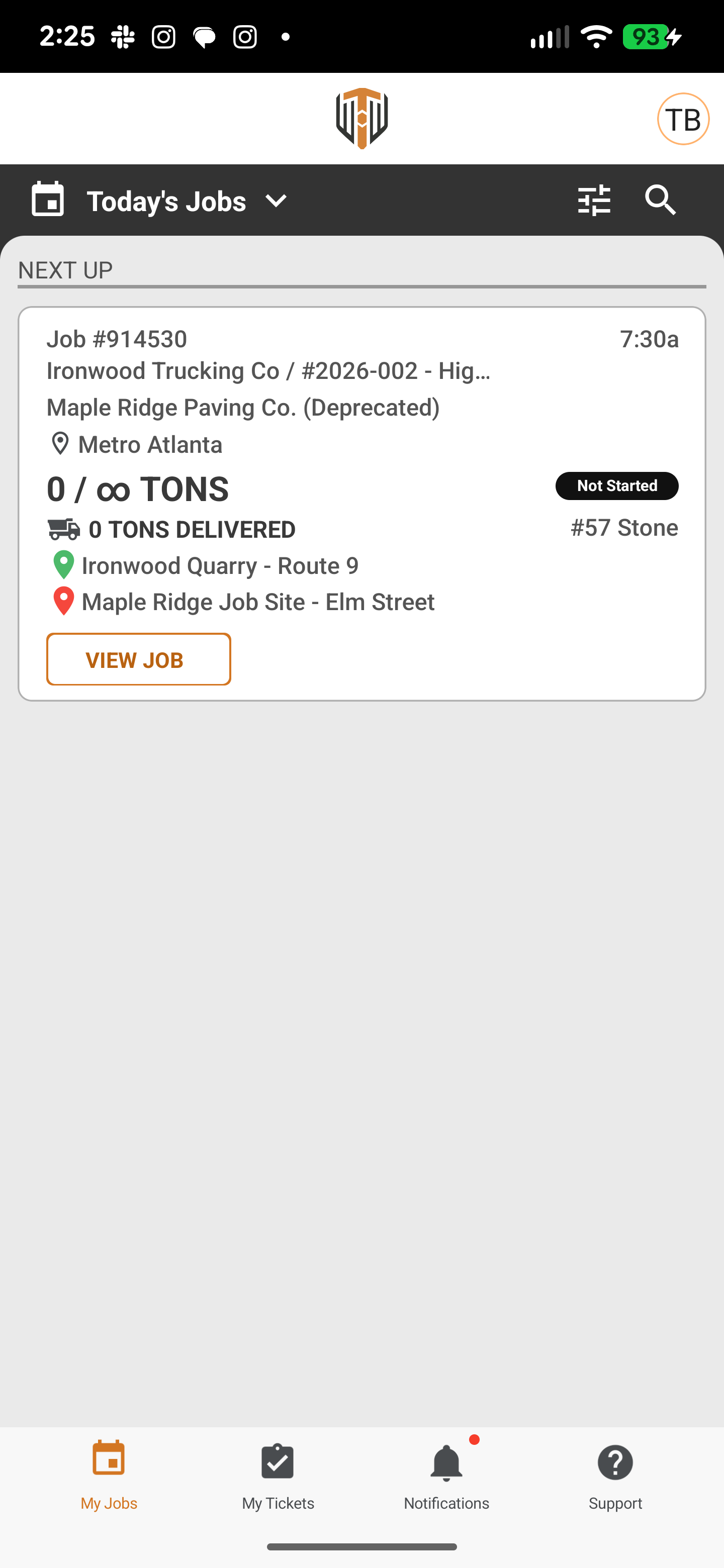
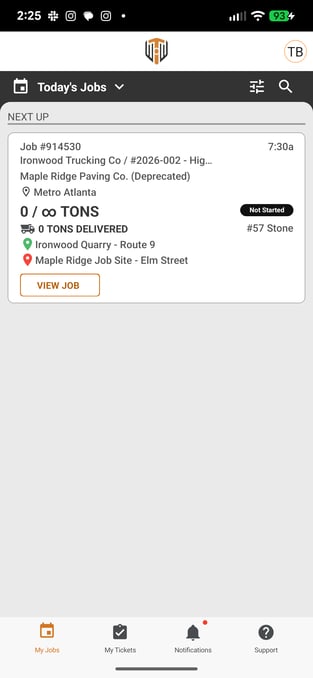
Open the app and go to My Jobs to review the job request.
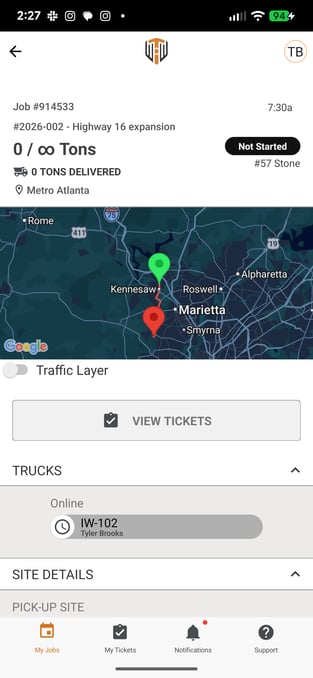
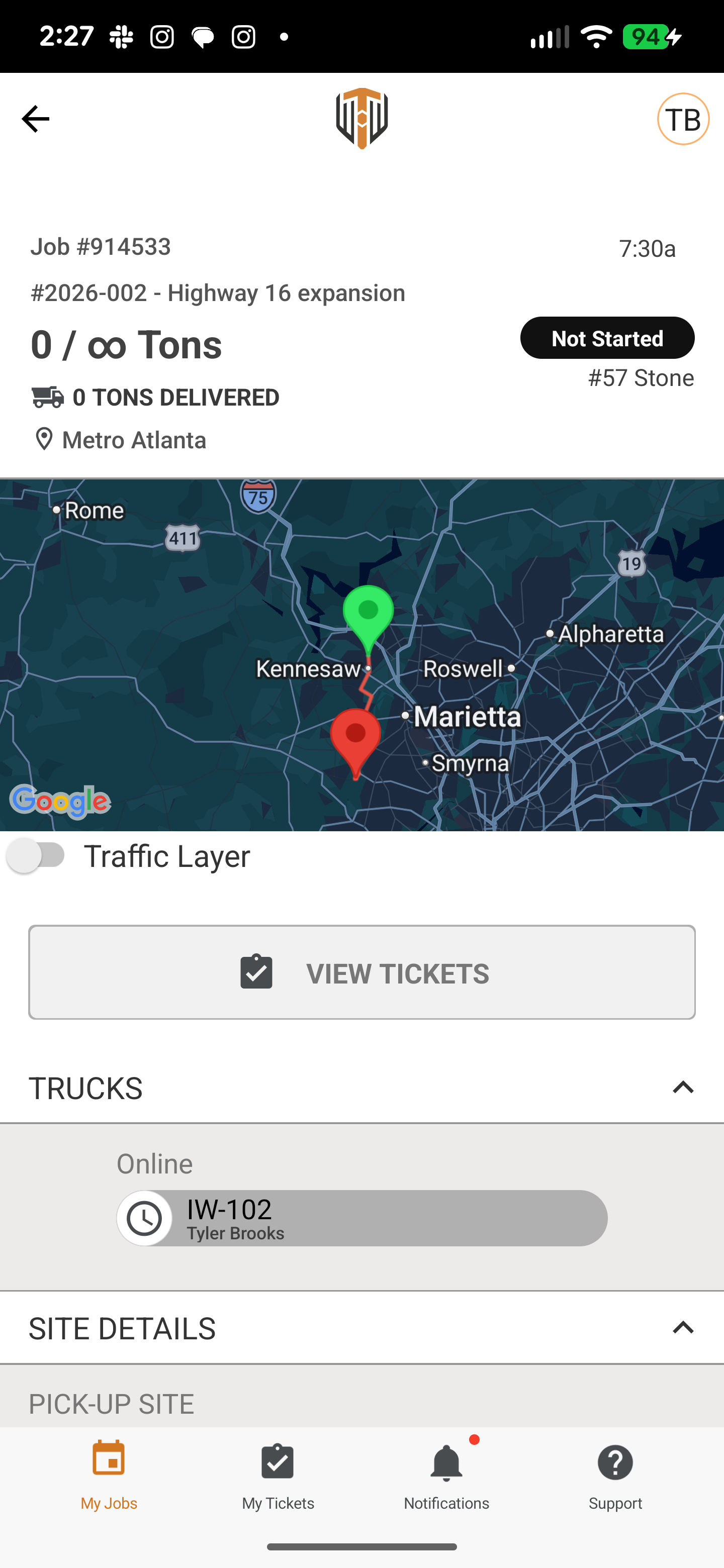
Before rejecting, check the job details, including:
- Job date
- Pickup location
- Drop-off location
- Material or payload
- Job notes
- Start time
- Truck assignment
Reject the job
1. Tap My Jobs.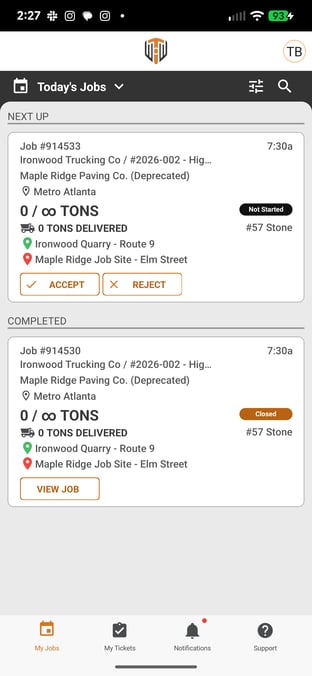
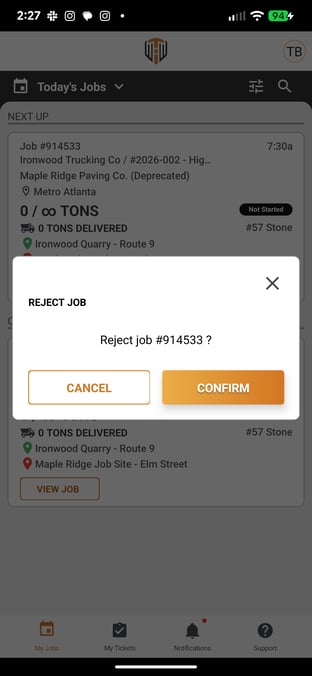
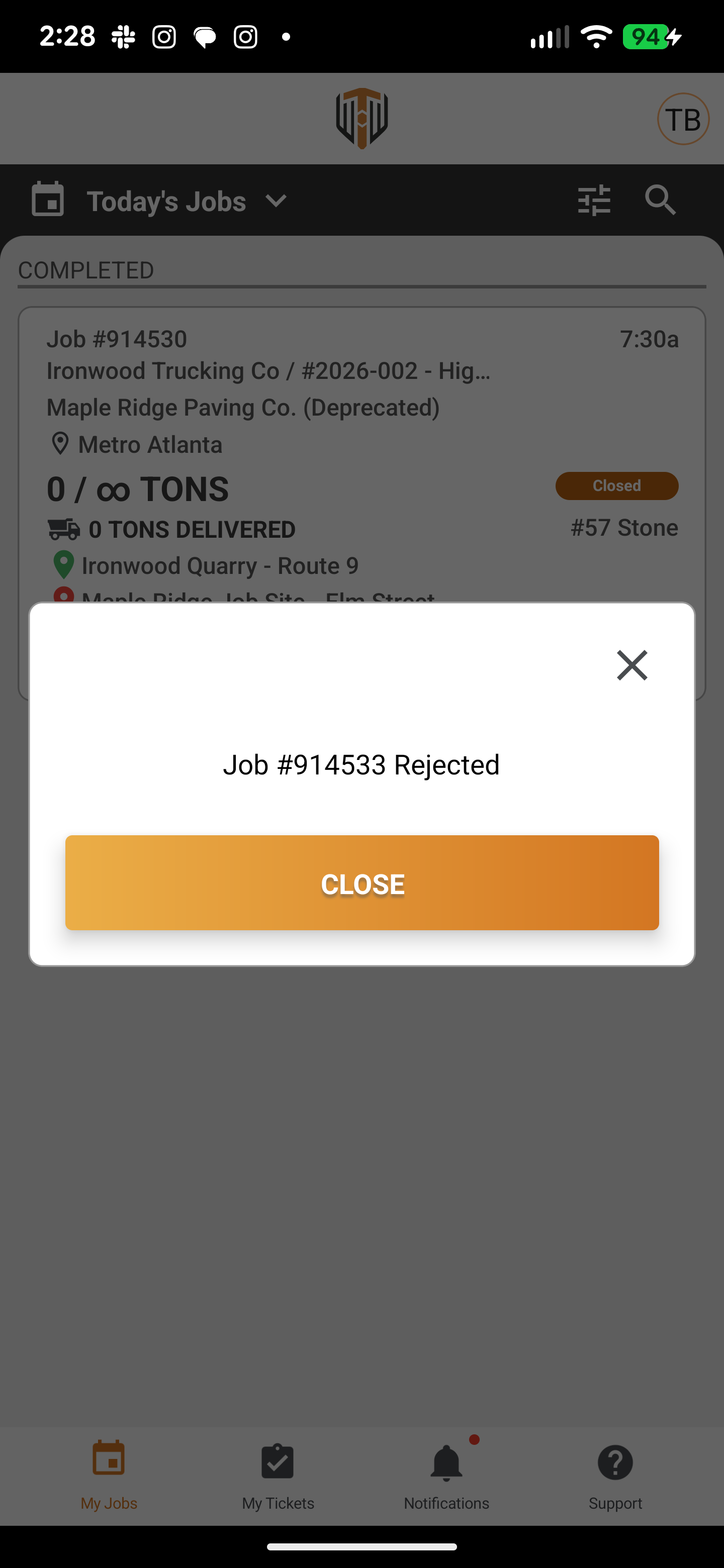
The job is now rejected.
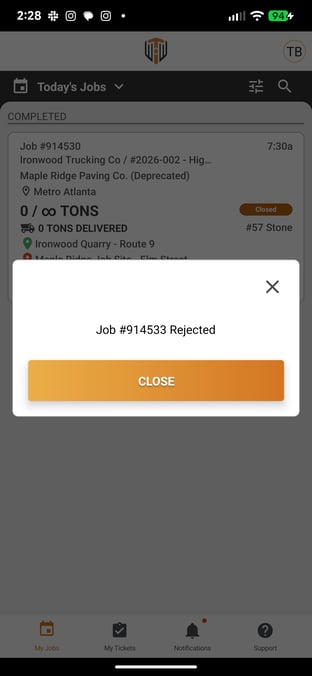
What happens after you reject a job?
After the job is rejected, the app will show a confirmation message. The rejected job should no longer appear under My Jobs.
When to reject a job
Reject a job only when you cannot accept or complete the assignment.
Common reasons may include:
- You are unavailable
- You are assigned to the wrong truck
- You received the wrong job request
- You cannot make the start time
- You were instructed by dispatch to decline the job
- The job details do not match what you expected
When possible, contact your dispatcher if you are unsure whether to reject the job.
Best practices for drivers
Use job rejection carefully so dispatchers know which drivers and trucks are available.
Recommended best practices:
- Review the job details before tapping Reject.
- Confirm you are linked to the correct truck before responding.
- Do not reject a job unless you are sure you cannot accept it.
- Contact dispatch if the job appears incorrect.
- Contact dispatch immediately if you reject a job by mistake.
- Keep mobile notifications turned on so you do not miss job requests.
Troubleshooting
I do not see the job request
Check My Jobs and confirm you are logged in with the correct driver account. Also confirm you are linked to the correct truck.
I did not receive a push notification
Check that notifications are enabled for the TruckIT mobile app on your phone. You can also open My Jobs to check for job requests manually.
I rejected the wrong job
Contact your dispatcher immediately. The rejected job may no longer appear under My Jobs after confirmation.
The job still appears after I rejected it
Refresh the app or close and reopen it. If the job still appears, contact your dispatcher or TruckIT Support.
I do not see the Reject button
The job may not be in a state that allows rejection, or your account may not have the correct access. Contact your dispatcher or company administrator.
Frequently asked questions
Where do I reject a job?
Go to My Jobs, find the job request, and tap Reject.
Do I need to confirm the rejection?
Yes. After tapping Reject, tap Confirm to reject the job.
What happens after I reject a job?
You will see a confirmation, and the rejected job should no longer appear under My Jobs.
What should I do if I rejected a job by mistake?
Contact your dispatcher as soon as possible.
Will I receive job requests by notification?
Yes. The current article notes that drivers receive push notifications for new job requests.