
TruckIT · Mobile App

Jump to a Section
Open the Job Board
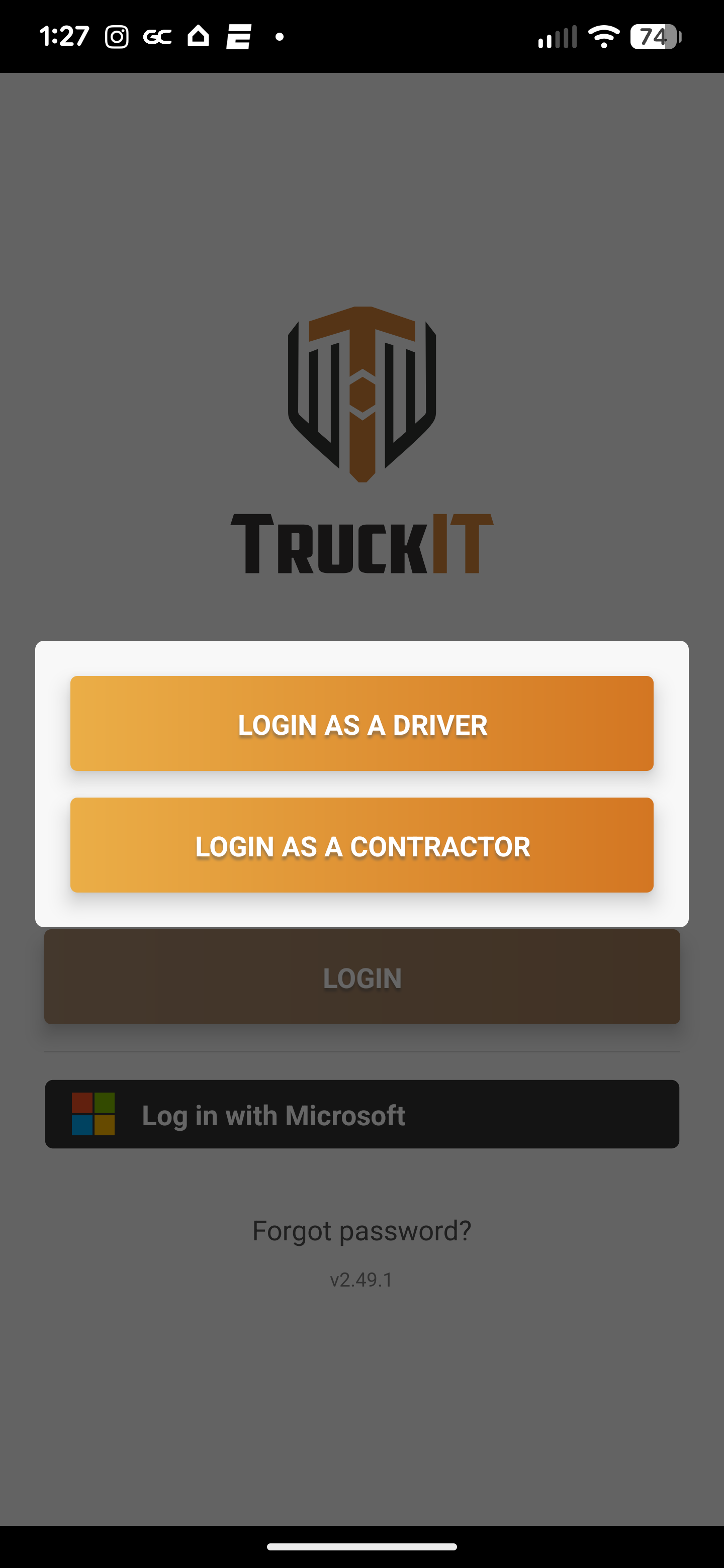
1. Log in, then tap Login as a Contractor.
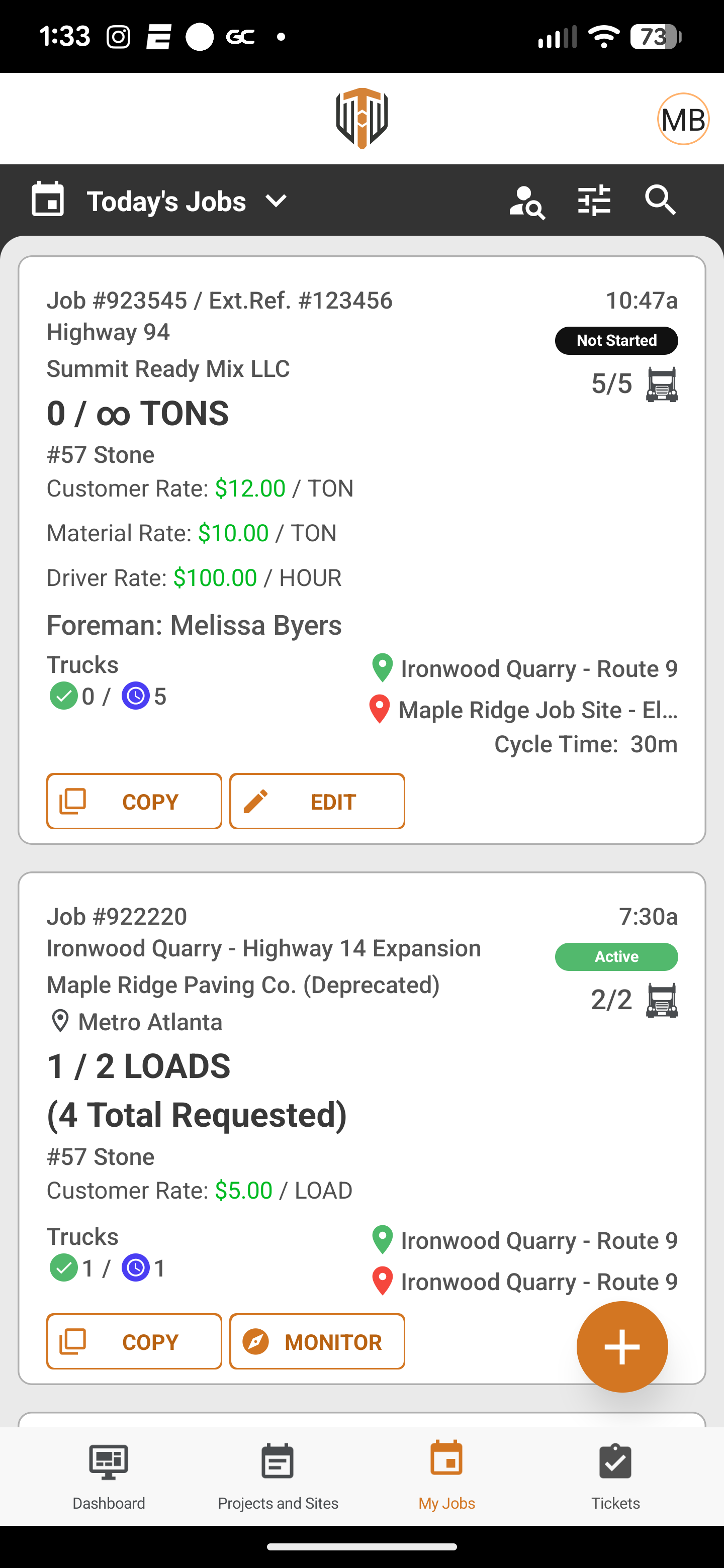
2. Go to My Jobs and tap the Today’s Jobs drop-down.
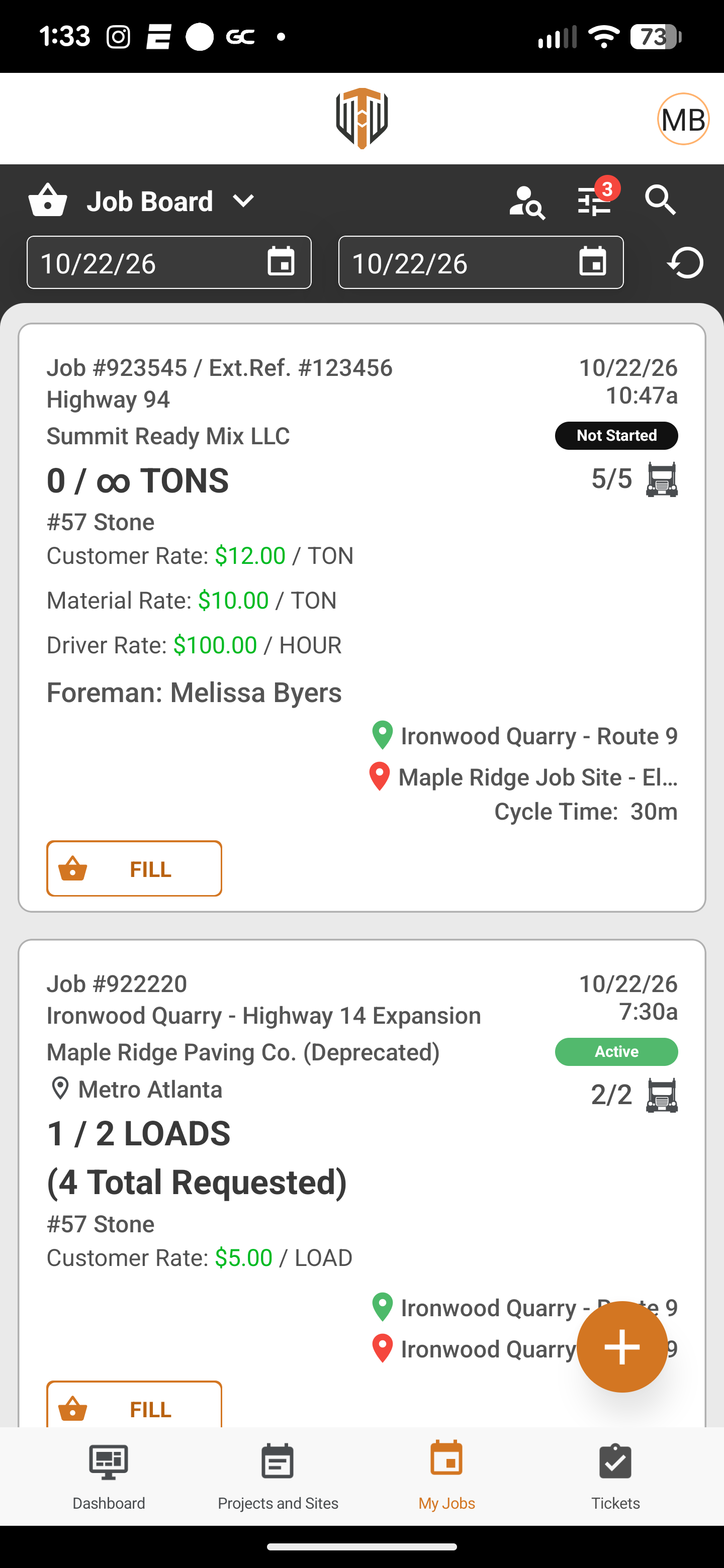
3. Select Job Board to see jobs assigned to you.
Dispatch Your Trucks
4. Find the job you want to dispatch and tap Fill.
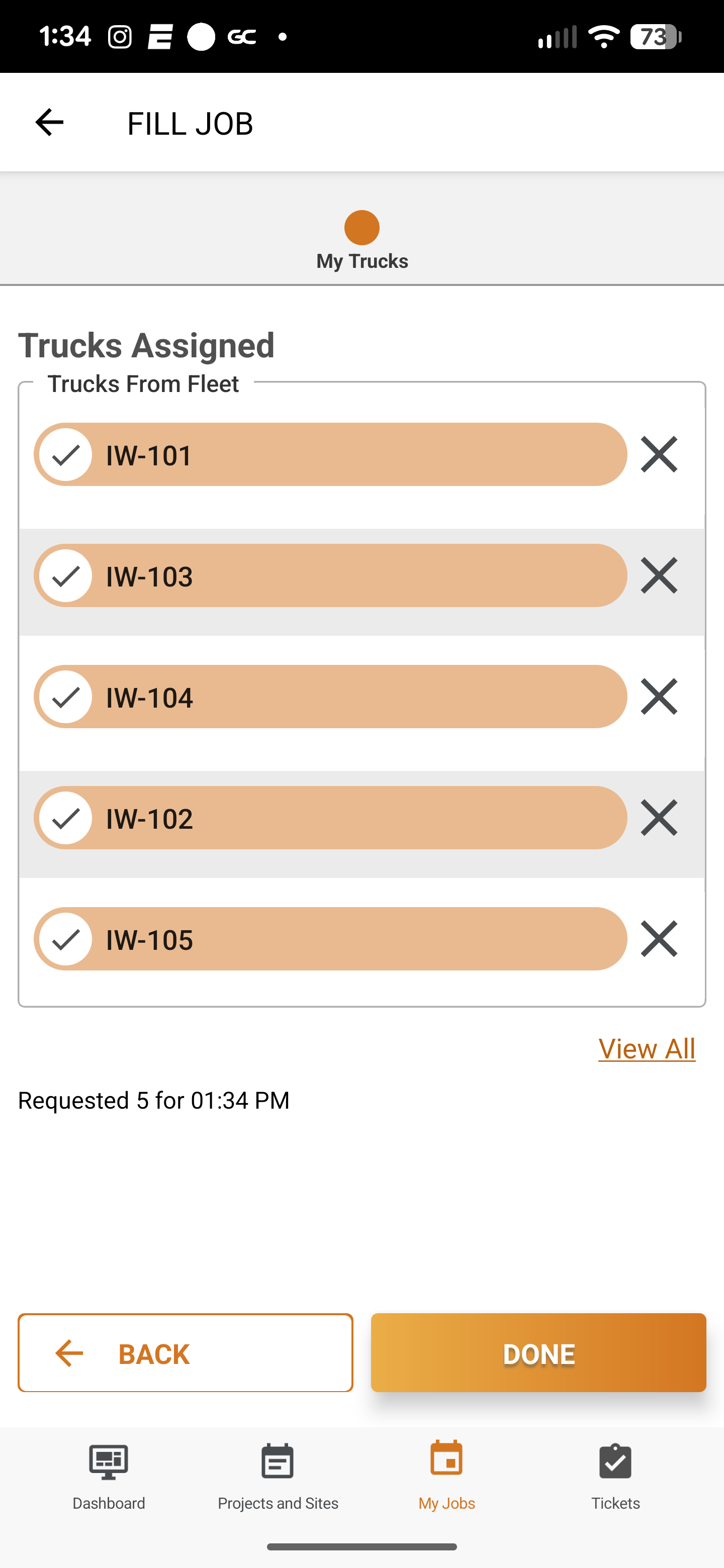
5. Tap Trucks From Fleet and select the trucks needed for the job.
6. Tap Done. The job is dispatched to the selected trucks.
Switch Back to Driver Mode
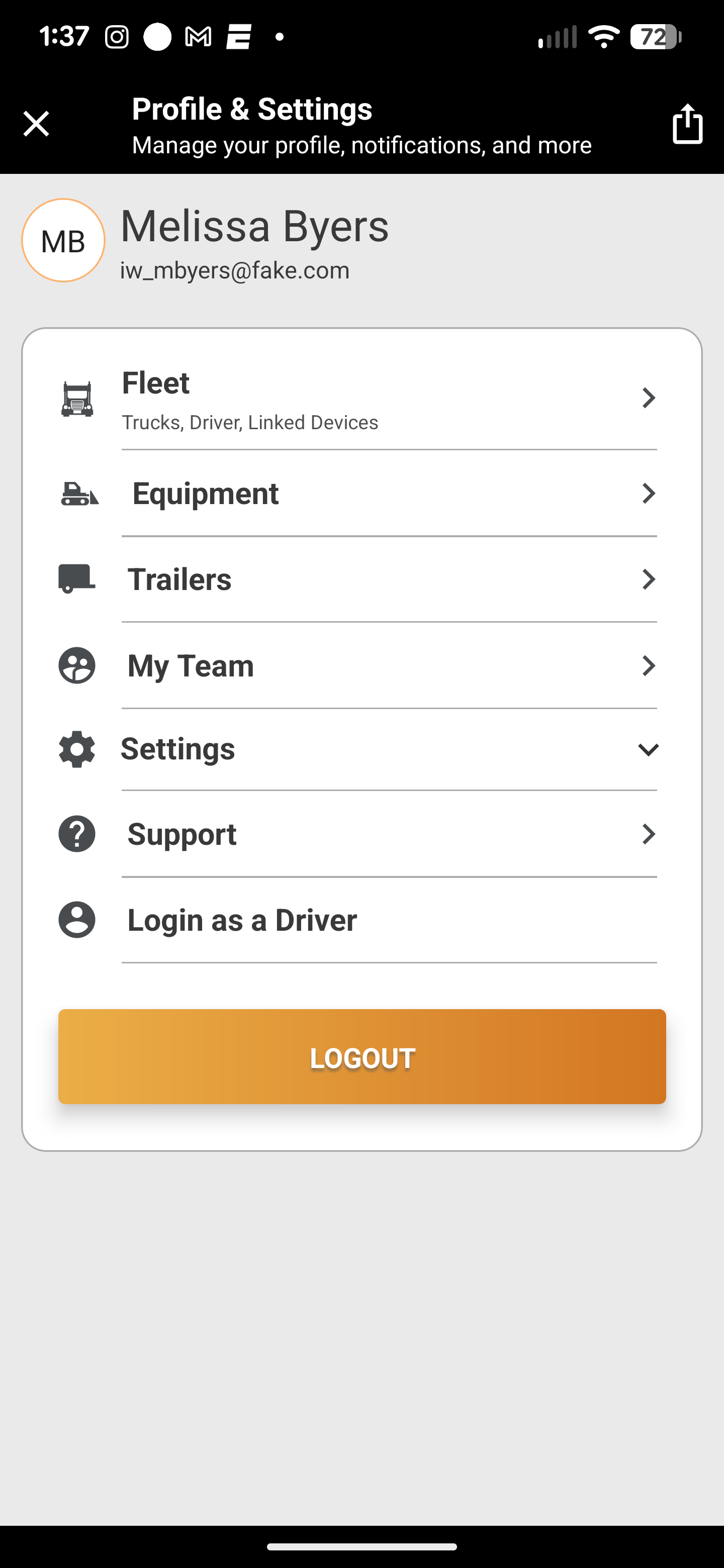
7. Tap the profile icon, then tap Login as a Driver.
8. If you’re driving, start the job when you’re ready.
 Questions? support@truckit.com