
Live Now
TruckIT · Product Update

TL;DR
What’s New
– Project & Payload Share Links Web
– Saved Ticket Filters Web Mob
– General Settings Match the Portal Mob
– IoT Devices Download Web
– New Compliance Portal Web ★ feature flag
– Search Jobs by Drop-Off Site Web
– Customer View in the Cost Report Web
– Bulk Reconcile Now Automatically Shows Unreconciled Tickets Web
– Better Support for Large Text Mob
Quality-of-Life Fixes
– Bulk Reconcile Handles 20+ Tickets Web
– Renaming Cost Report Filters Web
– Correct User Type for Contractors Web
– Clear Error for Invalid Job IDs Web
– Links Open the Right Site Web
– Smarter Unit Autofill Web
– Consistent Ticket Actions Web
– Cancel Pick-Up Tooltip Shows Right Away Web
– Simpler TicPic Report Notifications Web
– Two Drop-Off Jobs Save Correctly Web Mob
– App No Longer Hangs Mob
– Region Filter & Search in Change Truck Mob
– Subhaulers Stay on the Job Mob
– Cleaner Payload List Mob
Web Portal — What’s New
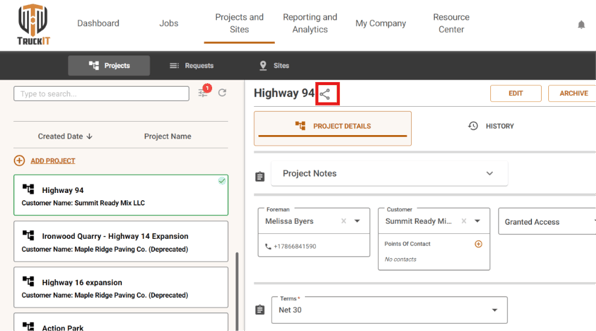
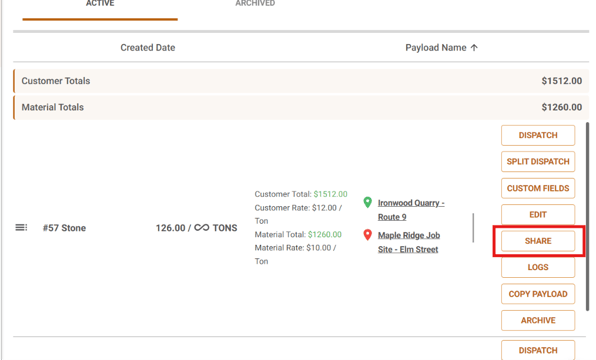
Project & Payload Share Links
What it isProjects and payloads now have their own links. You can send a link by email or copy it to paste anywhere.
Why you’ll careInstead of telling a coworker where to find a project or payload, you can send them a link that takes them straight to it.
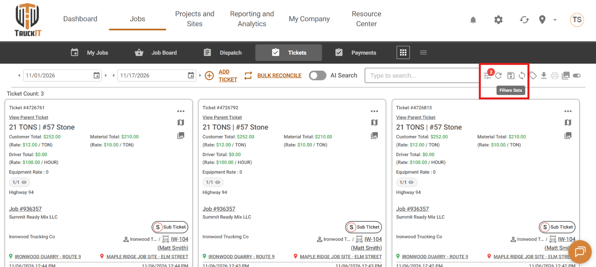
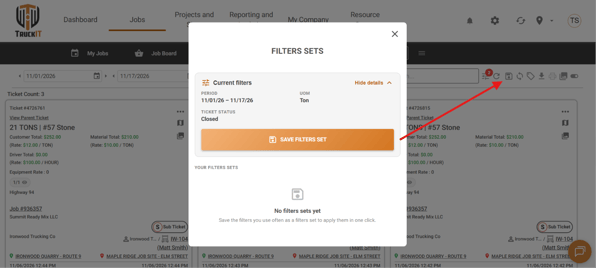
Saved Ticket Filters
What it isYou can now save the filters you use on the Tickets page and apply them again in one click, instead of setting each filter by hand every time.
Why you’ll careIf you check the same group of tickets every day, such as one customer, one project or one status, you can get straight to them. Saved filters are in the mobile app too.
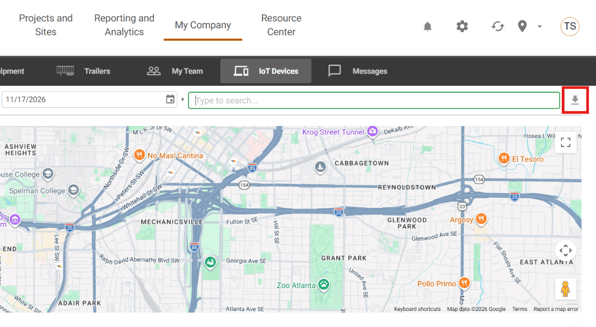
IoT Devices Download
What it isYou can now download a list of your IoT devices from the web portal.
Why you’ll careChecking which devices are installed on which trucks, or sharing that list with your team, is easier when you can open it in a spreadsheet.
New Compliance Portal ★ Feature Flag
What it isTruckIT now has a Compliance Portal in the web portal, a dedicated place to manage your compliance information.
Why you’ll careYour compliance records live in the same system you already use to run your jobs, instead of in separate files or spreadsheets.
Search Jobs by Drop-Off Site
What it isYou can now search for jobs by their drop-off site.
Why you’ll careWhen you need every job delivering to the same place, you can find them with one search.
Customer View in the Cost Report
What it isThe Cost Report can now be filtered and grouped by customer, and you can open a customer’s Cost Report straight from Customers.
Why you’ll careSeeing what you’ve hauled and billed for one customer takes fewer steps.
Bulk Reconcile Now Automatically Shows Unreconciled Tickets
What it isBulk Reconcile now opens on the first ticket in your filtered list that still needs reconciling, and after you reconcile a ticket, the next one that needs it opens automatically. You can still use the arrows to view every ticket in the list, including ones that are already reconciled.
Why you’ll careNo more clicking through tickets you’ve already finished to get to the ones that still need your attention.
★ Feature flag: The Compliance Portal is opt-in and not enabled by default. Contact TruckIT support to have it turned on for your account.
Suggested action: If you’d like to use the new Compliance Portal, contact TruckIT support to have it turned on. Then set up saved filters for the ticket views you check most often, and use Bulk Reconcile to go straight to the tickets that still need reconciling.
Mobile App — What’s New
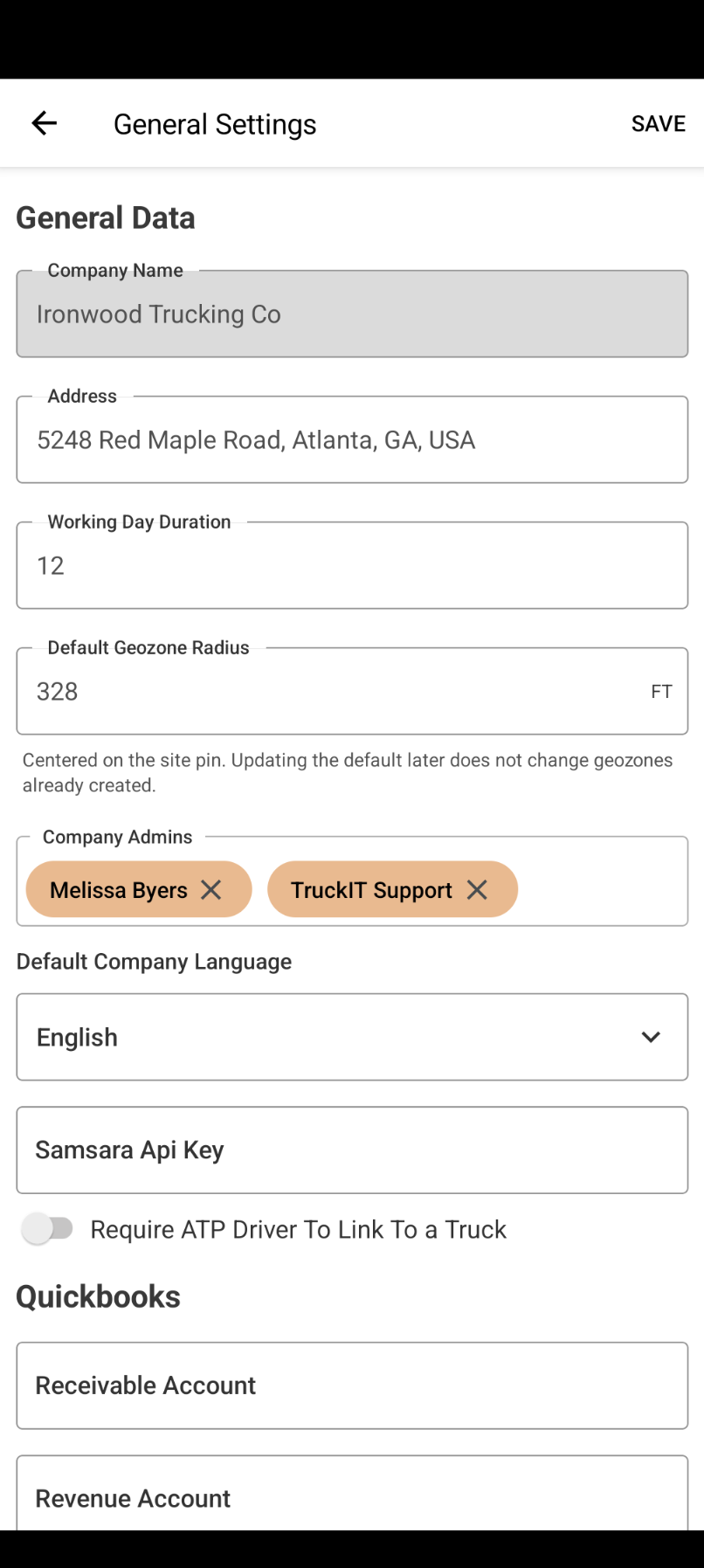
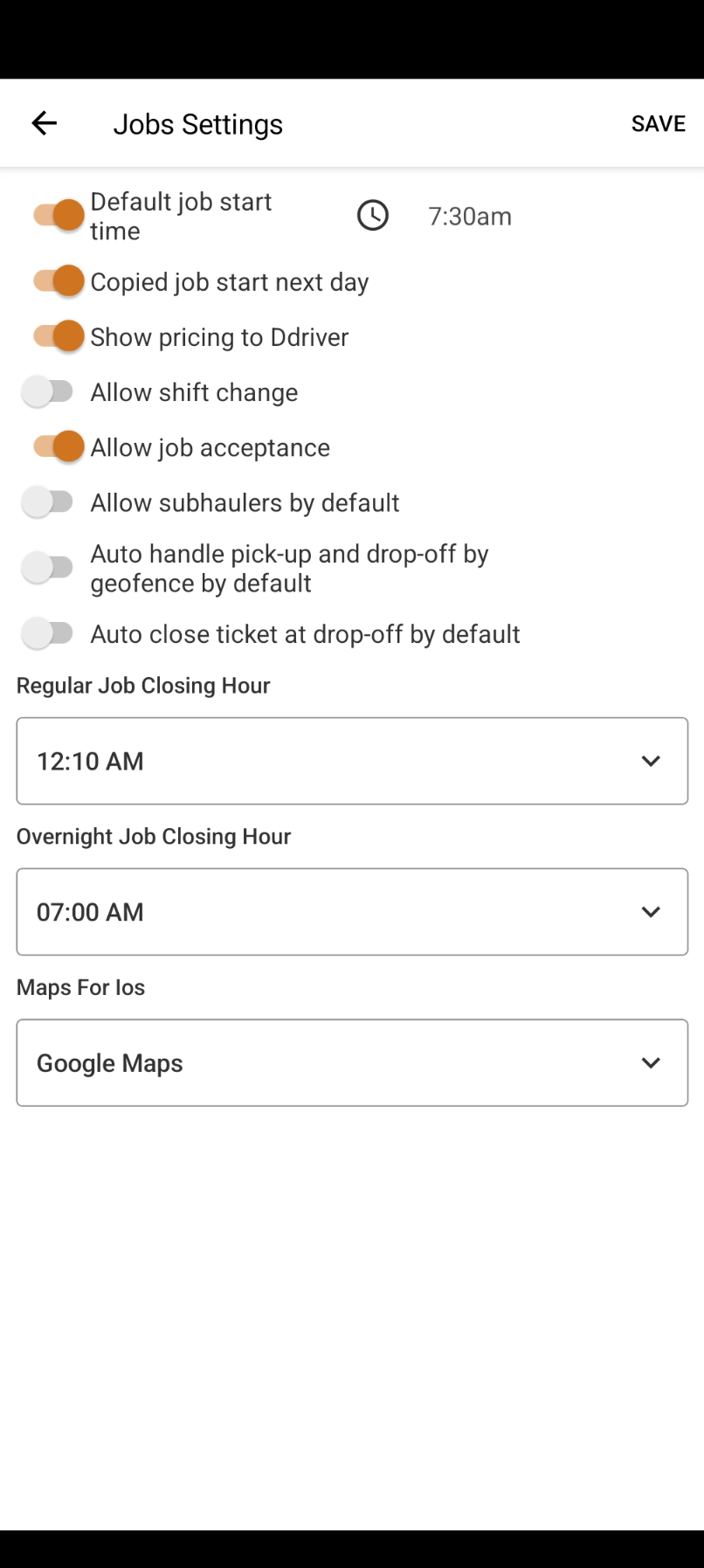
General Settings Match the Portal
What it isThe General Settings screen in the app now matches the one in the web portal.
Why you’ll careSettings are laid out the same way on your phone and your computer, so you don’t have to hunt for an option depending on where you are.
|
General Settings
|
Jobs Settings
|
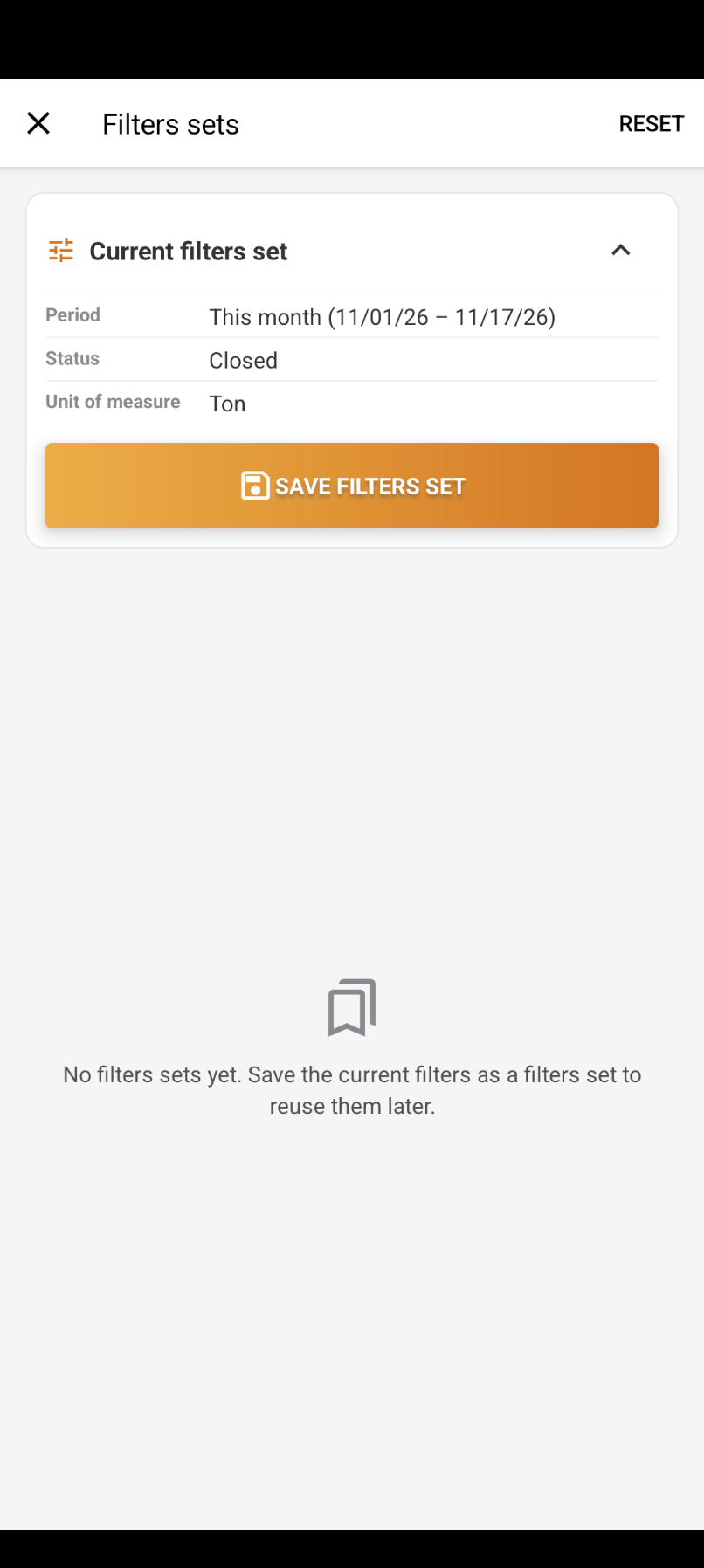
Saved Ticket Filters
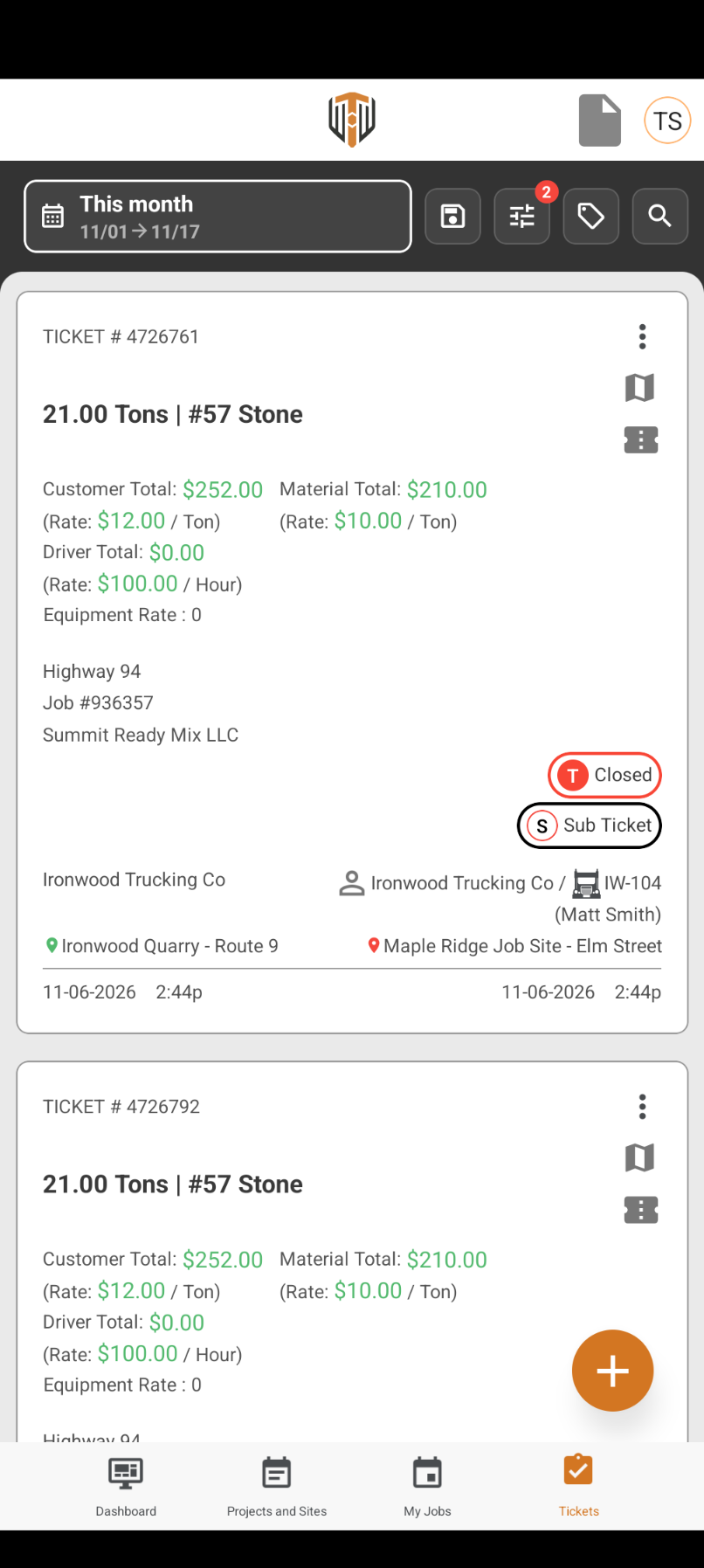
What it isSave the filters you use on the Tickets screen and apply them again in one tap.
Why you’ll careYou get to the tickets you care about faster when you’re away from your desk.
|
Tap the Save icon on Tickets
|
Save your filters set
|
Better Support for Large Text
What it isFields where you enter information now resize properly when your phone is set to a larger text size, so nothing gets cut off.
Why you’ll careDrivers who use larger text can read and fill in their information comfortably, without switching their phone back to a smaller size.
Suggested action: Update to the latest version of the TruckIT app to get saved ticket filters, the updated General Settings and this sprint’s fixes.
Quality-of-Life Fixes
Bulk Reconcile Handles 20+ Tickets Web
When you bulk reconcile more than 20 tickets, the next page of tickets now loads as expected.
Renaming Cost Report Filters Web
Editing the name of a saved Cost Report filter no longer shows an error.
Correct User Type for Contractors Web
Changing a user from Trucker-Driver to Contractor now saves the correct user type.
Clear Error for Invalid Job IDs Web
An invalid job ID now shows a clear message instead of a server error.
Links Open the Right Site Web
When you follow a link to a site, Sites now opens with that site selected.
Smarter Unit Autofill Web
The unit of measure fills in more reliably when you add a payload to a project.
Consistent Ticket Actions Web
The actions available on a ticket are now the same in the web portal and the mobile app.
Cancel Pick-Up Tooltip Shows Right Away Web
In the Notification Feed, the Cancel Pick-Up tooltip now appears without reloading the page.
Simpler TicPic Report Notifications Web
TicPic report messages in the Notification Feed no longer show an unneeded tooltip and icon.
Two Drop-Off Jobs Save Correctly Web Mob
Creating a job with two drop-off points no longer shows a “Quantity Needed” error.
App No Longer Hangs Mob
Fixed short freezes of two to three seconds that could happen while using the app.
Region Filter & Search in Change Truck Mob
Fleet > Change Truck now has a region filter, and search works on iOS.
Subhaulers Stay on the Job Mob
On Fill Job, removing a secondary subhauler no longer removes the primary subhauler too.
Cleaner Payload List Mob
Equipment payloads no longer appear in the payload list.
What you might want to do
Interested in the new Compliance Portal? Contact TruckIT support to have it turned on for your account.
Save your go-to ticket views: Set up saved filters on the Tickets page for the views you check every day.
Share links instead of directions: Send coworkers a project or payload link by email, or copy it into a message.
Download your IoT device list: Use the new download to check which devices are on which trucks.
Update your mobile app: Get the latest version for saved ticket filters, the updated General Settings and this sprint’s fixes.
 Questions? support@truckit.com