Skip to content
English
  • There are no suggestions because the search field is empty.

What’s New This Sprint | May 26th, 2026

Here’s the May 26th (2026) edition of TruckIT's sprint newsletter and a quick look at the latest updates


Summary

This sprint brings stronger controls to the Web Portal, cleaner workflows in the Mobile App, and a solid round of fixes that improve accuracy, visibility, and day-to-day reliability across TruckIT. From tighter ticket and payload controls to better contact handling, ATP updates, and mobile usability improvements, these changes are built to help dispatchers, drivers, and office teams work with fewer errors and less confusion.

These updates are LIVE now in the TruckIT Portal and Mobile Apps.

TL;DR

New in the Web Portal:

  • Prevent ticket closure outside drop‑off zone
  • Editable payload start date
  • Driver truck limit validation
  • Photo and Signature settings apply to new jobs only
  • ATP behavior and UI alignment fixes
  • Manual ticket Custom Field handling improved

New in Mobile:

  • ATP and ATPL Updates
  • Simplified contact view for drivers
  • Filter customer points of contact for dispatchers and drivers
  • Support multiple customer contacts
  • Project region disclaimer added to new job pop‑up

Quality-of-Life Fixes:

  • Prevent multiple open load tickets per truck and job
  • Manual ticket photo validation fixed
  • Subhauler truck count stability
  • Pauses display restored in ticket edit view
  • Closed job elements properly blocked
  • Validation for auto‑archive dates added
  • Secondary subhauler trucks excluded from requested count
  • External Reference and own trucks are removed on filling job
  • Offline ticket creation restored
  • Last TicPic deletion fixed
  • Geo Zone data reset on new site creation
  • Clear text for active payload options

    What’s New

    Dispatch & Web App

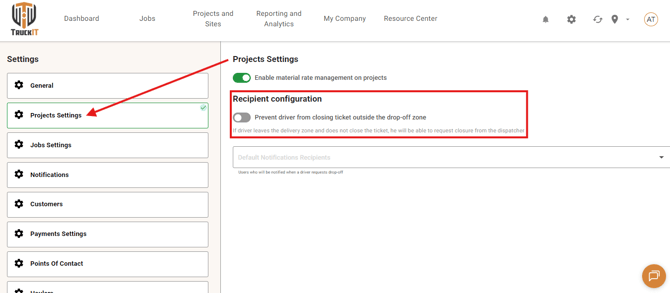
    • Prevent ticket closure outside drop‑off zone
      What it is: A new project‑level setting lets companies decide whether drivers can close tickets only when inside the designated drop‑off area.
      Why you’ll care: This control existed only at the company level, while projects could manage notification recipients. This improvement gives each project finer control over delivery accuracy and accountability.

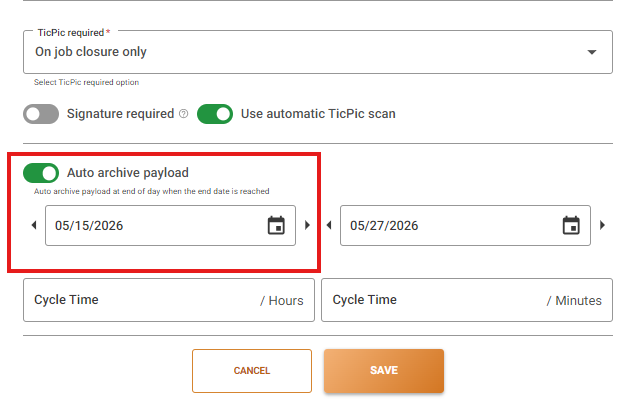
    • Editable payload start date
      What it is: The payload start date can now be edited, allowing users to align project timelines when adding ongoing work or historical data.
      Why you’ll care: This flexibility makes it easier to onboard existing projects and maintain precise records, ensuring your payload data reflects real‑world operations without manual workarounds.

    • Driver truck limit validation
      What it is: When a job has a set truck limit, drivers can no longer link more trucks than allowed. For example, if two trucks are permitted but three drivers are assigned, the third driver will be prevented from linking once the limit is reached.
      Why you’ll care: This ensures dispatch accuracy and prevents over‑assignment errors.

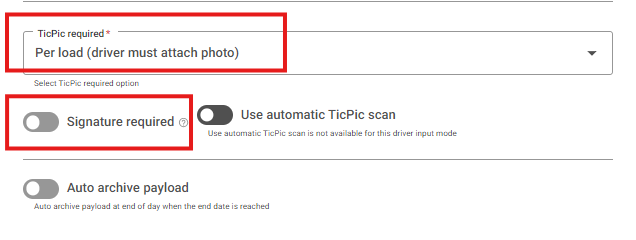
    • Photo and Signature settings under Payloads apply to new jobs only
      What it is: Now, the settings for Photo and Signature are found under each payload. When the photo or signature requirements are changed at the payload level, those updates apply only to newly created jobs. Existing open jobs will keep their original settings.
      Why you’ll care: It ensures ongoing jobs remain stable while giving flexibility to adjust requirements for future work.

    • ATP behavior and UI alignment fixes
      What it is: Several interface and logic improvements were made for ATP workflows. The “Fill in quantity based on truck capacity” option will now be disabled when ATP is active, and sub‑haulers can view ATP settings as read‑only.
      Why you’ll care: These refinements make ATP usage clearer and prevent conflicting configurations, ensuring smoother job setup and accurate ticket data capture.

    • Manual ticket Custom Field handling improved
      What it is: Custom Fields are now attached to manual tickets through a dedicated request, ensuring cleaner data flow and better backend compatibility. When creating a manual ticket, the system updates CFs only if their values are changed.
      Why you’ll care: This enhancement improves reliability when adding or editing custom fields on manual tickets. It reduces errors, speeds up ticket creation, and keeps data consistent across the platform.

    Suggested action: Try out the latest enhancements in the portal for smoother workflows and better data consistency. If something doesn’t behave as expected, perform a hard refresh of your browser (Ctrl + R or Cmd + Shift + R) and clear your cache to ensure all improvements load correctly.


    Mobile Apps (Driver, Contractor, Inspector)

    • ATP and ATPL Updates
      What it is: The mobile driver app now uses job‑level toggles for ATP, while ATPL uses a company-level toggle. ATP is determined by the job owner’s company and job settings, while ATPL permissions are read directly from company flags (ATPL can be enabled by TruckIT).
      Why you’ll care: This ensures consistent behavior across fleets and subhaulers, removes outdated driver‑level checks, and simplifies automation management. Drivers and contractors now follow clear company rules, improving accuracy and reducing confusion.

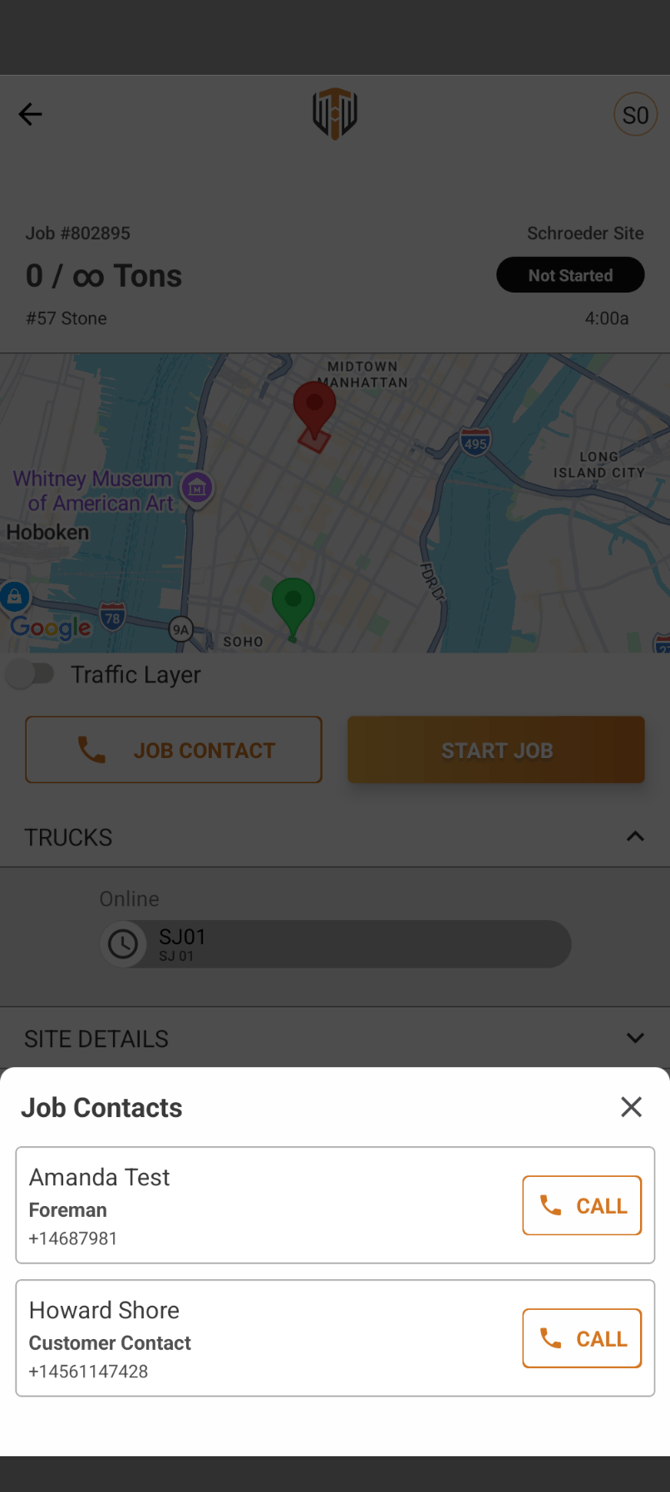
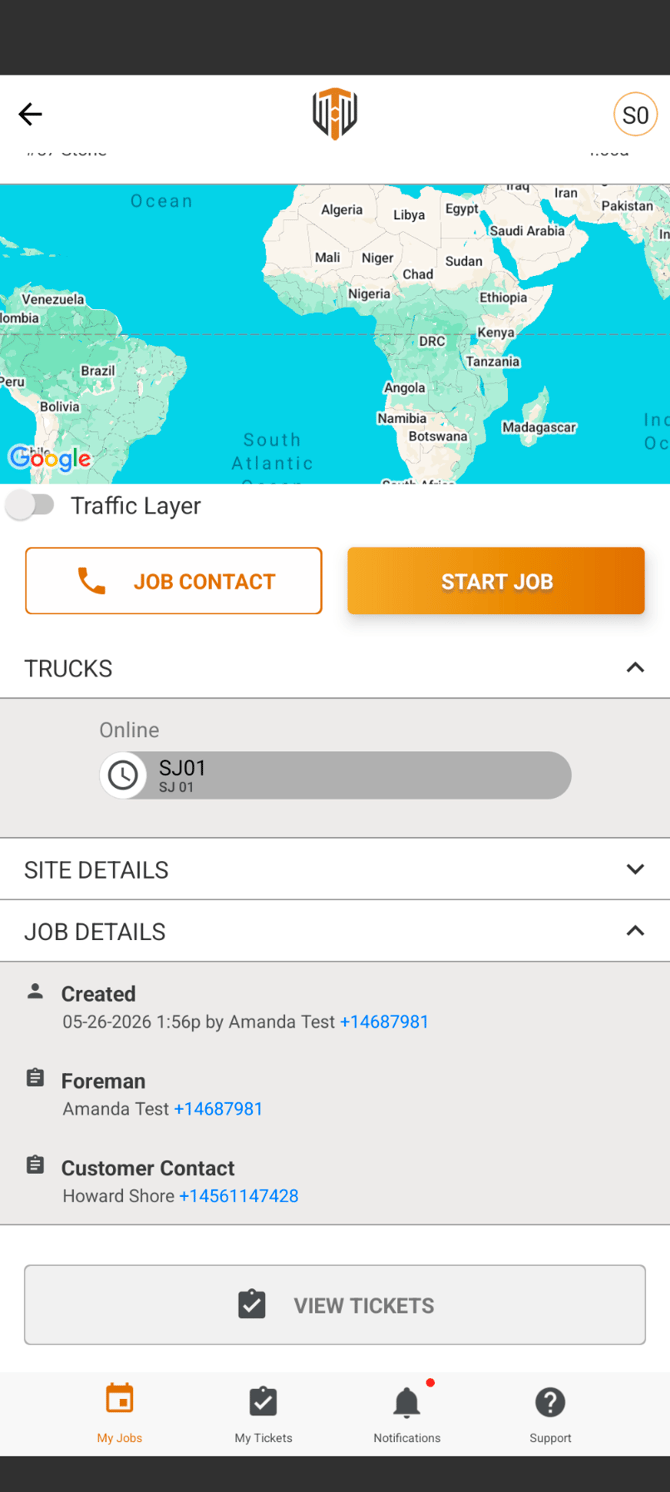
    • Simplified contact view for drivers
      What it is: The job view for drivers now shows only two sections — Customer Contact (including all customer types) and Foreman.
      Why you’ll care: The new structure makes contact information clearer and faster to access.


    • Filter customer points of contact for dispatchers and drivers
      What it is: The app now filters customer Points of Contact (PoCs) just like the web platform. This ensures drivers and dispatchers only see relevant customer contacts when managing jobs. The wording has also been updated from “Point of Contacts” to “Points of Contact” for consistency.
      Why you’ll care: This update keeps contact lists cleaner and more intuitive, helping users quickly find the right customer contact without unnecessary clutter.

    • Support multiple customer contacts
      What it is: The app now supports adding and managing multiple PoCs per customer, matching the web platform’s functionality.
      Why you’ll care: This update makes customer management more flexible and reliable across devices, ensuring all contact details are visible and properly formatted, even when phone numbers lack a “+” sign.

    • Project region disclaimer added to new job pop‑up
      What it is: The “Select Project” pop‑up on My Jobs now includes a disclaimer showing which project regions are being used for filtering. This clarification appears after the screen loads and updates when reopened after filter changes.
      Why you’ll care: The update makes project selection clearer by showing active region filters, preventing confusion when creating new jobs, and ensuring users understand how projects are being filtered.

    Suggested action: Update your team’s mobile app to ensure everyone has access to these improvements, then share the changes with your field team.

    Quality-of-Life Fixes (plain English)

    • Prevent multiple open load tickets per truck and job
      The system now blocks creating more than one open load ticket for the same truck and job line item. This change eliminates duplicate tickets caused by simultaneous actions or race conditions.

    • Manual ticket photo validation fixed
      A bug that was causing a “TicPic required” error when reconciling manual tickets without attached photos has been resolved. The system now correctly validates photo requirements based on payload settings.
    • Subhauler truck count stability
      A bug that reset the requested truck count for sub‑haulers to zero after the job owner assigned a truck has been fixed. The system now correctly preserves the original requested number of trucks.

    • Pauses display restored in ticket edit view
      A bug preventing pauses from appearing when editing hourly tickets has been fixed. The “View Pauses” and “Apply” buttons are now active and correctly show pause details.

    • Closed job elements properly blocked
      A bug that allowed editing actions on closed jobs has been fixed. Buttons like “Add Trailer,” truck counters, deletion icons, timers, and the “Copy Project Notes” and “Driver Rate” fields for sub‑haulers are now correctly disabled when a job is closed.

    • Validation for auto‑archive dates added
      The system now prevents saving payloads with past end dates when the “Auto archive” option is turned on. A validation message appears if an invalid date is selected.

    • Secondary subhauler trucks excluded from requested count
      The system now correctly excludes secondary subhauler trucks from the total requested count. Only trucks requested by the primary hauler are included in the calculation.

    • External Reference and own trucks are removed on filling job
      A bug that removed external references and own trucks when filling jobs has been fixed. These details now remain intact for both new and active jobs, even when haulers are assigned.

    • Offline ticket creation restored
      Drivers can now create tickets while offline without errors. Previously, tickets failed to sync after reconnecting, showing a “ticketId: undefined” message and returning a 400 error. The system now correctly saves and syncs tickets once the device is back online.

    • Last TicPic deletion fixed
      A bug that prevented the last TicPic from being deleted has been resolved. Drivers and dispatchers can now remove any TicPic, including the final one. The confirmation message has also been updated to read “TicPics Were Edited.”

    • Geo Zone data reset on new site creation
      The “New Site” form now starts with empty geo zone fields instead of carrying over cached data from previous entries. Each new site creation is ready for fresh input without leftover information.

    • Clear text for active payload options
      The payload edition screen for equipment jobs now displays white text for active options like “Hour” and “Ticket Every Load.” Previously, these appeared in gray, making them hard to read.

    What you might want to do

    • Review: 
      Take a look at each enhancement done on the Web Portal and the Mobile App. They are designed and implemented to streamline workflows, reduce errors, and improve visibility. See which changes can immediately boost your team’s daily efficiency. Small improvements, big impact.

    • Update Mobile App:
      Ensure your team is using the latest version to access new tools and updates.

    • Recommendation: 
      Share this information with dispatchers, drivers, and contractors, so all roles are aware of the improvements. Keeping everyone aligned will help your organization fully benefit from the enhanced clarity, consistency, and reliability across the platform.

    Help & Support