Skip to content
English
  • There are no suggestions because the search field is empty.

What’s New This Sprint | March 16th, 2026

Here’s the March 16th (2026) edition of TruckIT's sprint newsletter and a quick look at the latest updates


Summary

This release brings major improvements across the Web Portal and Mobile app, including easier load‑per‑load ticketing, searching tickets by the trailer‑name, a new “Select All” for the Message Team function, and built‑in material rate. Mobile users now see truck and trailer details expanded by default for faster access. Several fixes were introduced on this update to also enhance the reliability—improving region permissions, trailer visibility, truck assignments, payload creation, and TicPic downloads.

These updates are LIVE now in the TruckIT Portal and Mobile Apps.


New in the Web Portal:

  • Making Load‑Per‑Load Ticketing Easier (Related UoMs Combinations feature)

  • Search Tickets by Trailer Name

  • New “Select All” Option When Messaging Drivers

  • Material Rate (Related UoMs Combinations feature)

New in Mobile:

  • Truck and Trailer details now expanded by default

Fixes & Improvements:

  • Region Lock requests no longer trigger for Non‑Admin users

  • Trailer view now displays correctly on jobs
  • Assign multiple Trucks to jobs through bulk dispatching
  • Payloads can now be added from Dispatch without errors
  • TicPic now downloads correctly instead of opening full screen
  • UoM editing not allowed when jobs already exist (related to a Feature)

What’s New

Dispatch & TruckIT Portal

  • Making Load‑Per‑Load Ticketing Easier (Related UoMs Combinations feature)
    What it is: TruckIT now supports a clearer load‑per‑load ticket process. Drivers simply snap a photo and enter a ticket number for each load, with weight or volume required only when applicable.
    Why you’ll care: It removes unnecessary steps for drivers who don’t deal with tonnage, and it ensures every photo is attached to the correct load. This results in fewer mistakes, faster workflows, and cleaner reporting for your team.

image (6)


  • Search Tickets by Trailer Name
    What it is: Now you can search for tickets using the trailer name—something that wasn’t possible before. 
    Why you’ll care: This implementation saves your team time and reduces frustration when managing large volumes of tickets.

  • New “Select All” Option When Messaging Drivers
    What it is: Previously, your team had to pick each driver manually unless you used regions—now there's a much easier way. When you go to My Company → My Team → Message Team, you can click where it says “Own Drivers” and choose the new “Select All” option to message every driver at once.
    Why you’ll care: This improvement is especially helpful for teams that don't use regions. Reaching all your drivers is now faster and more convenient.
     
  • Material Rate (Related UoMs Combinations feature)
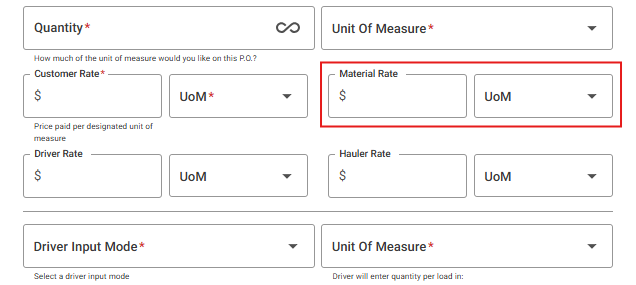
    What it is: Now you can add a material rate directly to a payload, so material costs are automatically calculated using the same completed quantity you already track. This replaces the old workaround that many customers handled through custom fields.
    Why you’ll care: Get cleaner totals, clearer reporting, and accurate material revenue without extra fields or manual calculations. Only users who should see pricing will see these numbers, giving your team the visibility they need—while keeping sensitive pricing hidden from other users.

Material-rates

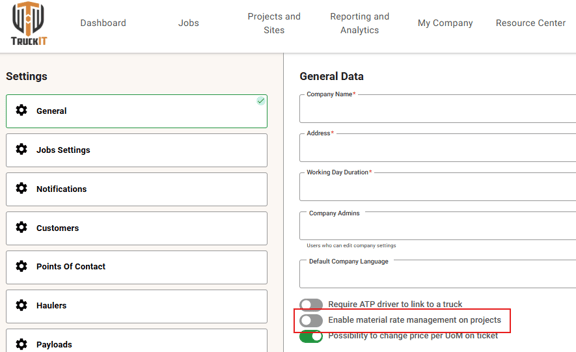
Note: This is only available for accounts with the UoMs Combinations feature. To enable the material rate, go to Settings → General, turn on “Enable material rate management on projects”.

material-rate-toggle


Suggested action: Encourage your team to start using these new improvements right away—especially the enhanced ticketing flow, trailer‑name search, and “Select All” messaging. Review your current workflows to ensure you’re taking full advantage of material rate tracking and cleaner reporting.

Mobile Apps (Driver, Contractor, Inspector)

  • Truck and Trailer details now expanded by default
    What it is: The truck and trailer section now opens automatically—just like site notes and job notes. Drivers can see their assigned trailer immediately without needing to tap or expand the dropdown.
    Why you’ll care: This makes it faster and easier for drivers hauling trailers to confirm what equipment they need to bring. Fewer taps, less confusion, and a smoother start to every job.

Suggested action: Ask drivers and contractors to update to the latest TruckIT app to see these changes.

Quality-of-Life Fixes

  • Region Lock requests no longer trigger for Non‑Admin users
    Region‑lock requests were being sent when a non‑admin user edited another user. This fix prevents unnecessary permission errors and ensures smoother user management. Non‑admin team members can now edit users without triggering actions they aren’t allowed to perform.
  • Trailer view now displays correctly on jobs
    All the truck + trailer information now displays properly for job owners, ensuring clear visibility of all equipment assigned to a job, reducing confusion and helping your team quickly confirm accurate hauler and trailer details.

  • Assign multiple Trucks to jobs through bulk dispatching
    Dispatchers can now drag trucks onto job cards in the Dispatch tab again—a bug had temporarily prevented this, and dispatchers had to open each job individually to add trucks. With the fix in place, you can once again bulk‑dispatch multiple trucks quickly and without errors. This means smoother scheduling, fewer delays, and a far faster workflow when assigning trucks across multiple jobs.

  • Payloads can now be added from Dispatch without errors
    Whenever the auto‑archive feature was turned off, there was an error preventing dispatchers from adding payloads from Jobs → Dispatch. Now, dispatchers can add payloads smoothly regardless of how your company uses the auto‑archive toggle. Now your team has fewer interruptions, fewer errors, and a more reliable workflow in the Dispatch tab.

  • TicPic now downloads correctly instead of opening full screen
    We resolved an issue where downloading a single TicPic by clicking the TicPic icon in the Tickets tab would open the image in full screen rather than initiating a download. TicPics now download properly as intended.

What you might want to do

  • Review
    Take a look at each enhancement done on the Web Portal and the Mobile App. They are designed and implemented to streamline workflows, reduce errors, and improve visibility. See which changes can immediately boost your team’s daily efficiency. Small improvements, big impact.


  • Update Mobile App
    Make sure your team is using the latest version to access new tools and fixes.

  • Recommendation
    Share this information with dispatchers, drivers, and contractors, so all roles are aware of the improvements. Keeping everyone aligned will help your organization fully benefit from the enhanced clarity, consistency, and reliability across the platform.

Help & Support