
TruckIT · Projects & Payloads

Overview
A cubic-yard job with a ticket per day lets you price a payload using cubic yards while keeping the ticketing simple: the truck's volume capacity does the math, the driver isn't asked to enter a quantity, and only one TicPic is required — when the job closes for the day — instead of one per load.
★ Before You Start: Requires the New Units of Measure Feature
This payload type is only available to companies with the New Units of Measure feature flag enabled on their account.
Don’t have it yet? It’s a free feature — just contact support@truckit.com and ask to have it added to your account.
Trucks Need a Volume Capacity
Rates calculated in cubic yards depend on the truck's volume capacity. Before setting up this payload, confirm that every truck type you plan to dispatch on this job has a volume capacity set.
How to checkGo to My Company → My Fleet and confirm there's a value in the Volume Capacity column for each relevant truck.
Step 1 — Open the Project and Add a Payload
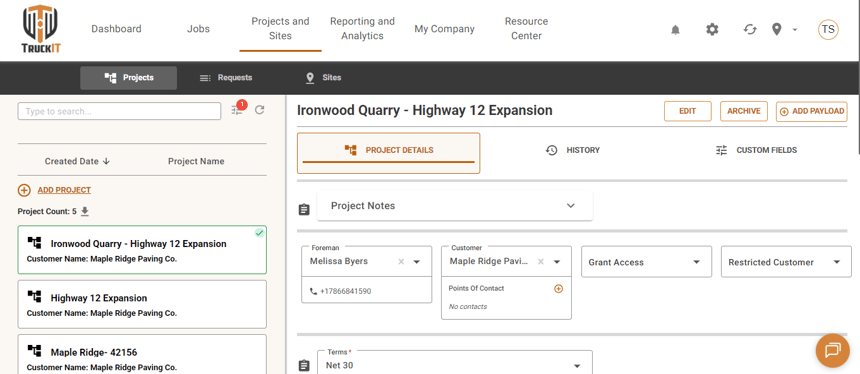
Go to Projects and Sites, search for the project the job belongs to, and click Add Payload.
Step 2 — Configure the Payload Basics
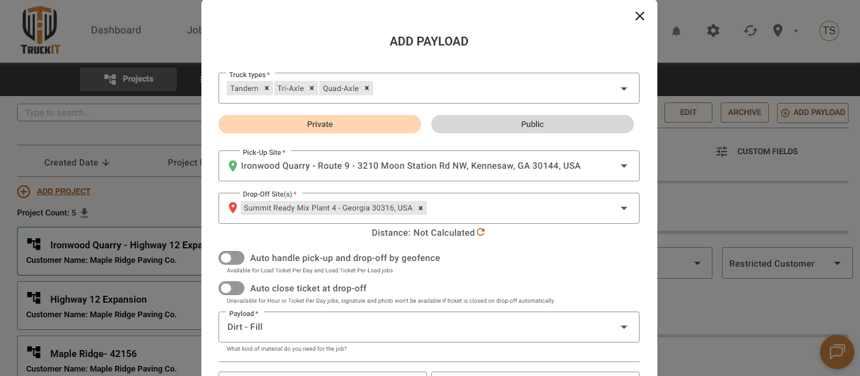
In the Add Payload window, select the truck types that will run the job once it's dispatched.
Then choose the Pick-Up Site, the Drop-Off Site, and the Payload (the material for the job).
Step 3 — Set Quantity and Rates
Set the Unit of Measure for quantity to Load.
Set the Customer Rate to Cubic Yard, and fill in the Driver Rate and Hauler Rate as needed.
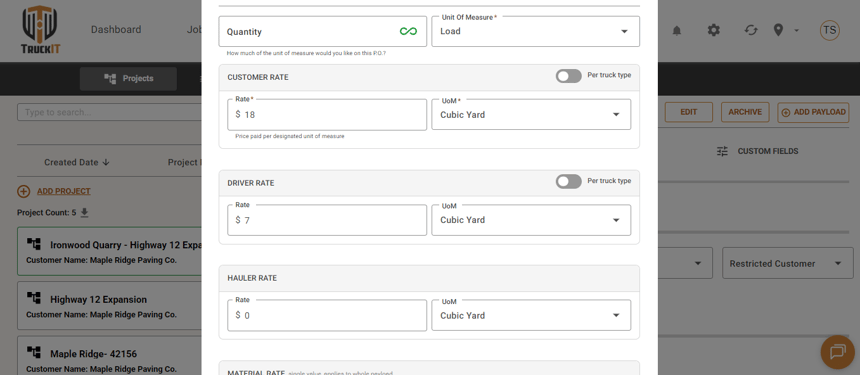
Make sure the quantity Unit of Measure is set to Load. This is what allows the ticket to calculate correctly for this job type.
Rates can't be left empty. If there's no rate for a tier (Customer, Driver, Hauler, or Material), enter 0 instead of leaving the field blank.
Step 4 — Set Driver Input and TicPic Behavior
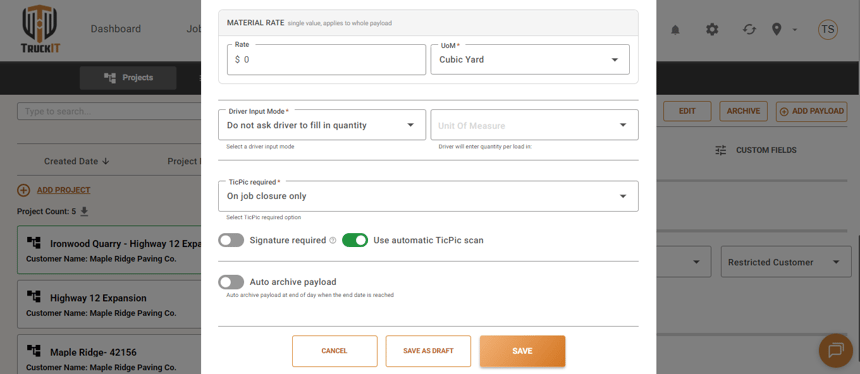
Set Driver Input Mode to “Do not ask driver to fill in quantity.” This tells the system to use the truck's volume capacity to calculate quantity instead of asking the driver to enter it.
Set TicPic Required to “On job closure only.”
Step 5 — Save
Once the rest of the payload is set, click Save as Draft to hold it for later, or Save to finish setting up the payload.
What Happens Next
For the driver: No quantity entry and no TicPic per load — just one TicPic submitted when the job closes for the day.
For the dispatcher: The ticket shows a load count with the cubic-yard total in parentheses, and rates are calculated using cubic yards — based on each truck's volume capacity. For example, if a truck's volume capacity is set to 20 cubic yards, each load that truck runs counts as 20 cubic yards, and the rate is calculated on that amount.
Related Articles
 Questions? support@truckit.com